






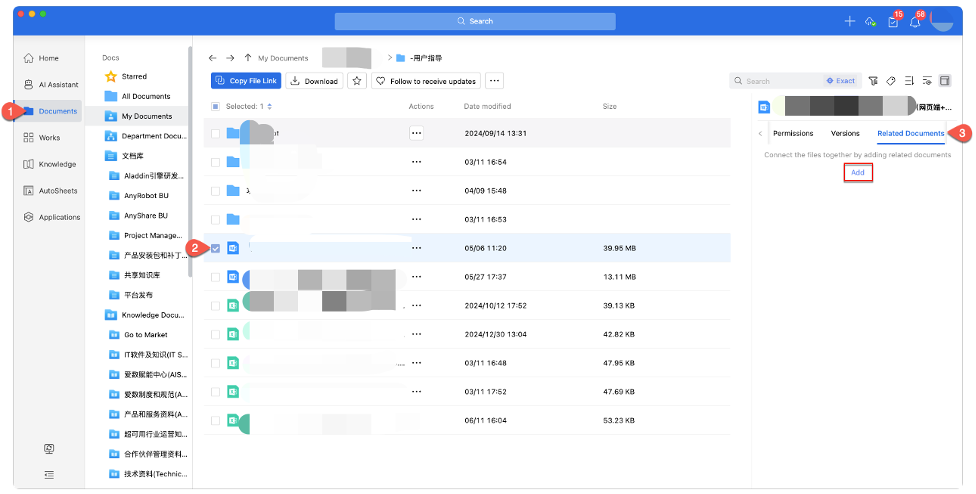
› Related Documents - to establish document relationships
Need to manage both edited and original files in AnyShare Documents?
Simply select a file or folder and use the sidebar’s Related Documents feature to configure associations, enabling quick access to related documents.
› Favorites – for quick access to frequently used content
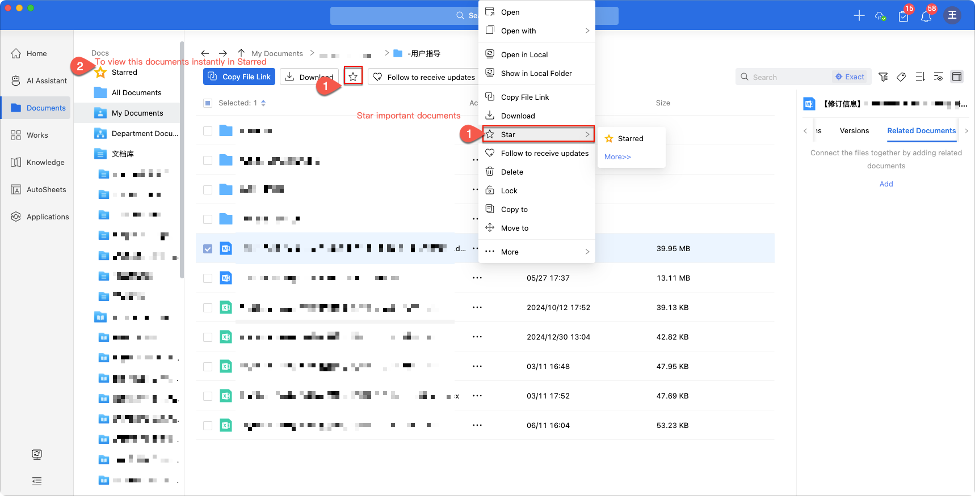
AnyShare Documents allows bookmarking files or folders for easy retrieval.
Click the “Star” icon in the client’s toolbar above. Alternatively, click [...] next to a file/folder and select “Star” from the menu. You can access all starred items via [Starred] in the Documents sidebar.
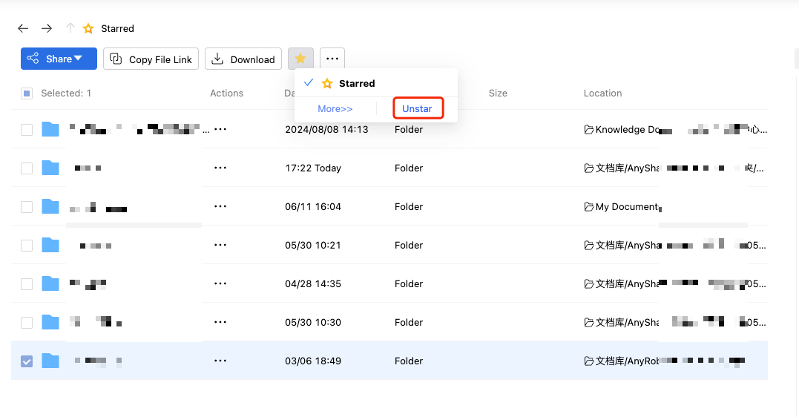
To remove, select the file/folder and choose [Unstar].
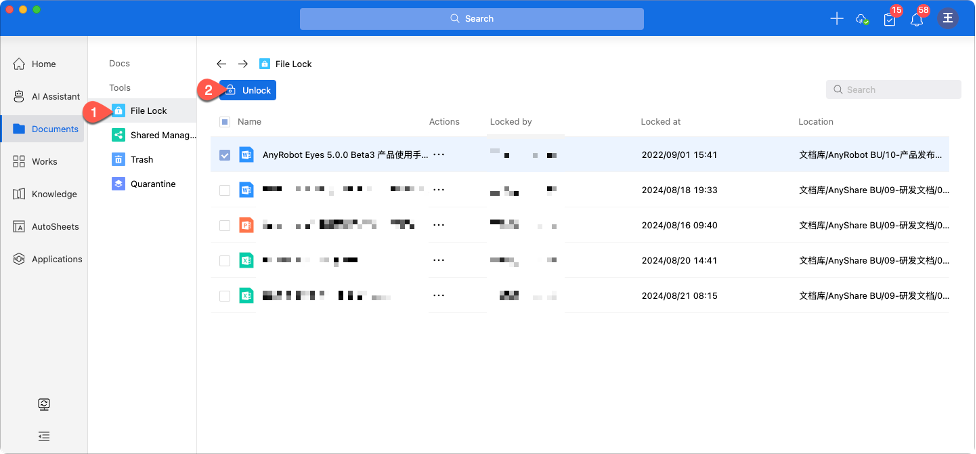
› File lock controls
Track and manage locked files via File Lock section in the Documents sidebar, displaying all files locked by you.
› Trash Management
Deleted files still consume storage quota. Regular cleanup and proper retention policies optimize space usage.
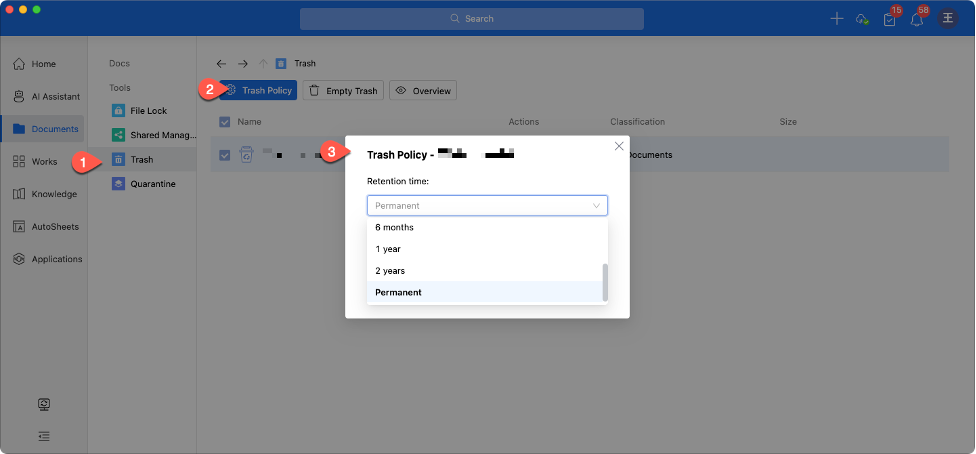
Access Trash from the Tools of Documents. Click [Trash Policy] to define retention policies, historical data exceeding this period will be automatically purged.
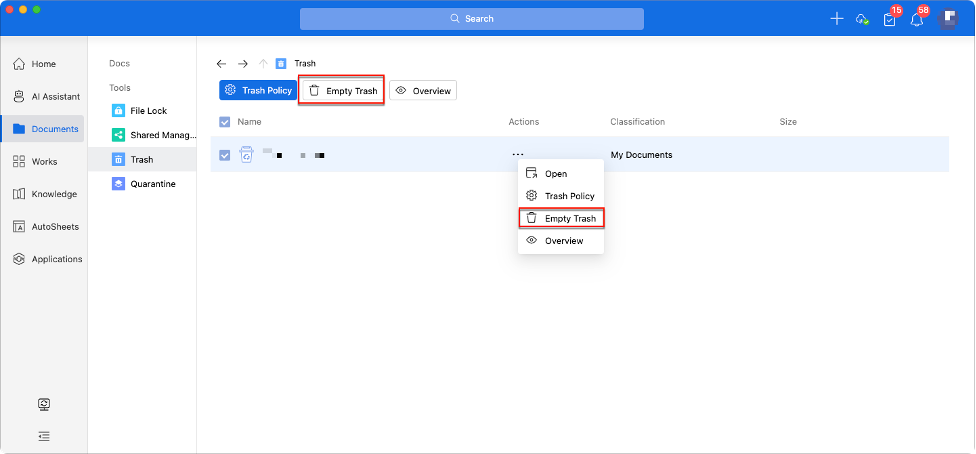
Use [Empty Trash] to free space.
› File Collection
This feature streamlines multi-user file collection within organizations, enabling users to initiate collection tasks, where contributors upload required files on notification.
Note: The administrator must activate in the Management Console after the finished the below configurations.
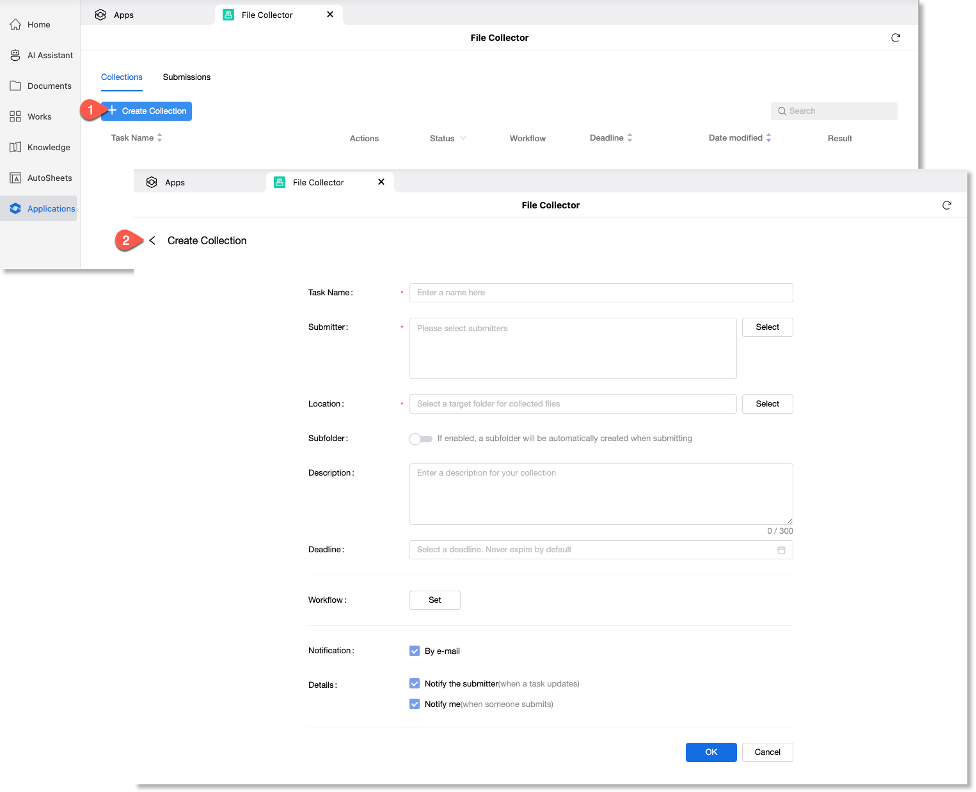
1. Create Collection Tasks (Initiator)
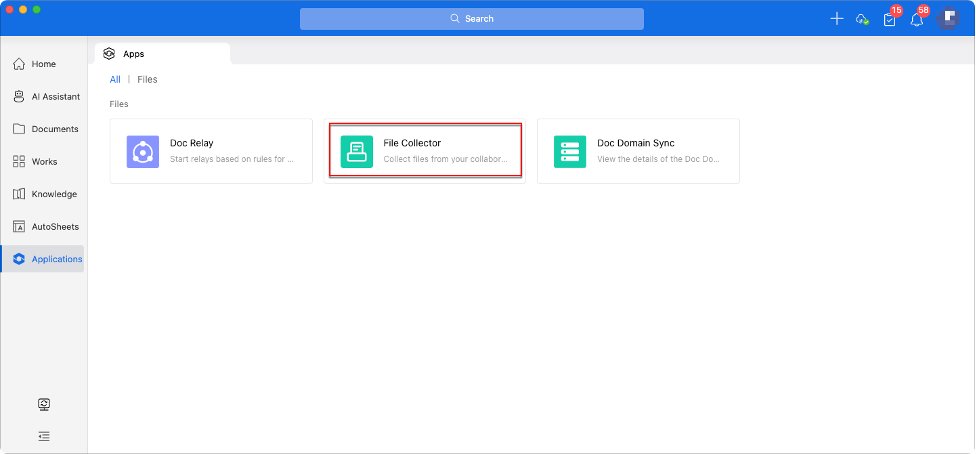
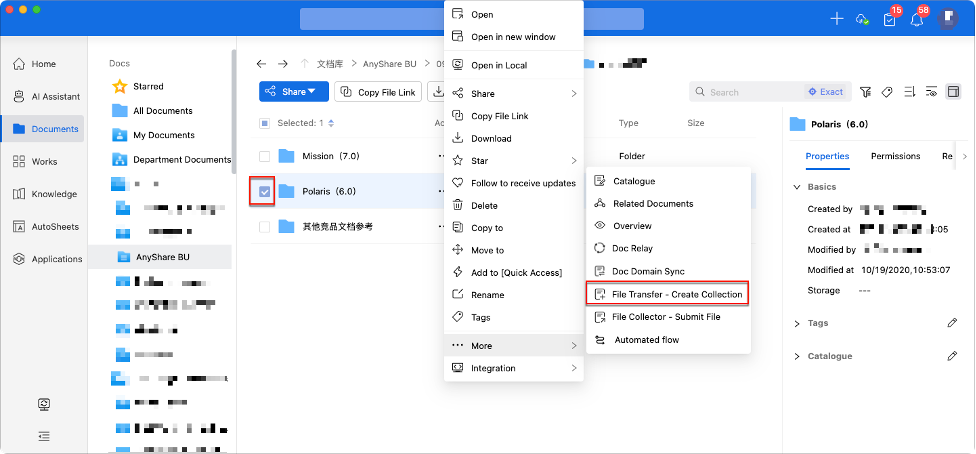
Navigate to [Applications] > [File Collector] or right-click a folder in Documents and select [More] > [File Transfer – Create Collection].
Configure task name, submitter, target location, etc. to create collection task.
2. Configure Pre-submission Approval(Submitter)
When creating a collection task, click [Workflow] > [Se]t to configure the pre-submission approval process.
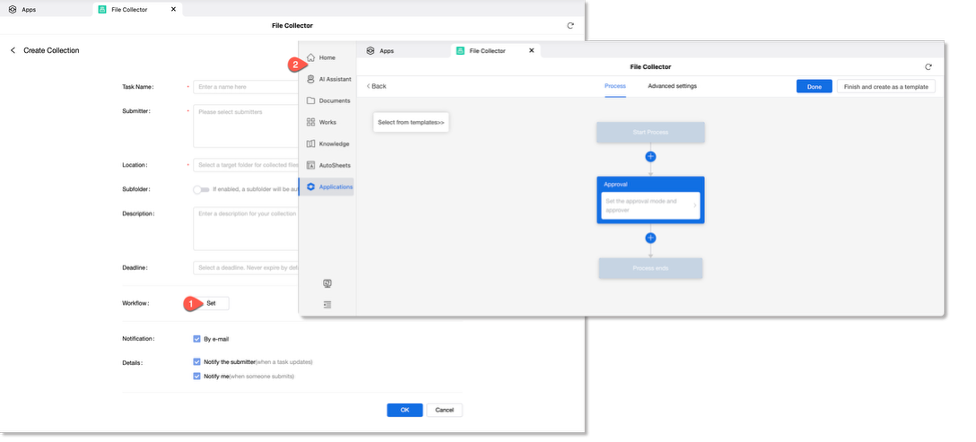
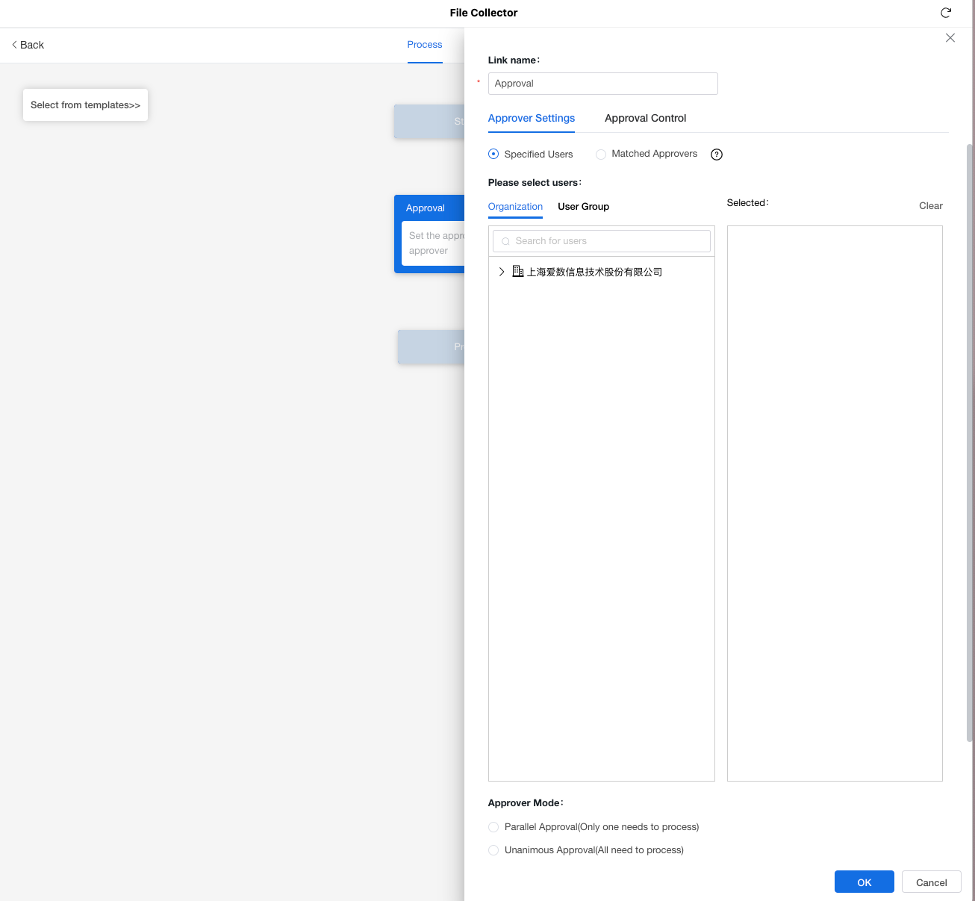
On the workflow design page, Initiators can customize the approval processes-including approval name, approvers, and approver mode-to align with organizational requirements.
3. Submit Files (Submitter)
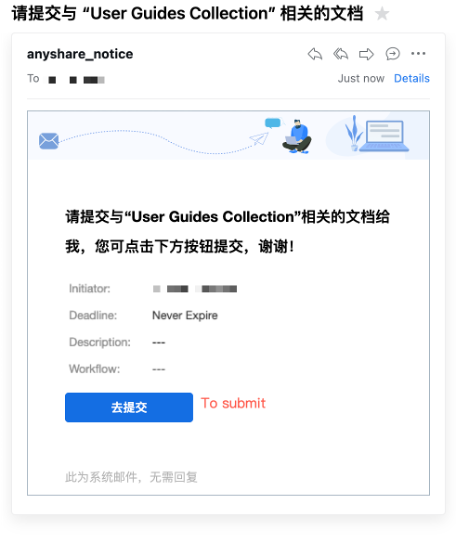
Access via email link or directly in Documents (drag-and-drop or right-click [Upload local files]/ [Select file from cloud]).
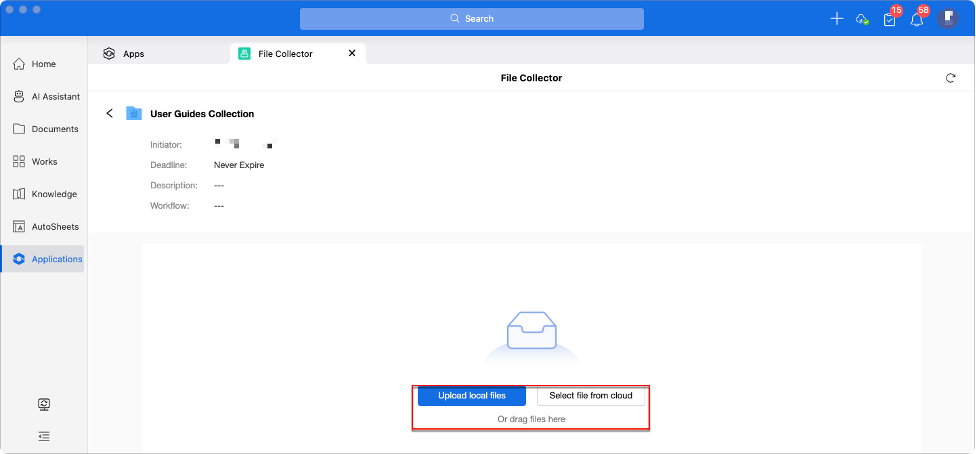
Submitters may right-click documents/folders and select [More] > [File Collector - Submit File] to directly initiate the collection process.
› Cross-Network Data Exchange
Document Domain Sync Overview
Document domains are isolated instances with independent user organizations, document systems, permission frameworks, and security policies, operating as a self-contained unit. Doc Domain Sync enables secure cross-network document transfer between domains where direct access is restricted.
Large organizations establish multiple document domains for secure data segmentation, requiring Document Domain Sync for controlled data transfer. Administrators configure these sync plans in the Management Console, enabling either automatic synchronization (triggered by administrator-defined policies) or manual synchronization (user-initiated transfers of selected files/folders between pre-configured source and target domains by administrators).
Initiate Sync
Right-click the target files/folders and select [More] > [Doc Domain Sync].
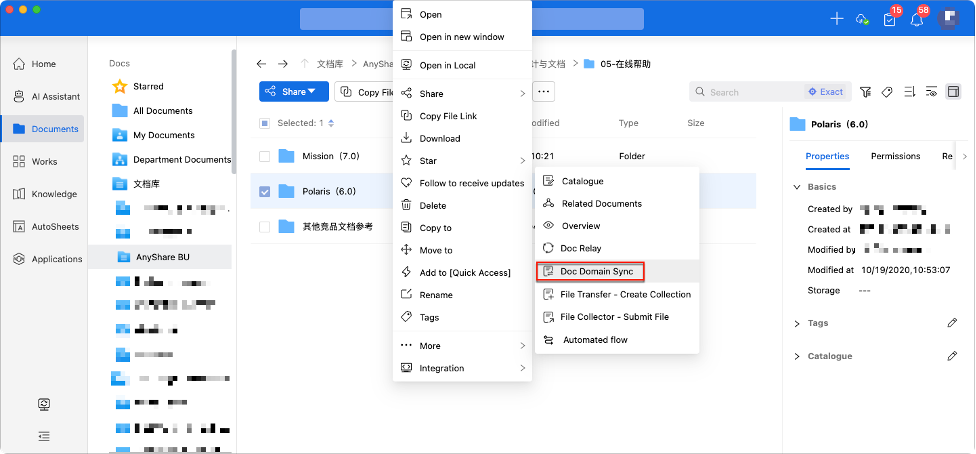
The pop-up window may display multiple sync location options. Select the appropriate sync task based on requirements and click [OK]to initiate synchronization.
When reviewing manual domain sync requests for document domains, if submitted files contain sensitive terms, the audit sidebar will display detection status. Click [View All] for detailed sensitive term analysis.

Note:
1.This functionality must be configured by administrators in the Management Console when creating new document synchronization plans.
2. The sensitive term detection in the approval workflow only becomes available when the sync plan scope is set to "Document Domain" with both sensitive content identification and approval trigger options enabled.
› Doc Format Conversion (PDF&OFD)
AnyShare Document Center (Documents) and Application Center both support document format conversion.
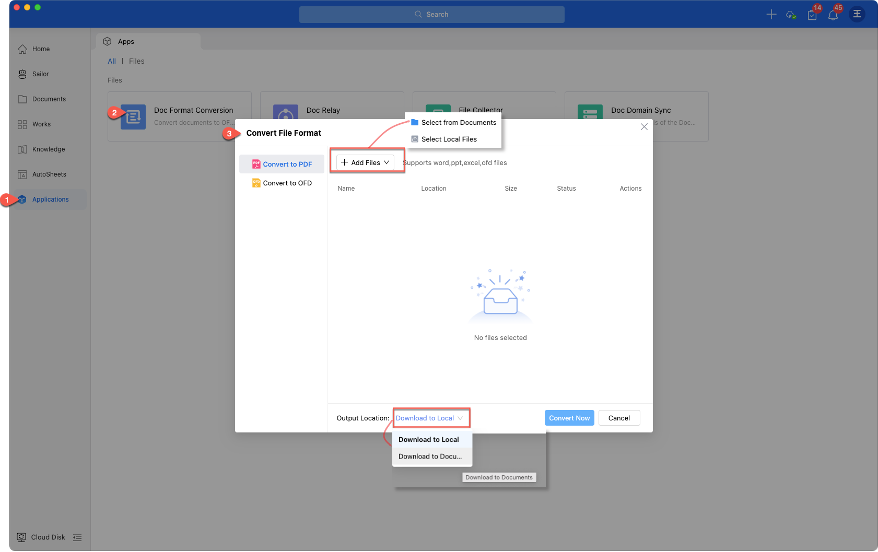
In Documents, simply right-click to convert Word, PPT, or Excel files to PDF, or transform these formats along with images and HTML into OFD.

You can also navigate to Application > Doc Format Conversion to select files locally or from the document center, then choose an output location for conversion.
› Doc Analytics
AnyShare Documents sidebar provides real-time visualized Statistics on file access, enabling data-driven operations. Key uses:
- Track training course views during new employee onboarding and remind those who haven’t accessed the materials.
- Monitor whether shared files have been viewed by clients, allowing timely follow-ups on sales leads.
- Identify which document types generate the most employee engagement, guiding targeted content strategies.
View Documents Statistics
When searching for files, users can quickly assess their relevance by checking preview/download counts. The Statistics section displays these metrics for customizable time periods, offering instant insights into access trends.
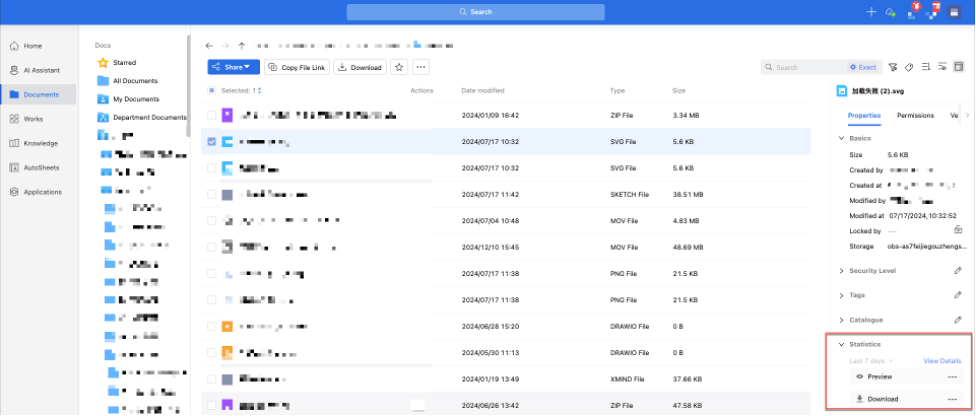
For granular analysis, click “View Details” to view detailed visitor records—including whether target users have opened files. Owners can export this data to streamline access analytics and reporting.
› Doc Indexing
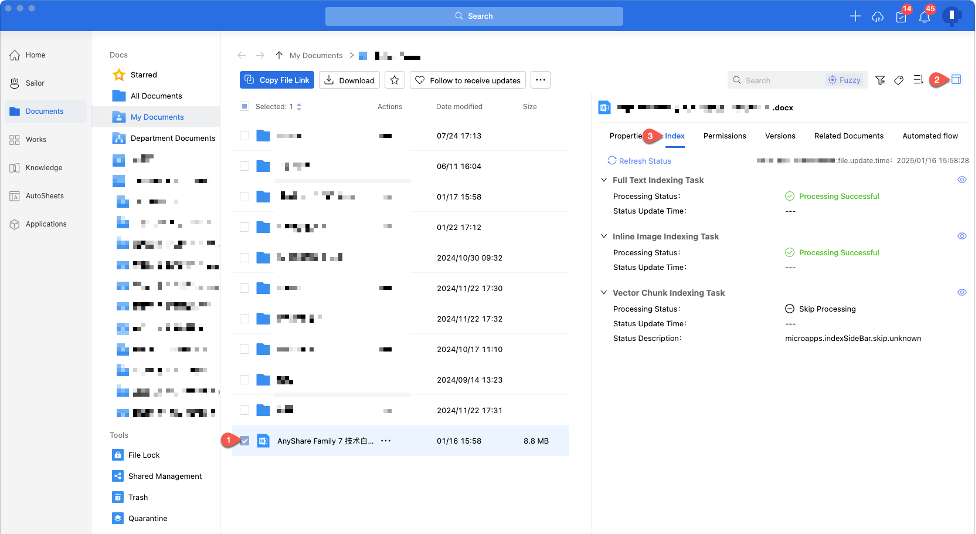
All data in AnyShare Documents must be indexed before it becomes searchable and usable for AI-powered search and intelligent Q&A. Both Documents and Knowledge Center allow you to track indexing progress and status for each document, helping to quickly identify and resolve issues.
To view indexing task status for a document:
1. Go to Documents and select the desired item, open its info sidebar and switch to the “Index” tab, where you can check the status of full-text, vector, and inline image indexing tasks.
2. The sidebar also displays the latest update time of the file (i.e., the latest version timestamp), and you may click [Refresh Status] to manually update the indexing status.
Note:
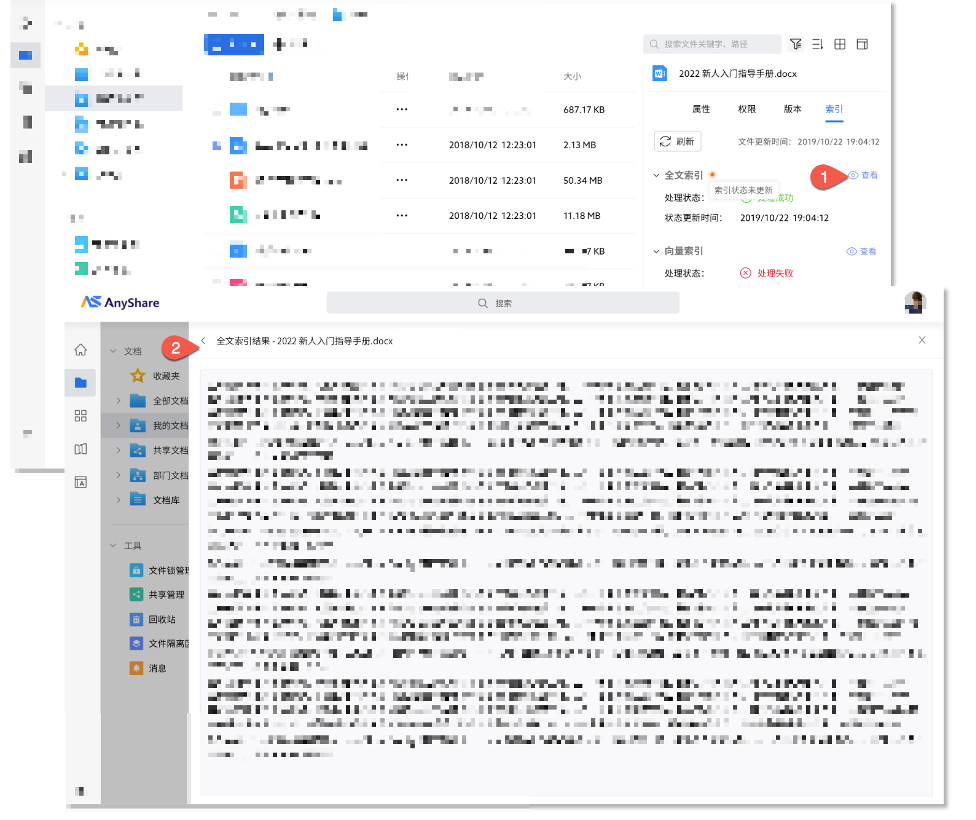
1)Index Task Indictor: An orange indicator appears if the file was modified after the last index update, signaling that the index is outdated. No indictor is shown if the index status update time is empty, or if the index is current.
2)Task Status:
Failed:Indexing failed due to high server load, timeouts, or missing index data. Check the error details for resolution.
Skipped: Indexing was skipped due to size, format, empty or sensitive content, or extraction issues.
Pending: The file (newly updated or edited) is waiting to begin indexing. This may occur while awaiting resource preparation (e.g., OCR text extraction) or system availability.
Processing: The indexing task is in progress.
If the user has preview permission for the file, they may click the “ ” button to view indexing results; otherwise, access is denied.
Note: Administrators can customize the document sidebar (e.g., properties, permissions, index, versions) in Management Console > Custom Configuration for Clients > File Custom Settings > Document Information, including adjusting tab order and visibility.