






In AnyShare Family 7, Cloud Disk is available for AnyShare Windows/mac OS Client., which can help you to keep the local and cloud data consistent, and enjoy the unified operating experience of the Windows System.
Before your actions on Cloud Disk, you need to set the path to save the cloud disk cache data. You can set it directly through novice guidance, or right-click the AnyShare tray icon to enter the [Cloud Disk] > [Settings] > [Cache] page, click the [Browse] button, select the path to save the cloud disk cache data, and then click the [OK] or [Apply] button.
After setting the path to save the cloud disk cache data, you can perform the following operations:
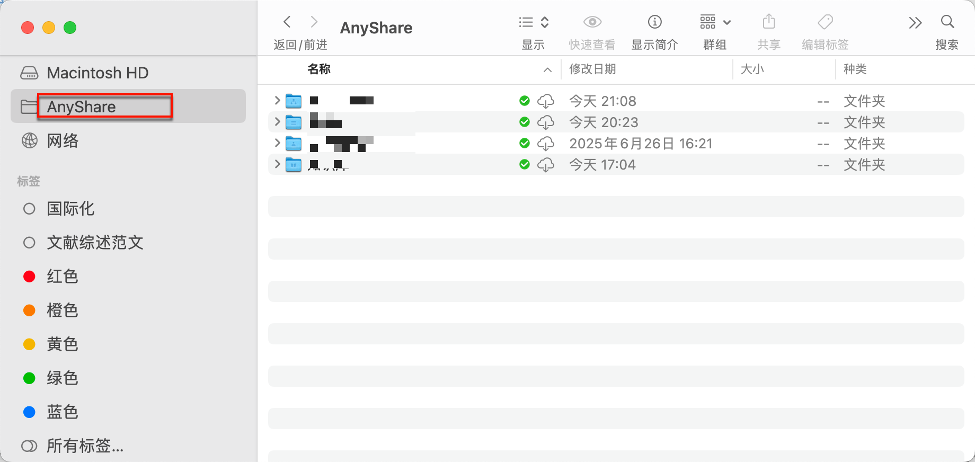
Open Cloud Disk from the lower left corner of AnyShare Windows/mac OS Client, and you will see all the Documents displayed on the Windows Explorer page.
Figure-Cloud Disk overview (Windows Client)
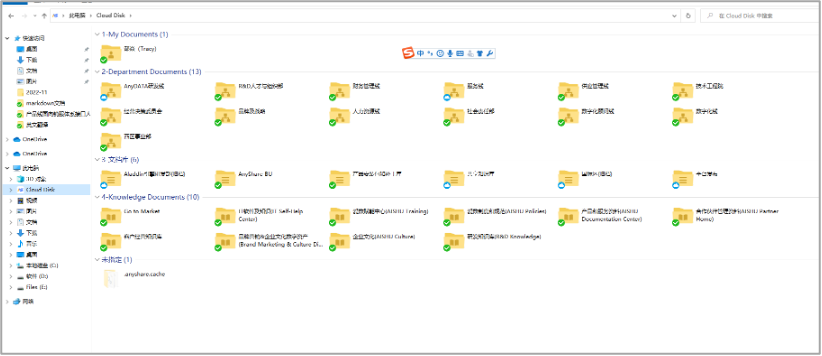
Figure-Cloud Disk overview (mac OS Client)
All your local operations will be synchronized to the cloud, and all the changes from the cloud will be updated locally as well. You can drag files or folders from other locations directly to Cloud Disk.
Cloud Disk Advantages
• Familiar Windows/mac OS Experience: Delivers native Windows operation patterns to minimize learning curves.
• Simplified File Uploads: Automatically syncs edited files to AnyShare cloud without manual transfers.
• Bi-directional Synchronization: Maintains real-time sync between local cache/sync folders and cloud storage to ensure latest version access.