






Create a Knowledge Circle
To facilitate ongoing discussions and collaborative learning around specific topics or projects, creating a Knowledge Circle in the Knowledge Circle in the KnowledgeCenter can significantly enhance efficiency.
A Knowledge Circle brings together people and knowledge across the organization, serving as a centralized hub for all related documents and valuable insights. It enables collective review, maintenance, and knowledge exchange, fostering consensus-building and sparking innovation through collaborative efforts. Even new members can quickly review historical knowledge to rapidly get up to speed on any topic.
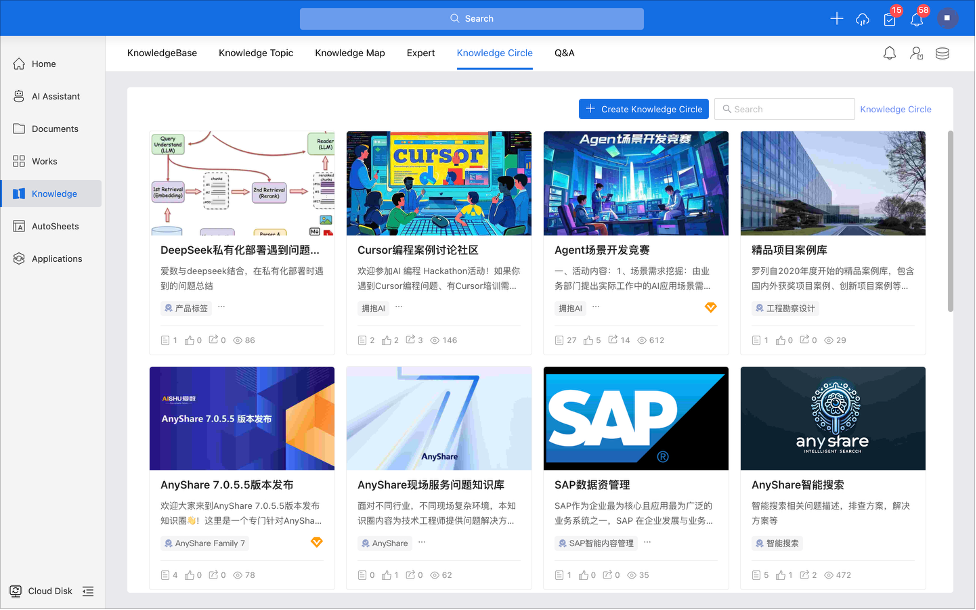

› How to create a Knowledge Circle?
Navigate to Knowledge> Knowledge Circle, then click [Create Knowledge Circle] in the upper-right corner. On the configuration page, you need to enter a circle name, upload a cover image, add a description, assign tags and invite members.
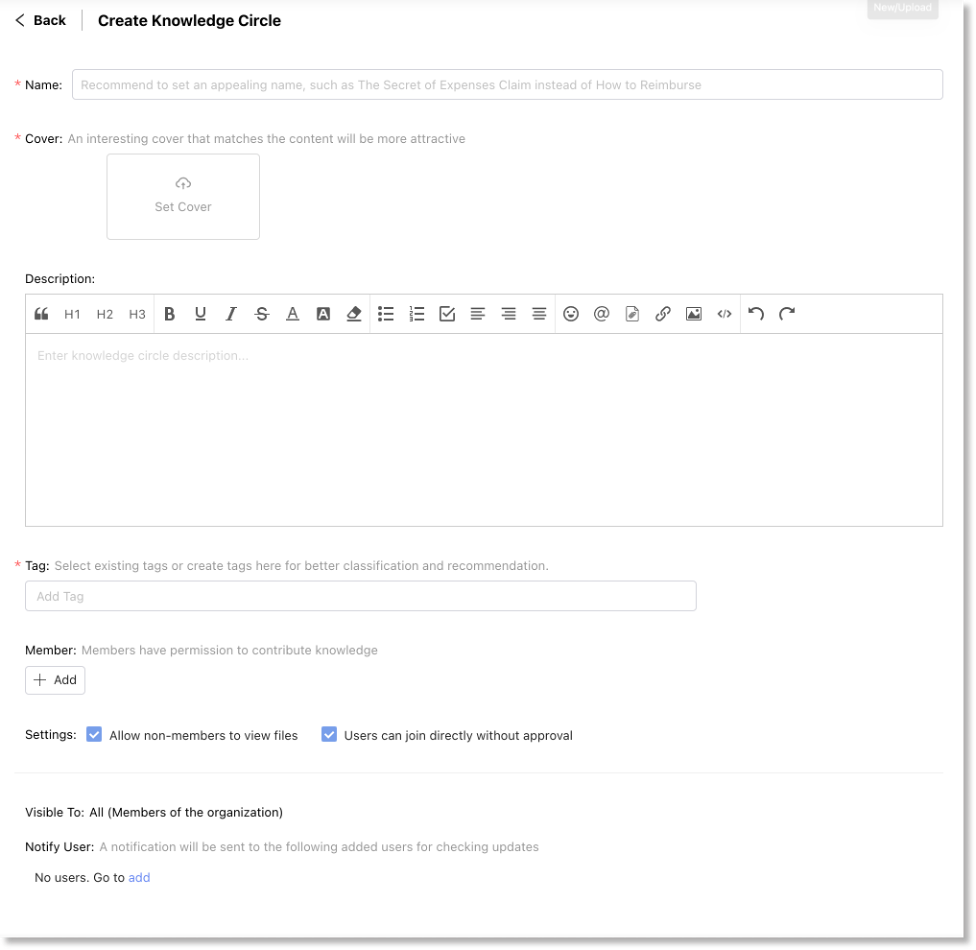
If a similar Knowledge Circle exists, the system will display a prompt when entering the circle name, allowing you to jump directly to the existing circle or decide whether to follow or join it.
› How to quickly find your desired Knowledge Circles?
Numerous Knowledge Circles emerge—ranging from role-based professional circles to onboarding icebreaker groups and project-specific communities. How can you efficiently navigate these diverse circles?
1. Search
Enter keywords related to your interests in the search bar, and you can also apply filters to refine results and quickly locate relevant circles.

2. Follow
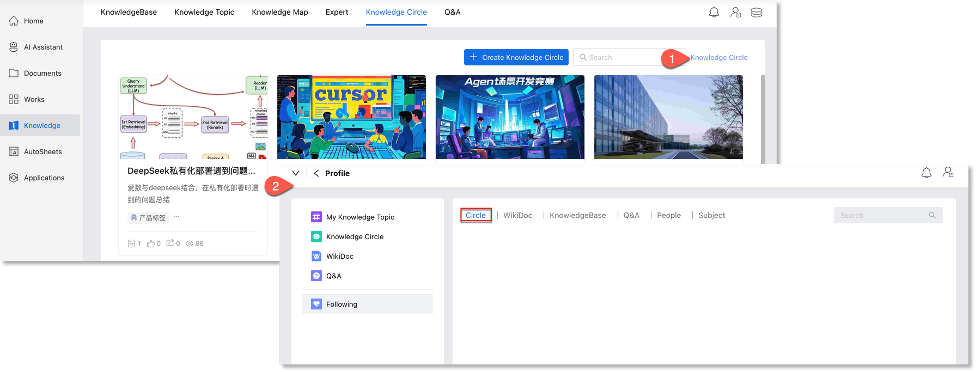
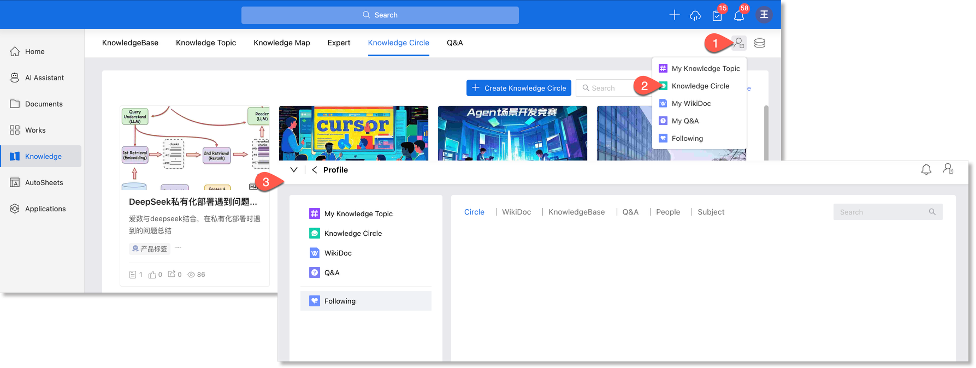
After following a circle, access it anytime via the Knowledge Circle > Following > Circle.
› How to ask a question?
When facing a challenge without a clear solution, leverage collective expertise by posing questions to organizational experts and colleagues. Gathering diverse feedback can help you quickly identify the best approach.
How to use?
1. Navigate to KnowledgeCenter > Q&A > [Ask Question] to open the question editor.
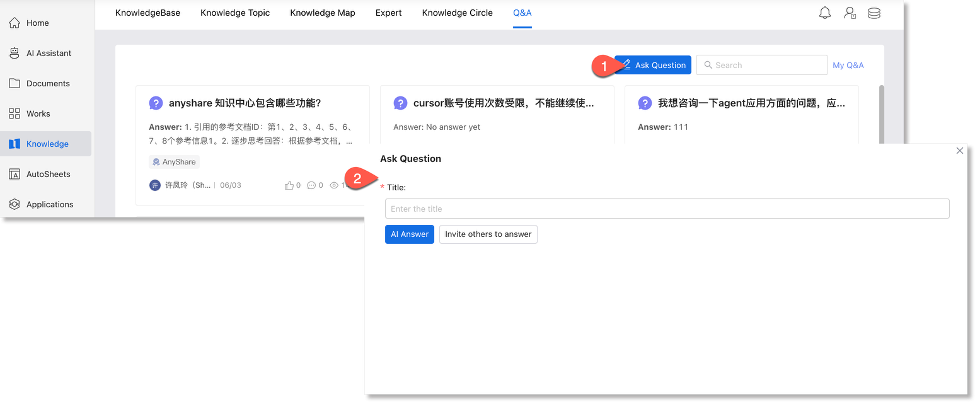
2. Provide a clear title.
3. Click [AI Answer] for instant AI-generated response.
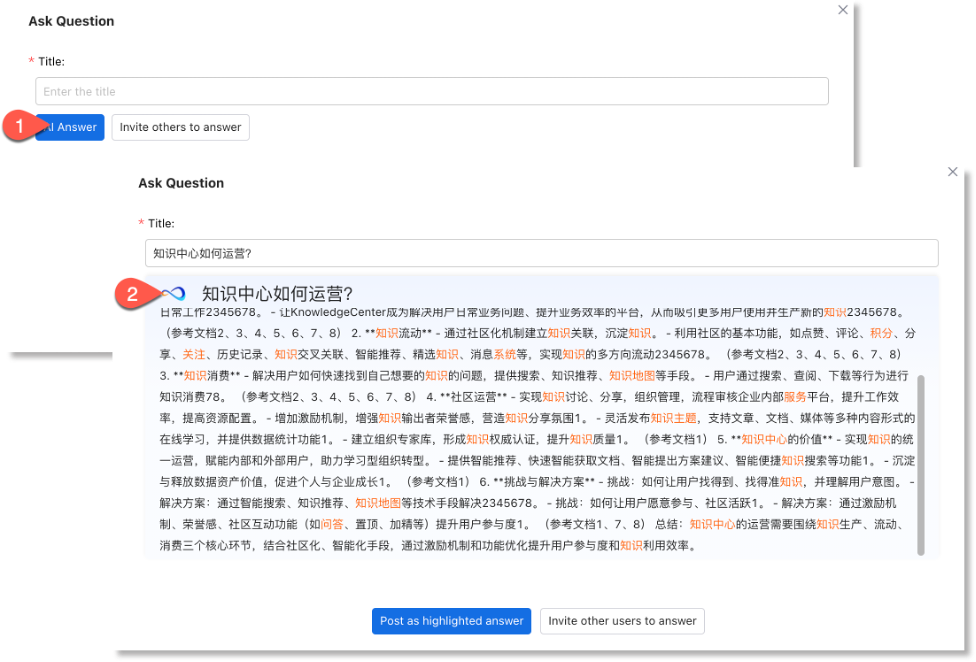
4. Or, select [Invite others to answer] to provide detailed description, add tags(to reach relevant users), directly invite specific colleagues for responses.

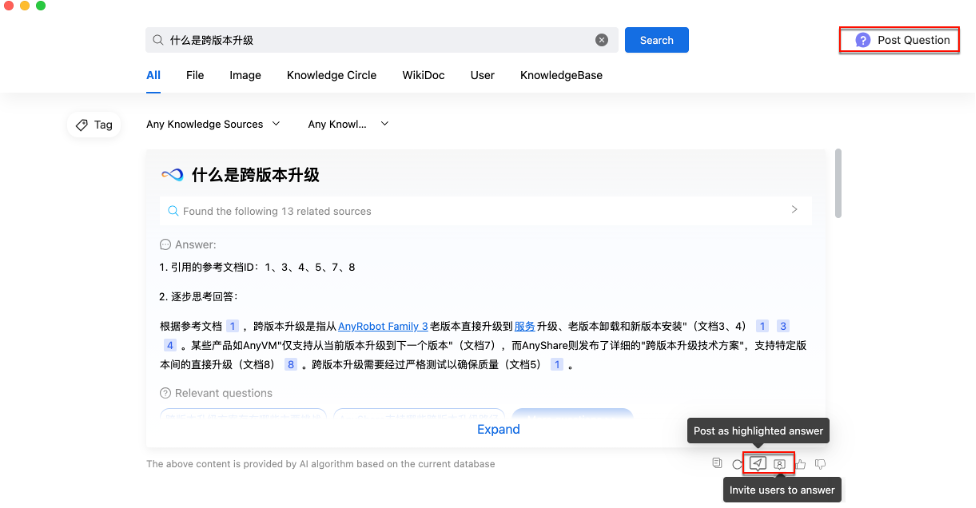
For quick answers, use Intelligent Search to query the AI assistant (responses are permission-based). Satisfying answers can be posed as highlighted answer and invite users for additional input.
How to post a WikiDoc?
The WikiDoc editor supports rich formatting including images, tables, code blocks, and quoted text, along with lists, emojis, and KnowledgeCenter-related content.
› Create a WikiDoc
Navigate to KnowledgeCenter > KnowledgeBase and select a knowledge base. With edit permissions, you can click “ ” in the left directory tree, choose [Create Blank Page] or [Create by Template].
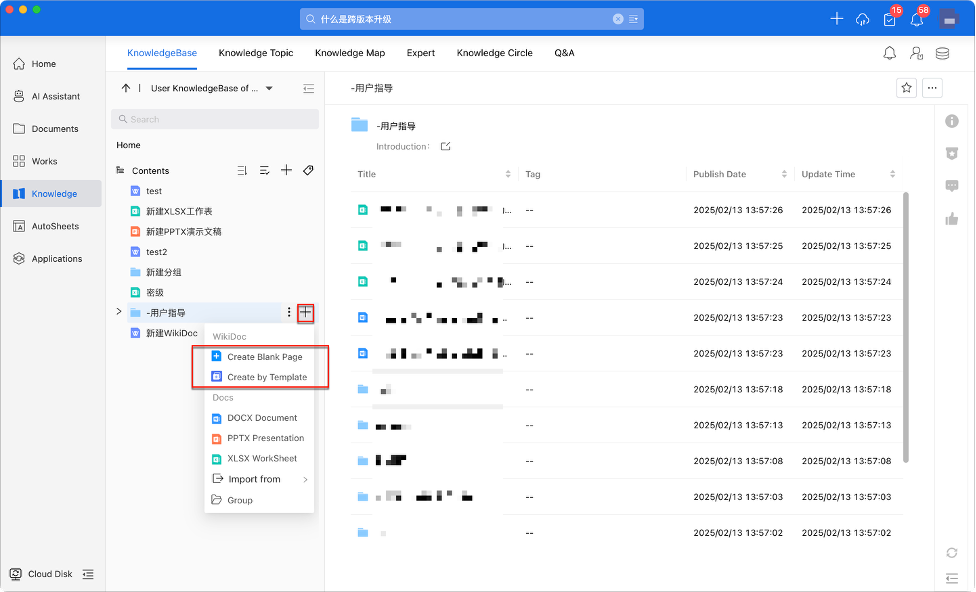
Unposted WikiDocs can be saved as a draft for further editing in the left [Draft] folder.
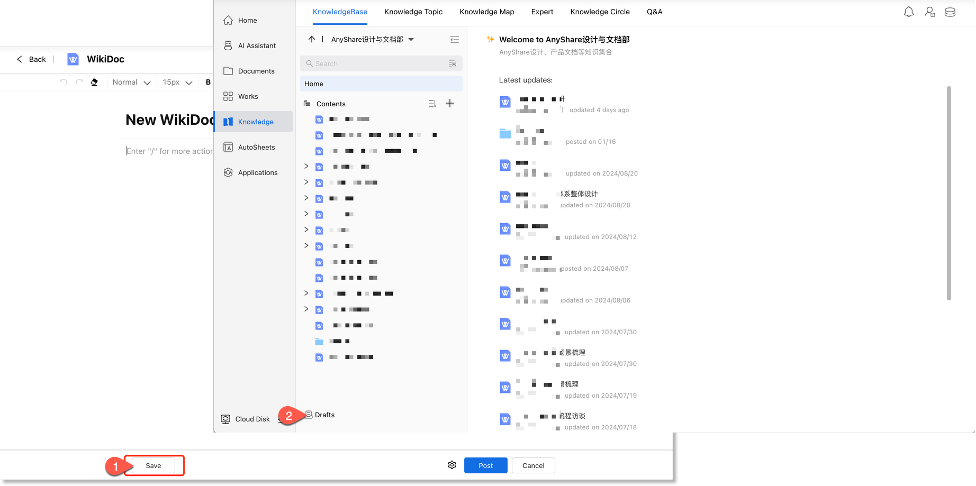
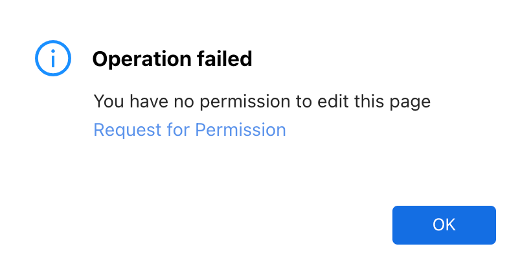
Note: Users with create permissions can post WikiDoc directly. If content approval enabled, users without creation permissions must pass review before publishing.
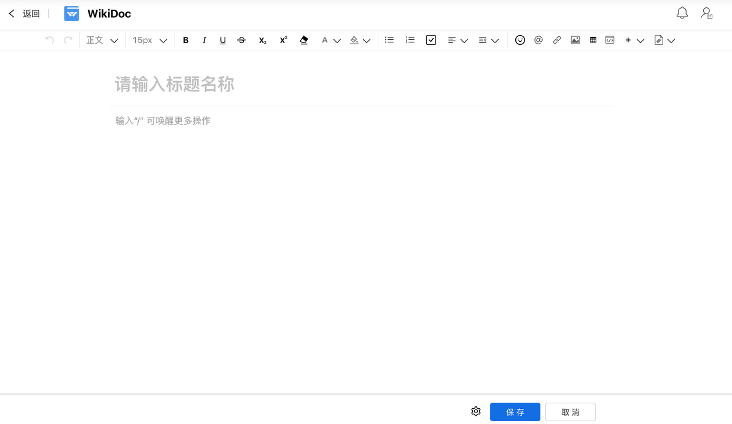
• Create Blank Page
Select [Create Blank Page] to access the WikiDoc editor for content input and modification (refer to the WikiDoc Editor section).
• Create by Template
Wiki templates are predefined page prototypes created and managed by knowledge administrators (see Wiki Template Management section).
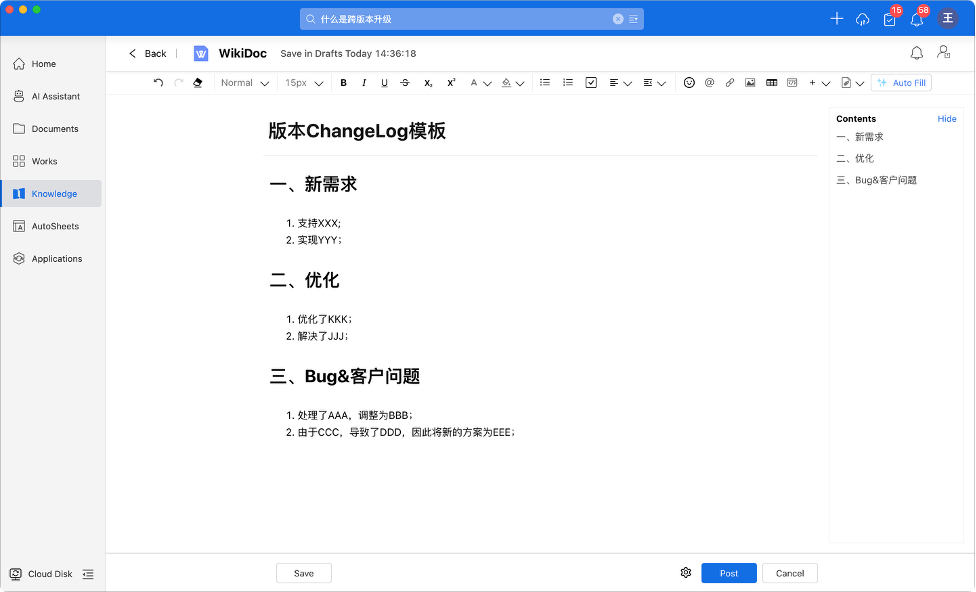
Users with edit permissions in template-enabled knowledgebase can create WikiDocs from templates by selecting [Create by Template], then choosing the desired template.
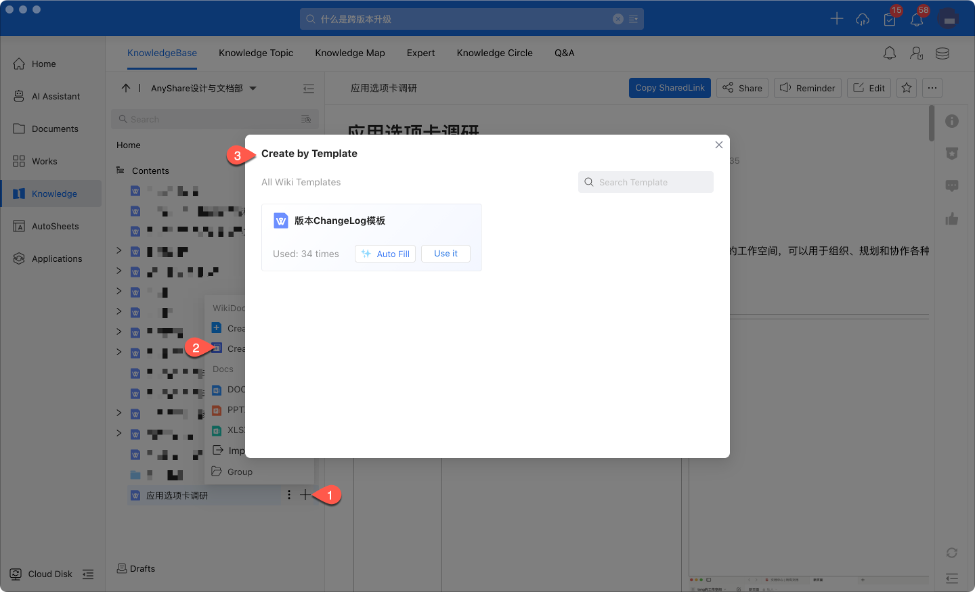
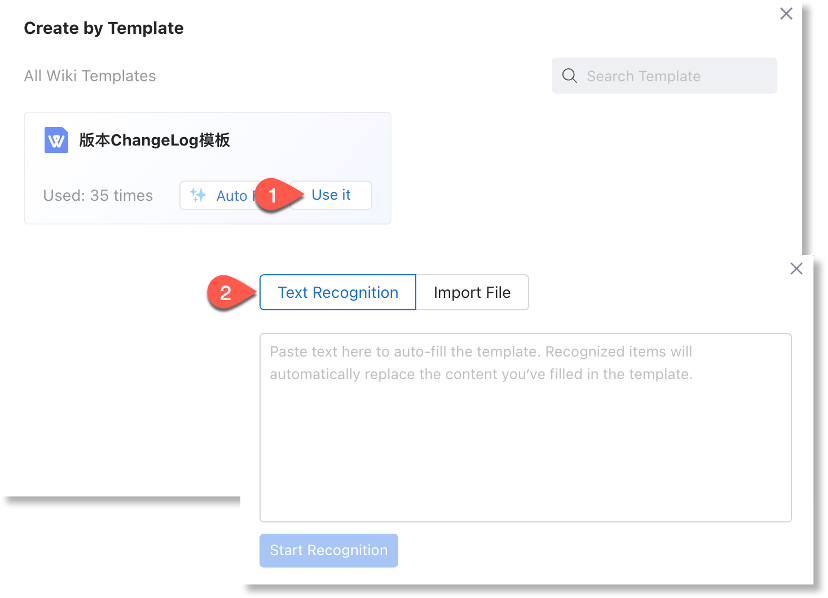
Click [Use it] to enter the editor (supported operations are detailed in the WikiDoc Editor section).
For quick creation, use [Auto Fill] to intelligently generate content via text paste/file import.
Note: Templates with linked graph data enforce required fields (non-editable titles/attributes).
› Create KnowledgeBase documents
AnyShare supports online creation of Office documents (DOCX/PPTX/XLSX) and document import from AnyShare Documents or local storage.
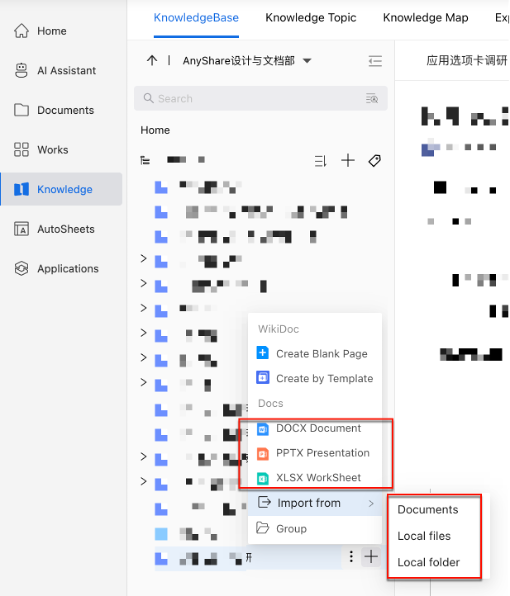
Note:
1. Within the same KnowledgeBase level, importing/creating documents with duplicate names of the same type is prohibited.
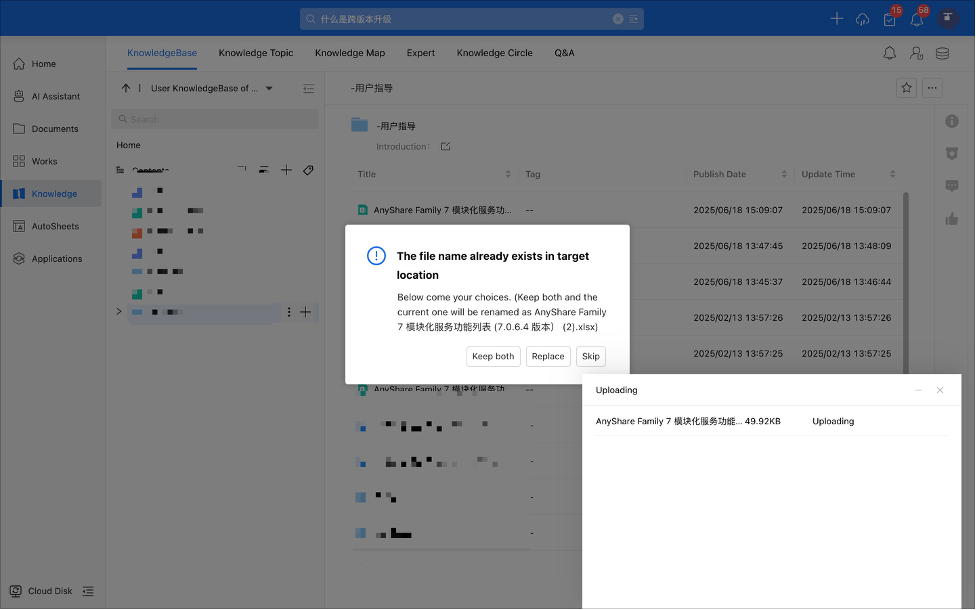
2. During import, multiple duplicate handling options are available: [Keep Both], [Replace], or [Skip].
› WikiDoc Editor
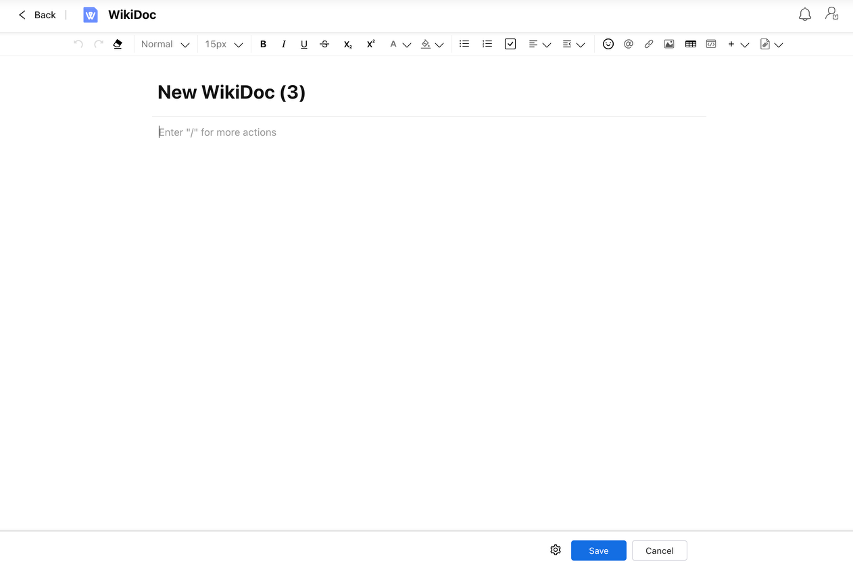
The editor features a toolbar at the top, content area in the middle, and publishing settings at the bottom. The toolbar enables real-time formatting adjustments during content creation.
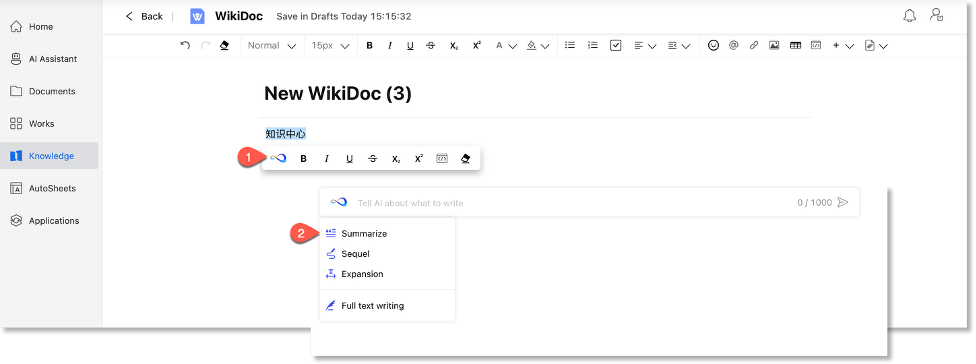
WikiDoc provides AI-assisted writing capabilities. Simply type "/" to quickly activate AI Writing, you can select text and click " " to access summarization, continuation, and expansion, which automatically generate high-quality text to improve writing efficiency and quality.
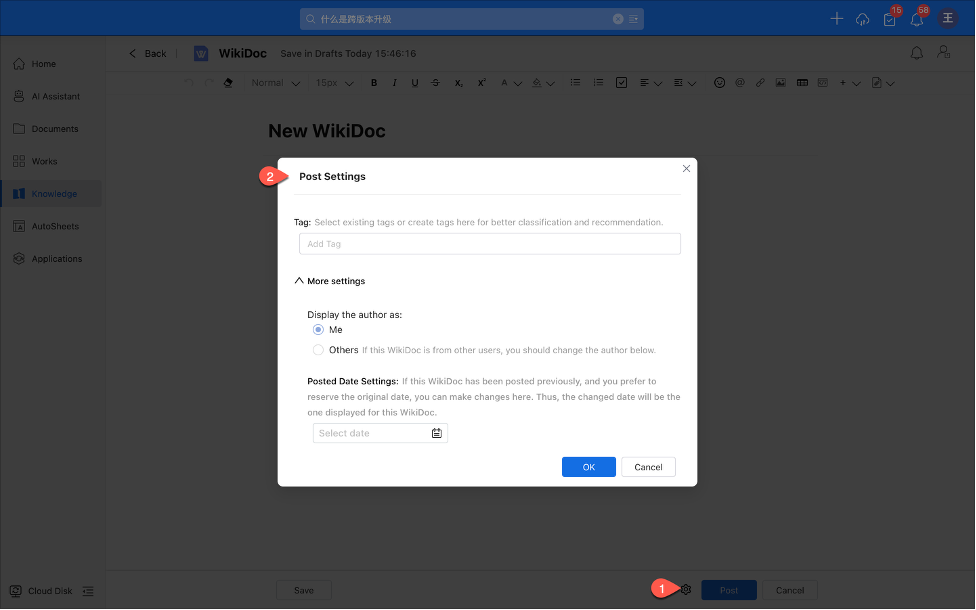
In the publishing settings, you can manage document attributes such as selecting tags and setting posted date. During editing, you may save the WikiDoc as a draft.
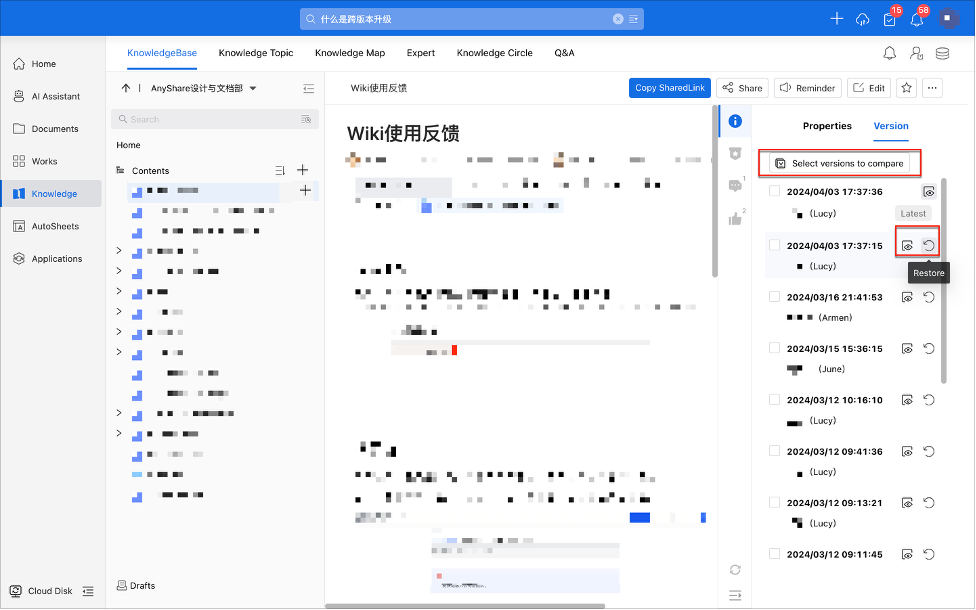
Once posted, you can share the WikiDoc with others and access additional features including viewing/restoring historical versions, comparing versions, viewing related recommendations, and posting comments and replies.
› WikiDoc Version Comparison
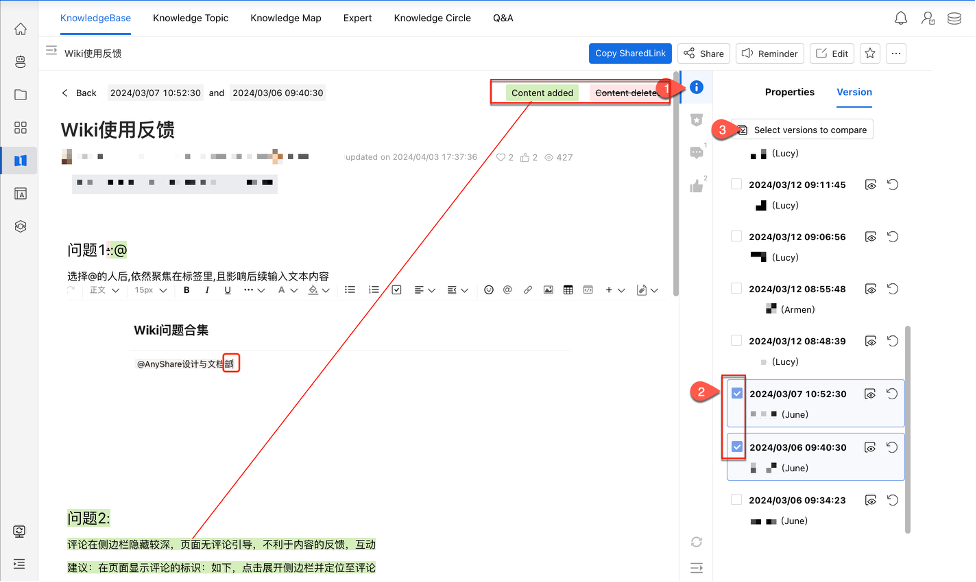
Users can view differences between WikiDoc versions in a side-by-side comparison interface and flexibly switch between versions as needed.
› Star WikiDoc/ KnowledgeBase
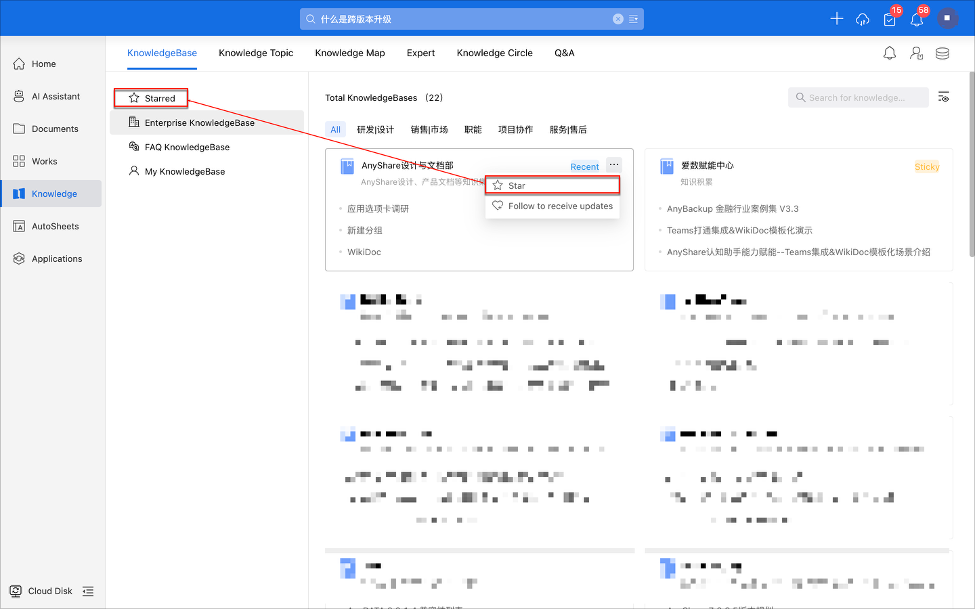
You can star WikiDocs and KnowledgeBase of interest for quick access via your Starred list in the KnowledgeBase.
Doc Indexing
All data in AnyShare Knowledge must be indexed before it becomes searchable and usable for AI-powered search and intelligent Q&A. Both Documents and Knowledge Center allow you to track indexing progress and status for each document, helping to quickly identify and resolve issues.
To view indexing task status for a document:
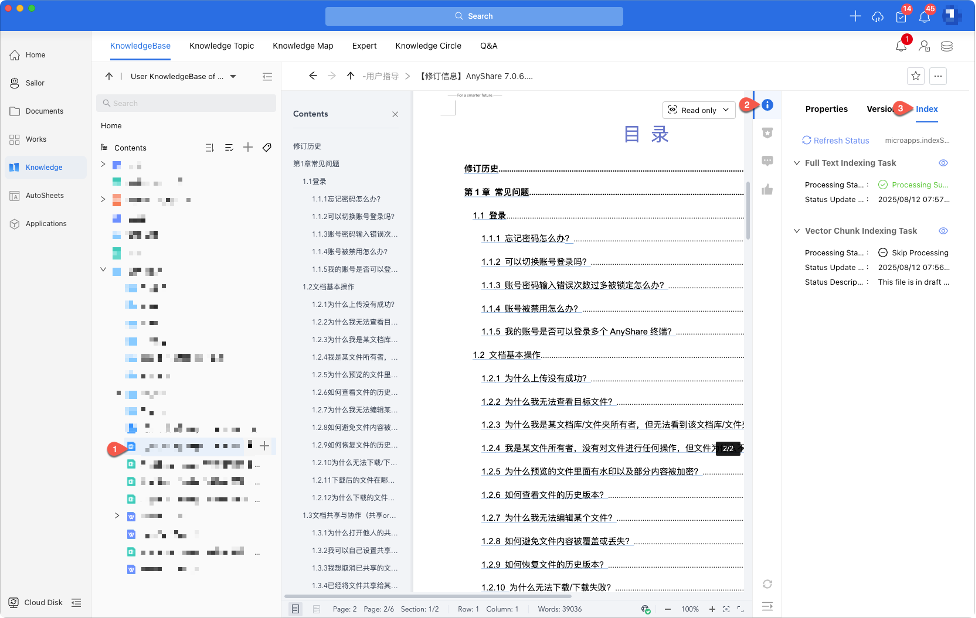
Go to Knowledge and select the desired item, open its info sidebar and switch to the “Index” tab, where you can check the status of full-text and vector indexing tasks.
The sidebar also displays the latest update time of the file (i.e., the latest version timestamp), and you may click [Refresh Status] to manually update the indexing status.
If the user has preview permission for the file, they may click the “ ” button to view indexing results; otherwise, access is denied.
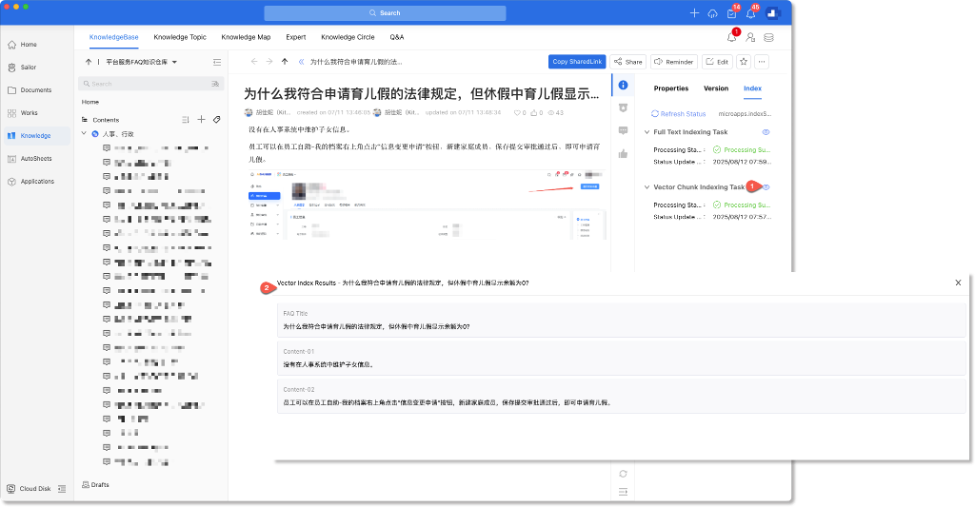
Vector indexing varies by format. FAQ-type content is segmented into structured sections—such as “FAQ Title” and “Body Content”—while other formats follow standard indexing.
Note: Administrators can customize the document sidebar (e.g., properties, permissions, index, versions) in Management Console > Custom Configuration for Clients > File Custom Settings > Document Information, including adjusting tab order and visibility.
How to post Knowledge Topic
Navigate to Knowledge > Knowledge Topic, which displays all custom topic-based knowledge. Regular users can create/modify topics to enhance engagement and foster collaborative knowledge creation, making organizational knowledge easily accessible.
› Create New Topic
Users can create custom topics based on organizational needs by entering topic name, description, related users, documents (manually or AI-assisted with manual verification) and topics on the creation page.
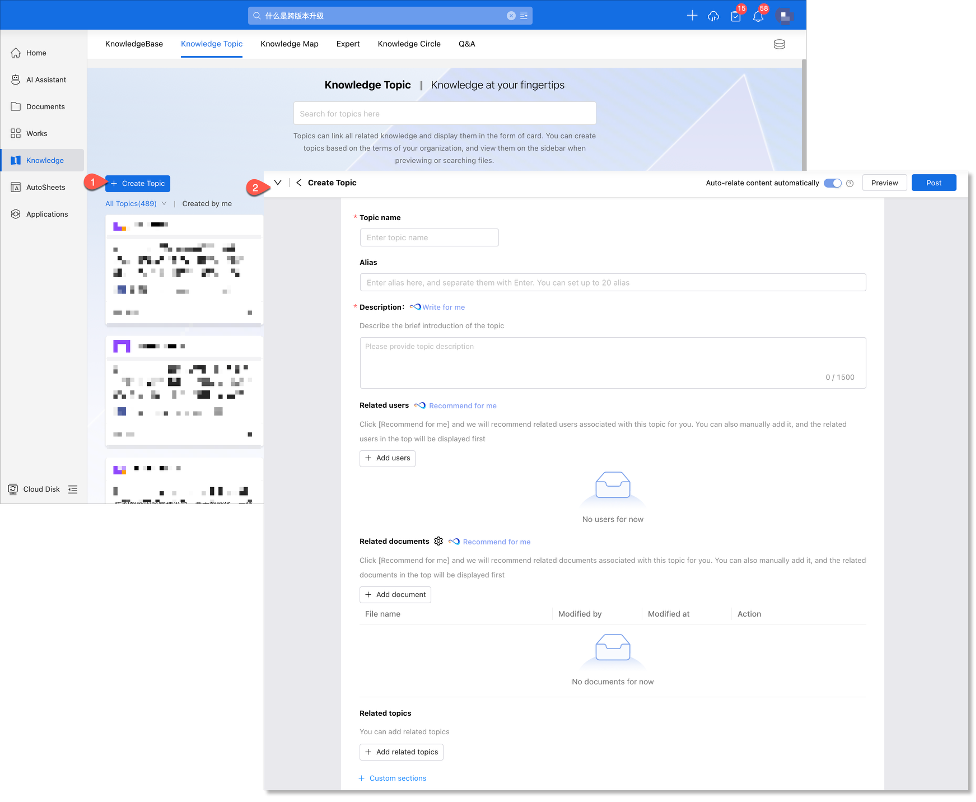
Upon successful post, AnyShare automatically links related documents. Topics become visible in search results and preview page sidebars.
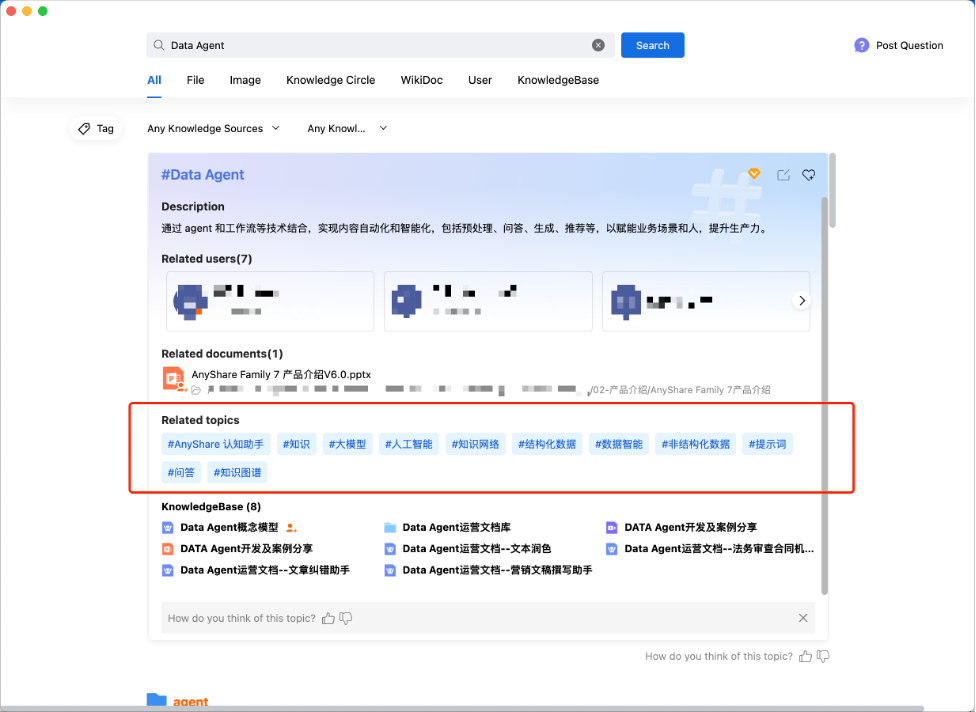
› Modify Existing Topics
Users can rename topics, update descriptions, manage system-recommended users/documents (add/remove) and adjust related topics.