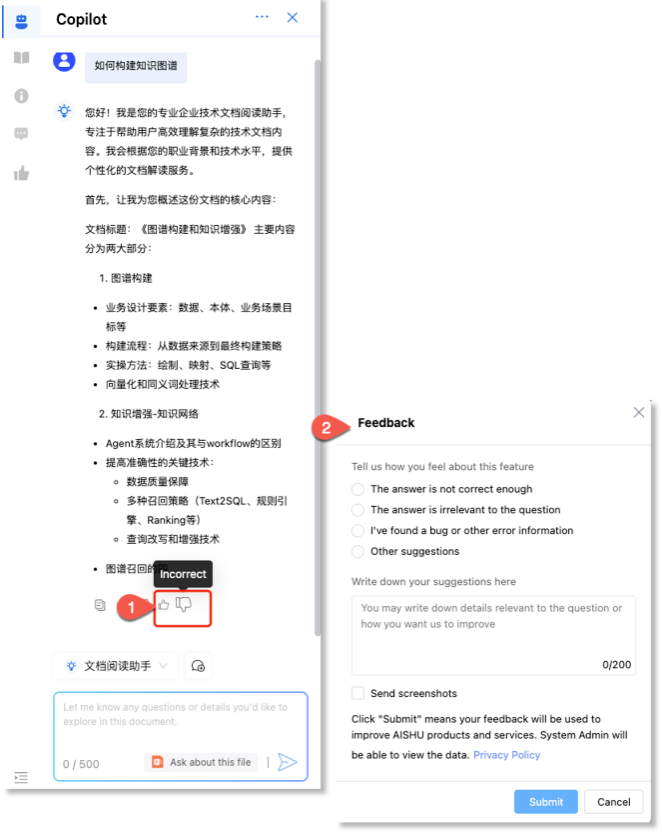






Access points
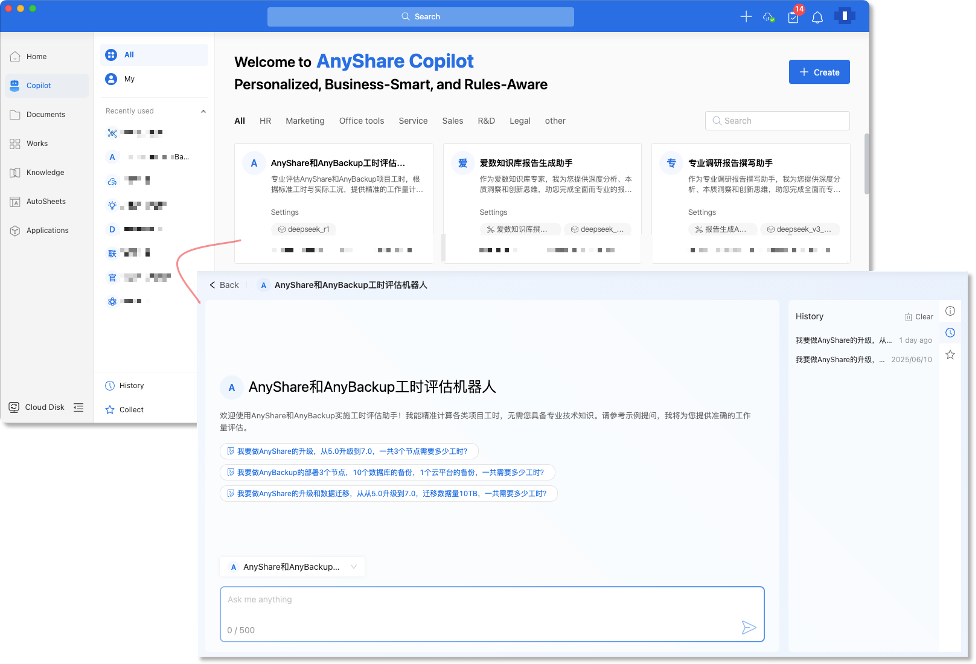
Currently, users can access AnyShare Copilot on the following pages:
1. AnyShare Copilot Main Page
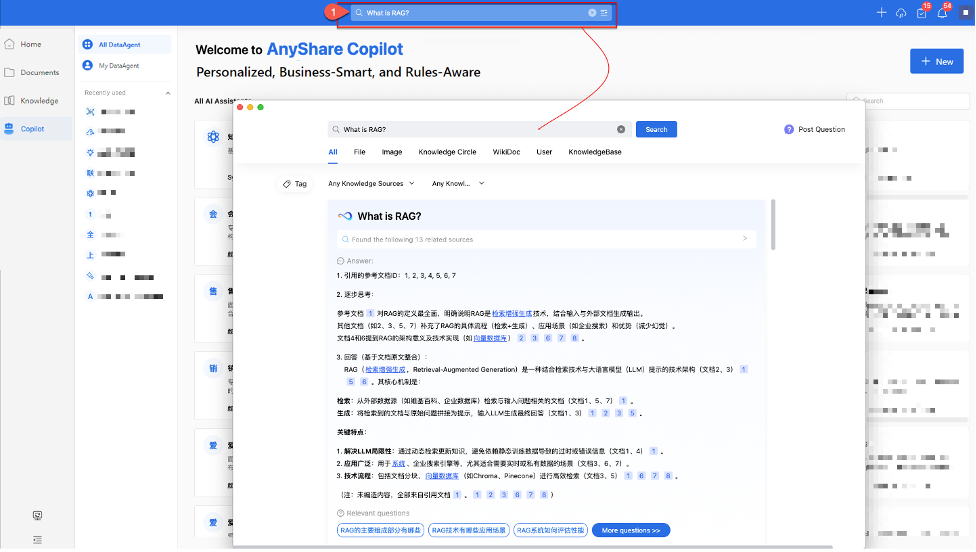
2. Intelligent Search Page
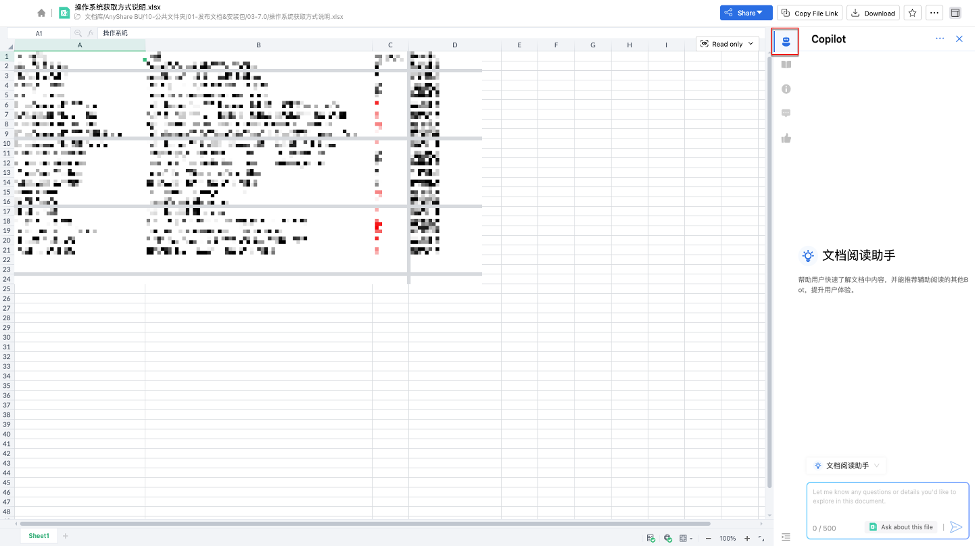
3. Document Preview Sidebar

4. Office Plugin Page
5. WikiDoc Drafting Page
Activation Methods
Method 1: Text Selection Activation
Figure Content-based writing assistance (Summarize/Continue/Expand/Full-Text Expansion):
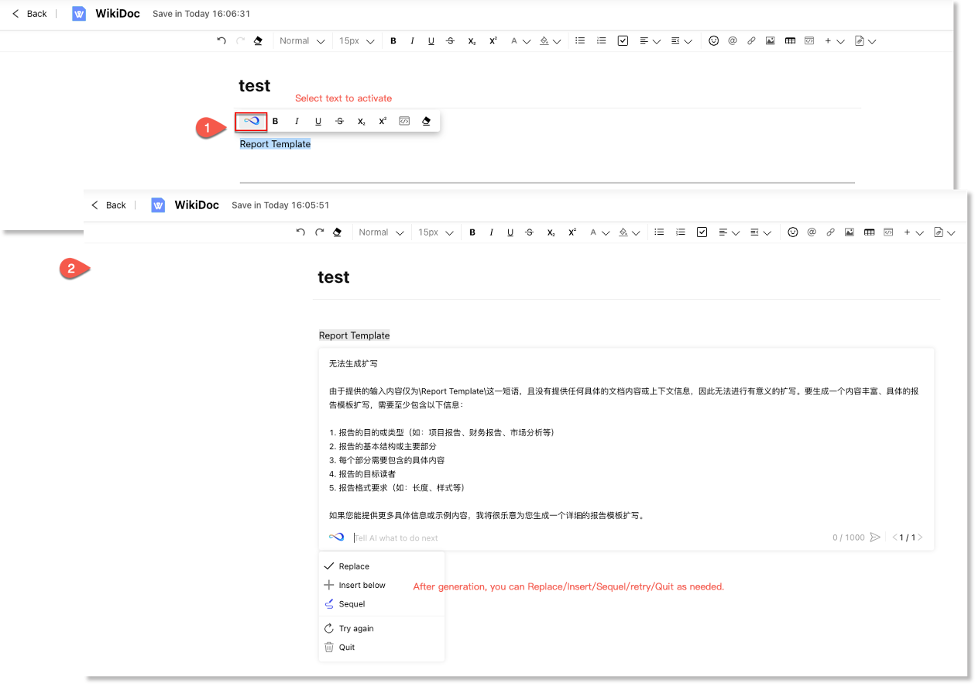
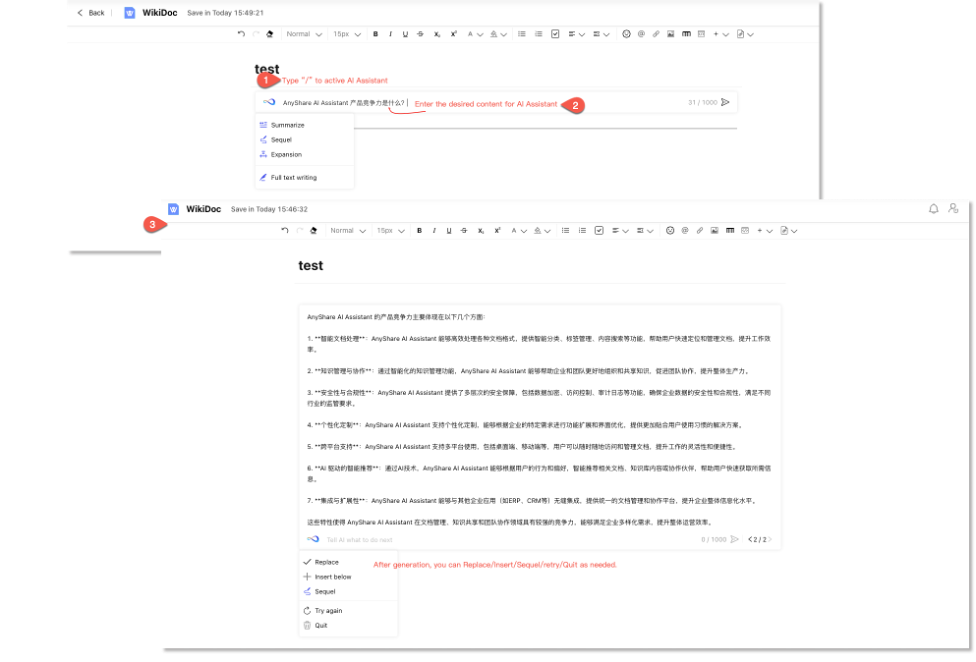
Method 2: "/" Command Activation
Figure Theme-based content creation:
Usage Scenarios
1. Intelligent Q&A
Enter the Copilot page and select your desired DataAgent, input your question to receive the AI's response in the chat dialog.
When source data is configured, answers will be generated strictly from authorized content within the defined scope.
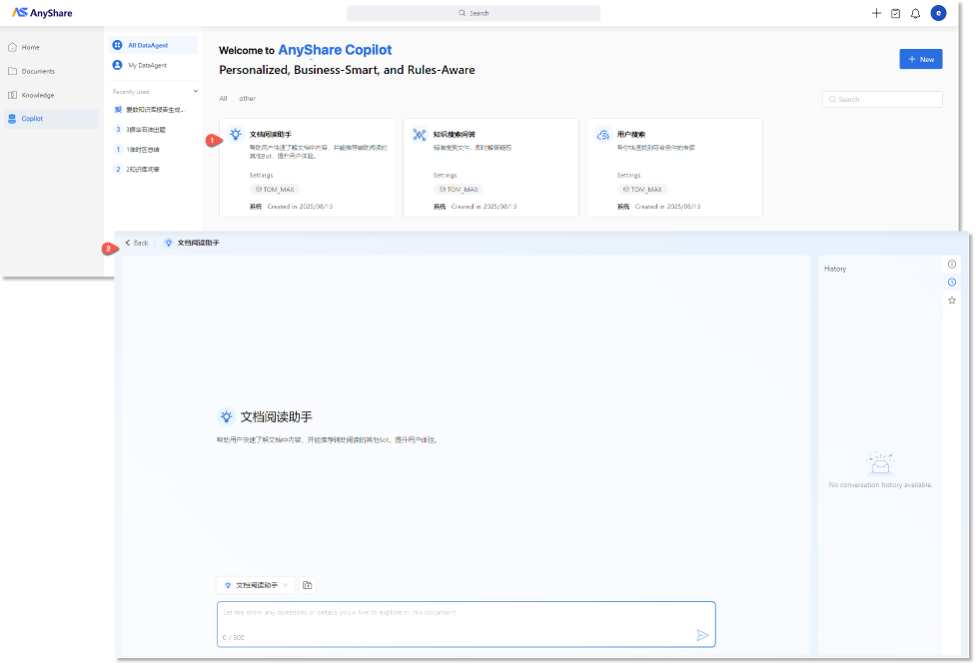
Click Star button above the dialog box to save useful answer for further reference.
2. Intelligent Search
When you use Intelligent Search, AnyShare Copilot analyzes your keywords to provide well-sourced answers and relevant learning resources. It also intelligently detects your search intent—such as document retrieval needs—to deliver targeted assistance.
If you are unsatisfied with the answers, click “ ” button for an alternate answer.
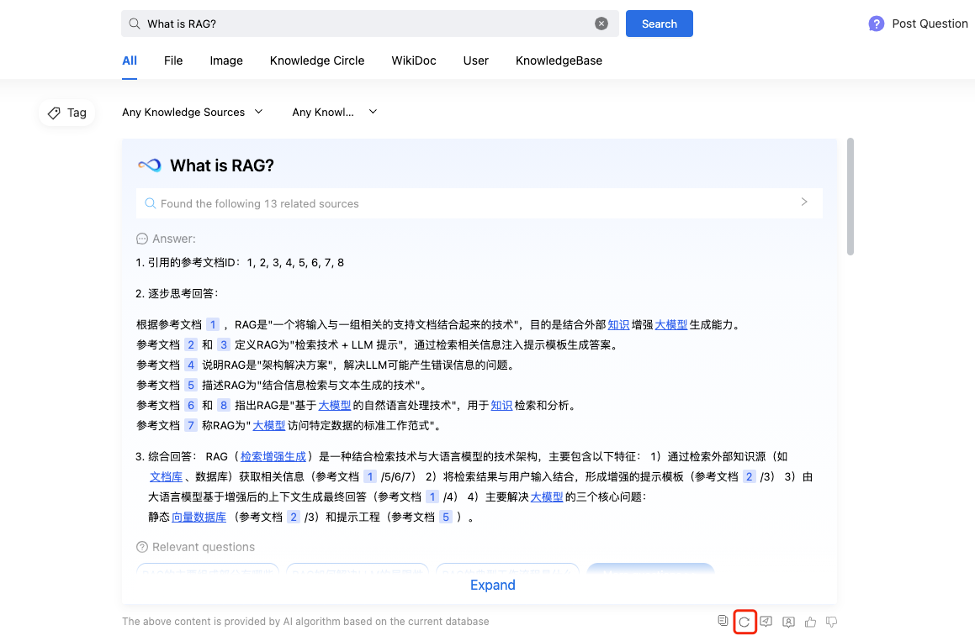
For additional answers, click [More questions] on the expanded page to initiate further dialogue with the AI.
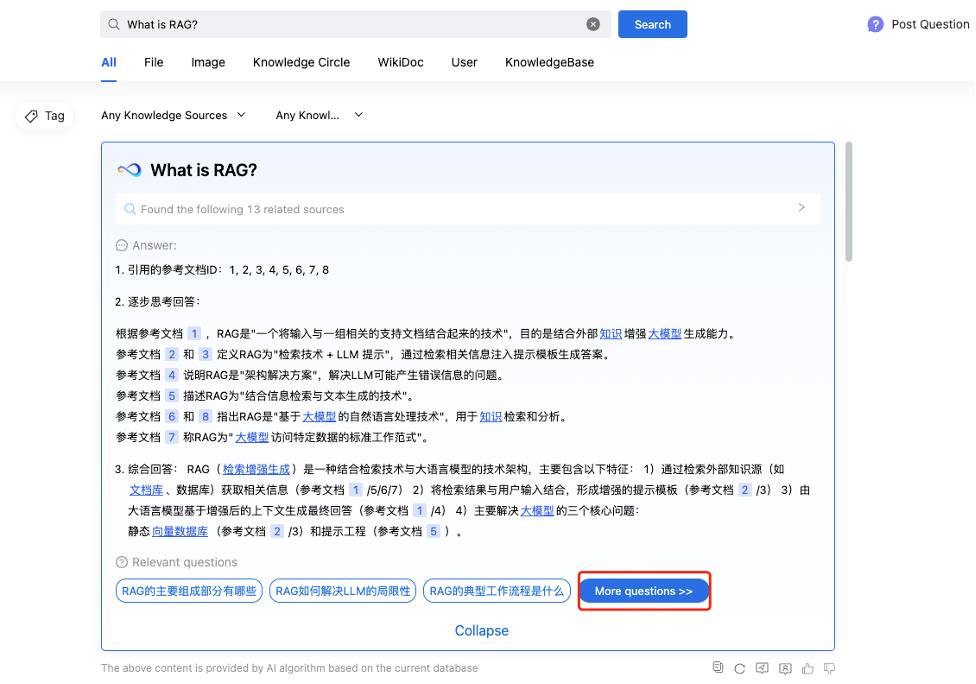
3. Reading Assistance
1) Document Preview
AnyShare Copilot delivers in-depth analysis of documents (DOCX/PPTX/XLSX/PDF) and audios/videos (MOV/MP4), providing intelligent Content Overview and segmentation for efficient key information extraction.
› Content Overview (Documents)
When previewing a document, the Copilot generates a Document Summary, Document Knowledge, and Relationship Graph in the sidebar to help you quickly grasp the key information.
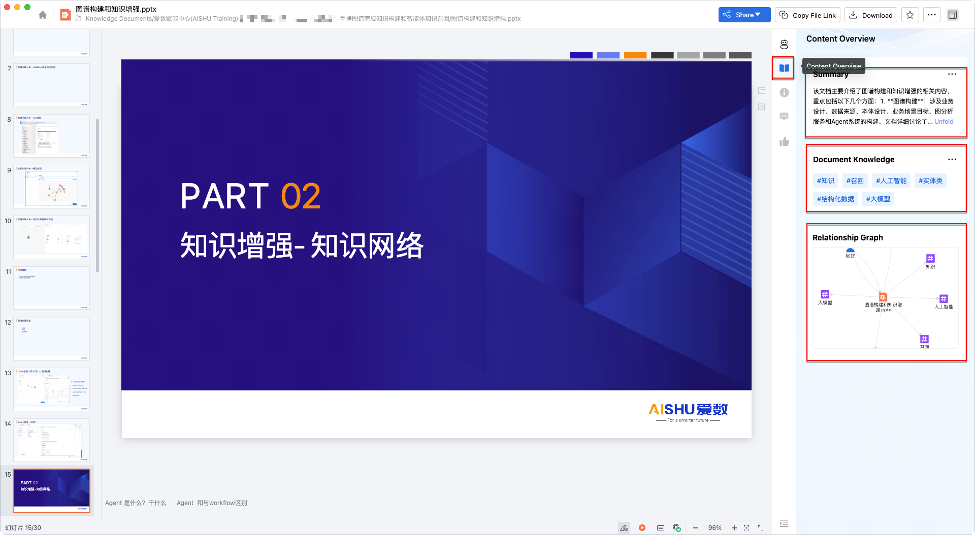
Figure Content Preview – Document Guide
Enter to Copilot section for deeper questions about the documents.
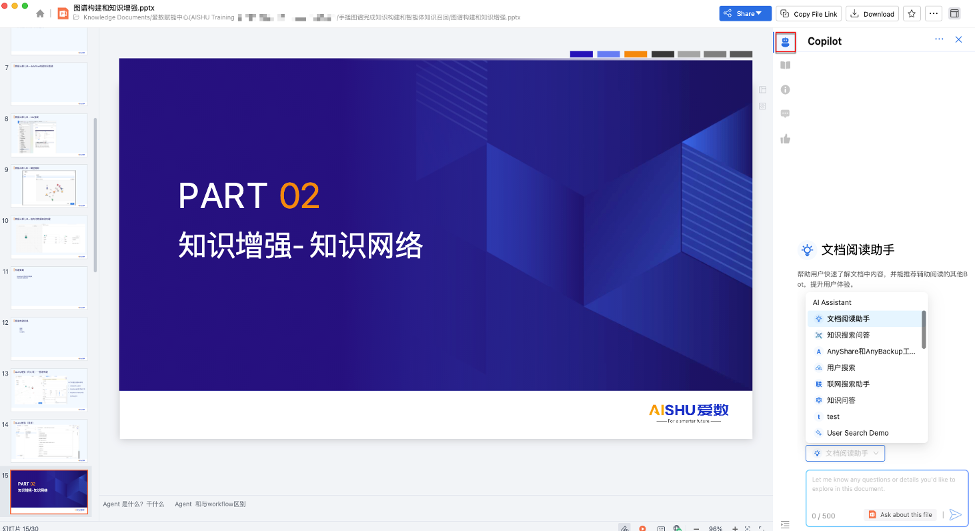
2) Media Navigation (Audio/Video Files)
When previewing media files, the Copilot provides content Summary, Outline Overview, Key Knowledge, Document Knowledge and Relationship Graph. You can directly jump to specific timestamps for efficient content retrieval.
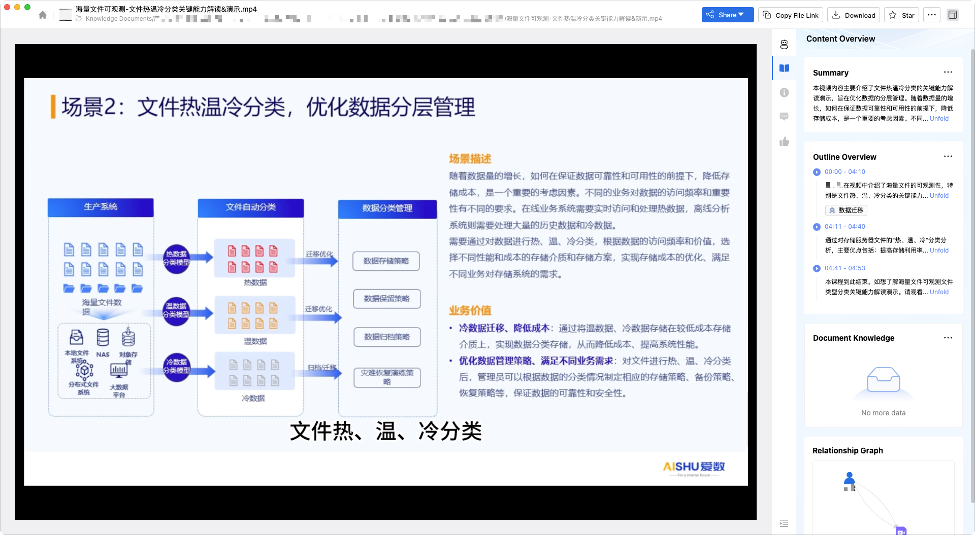
The Copilot can also generate answers based on audio/video content and other unstructured data, improving response accuracy and depth.
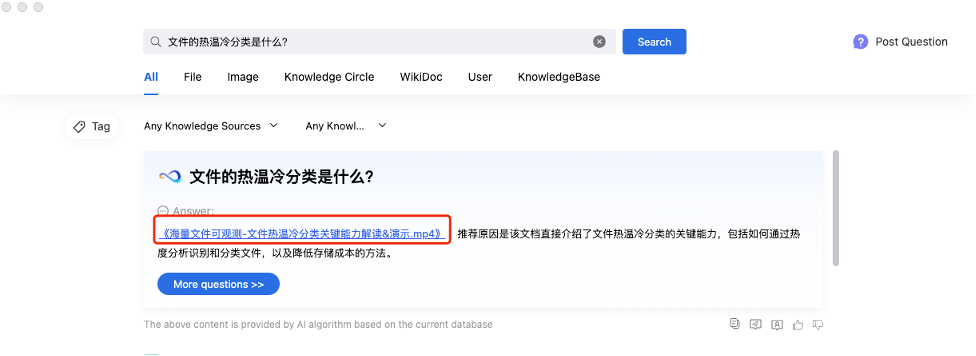
3) Knowledge Exploration
AnyShare Copilot also enables instant translation, summarization, continuation, and expansion of selected text during document preview.
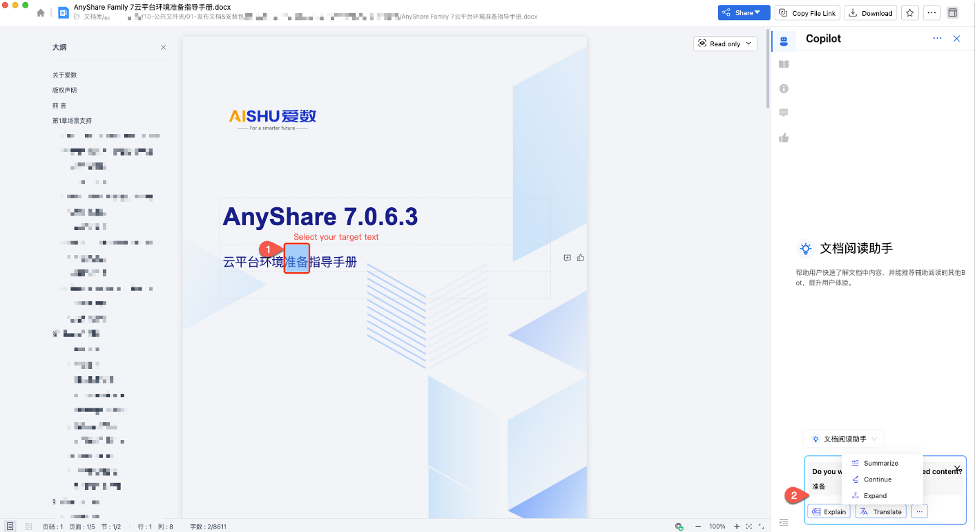
4) Explore Unstructured Data
When previewing audio and video files, AnyShare Copilot intelligently identifying desired sections, allowing you to quickly access key information. You can jump to specific time points based on your needs, significantly reducing the time needed to find information.
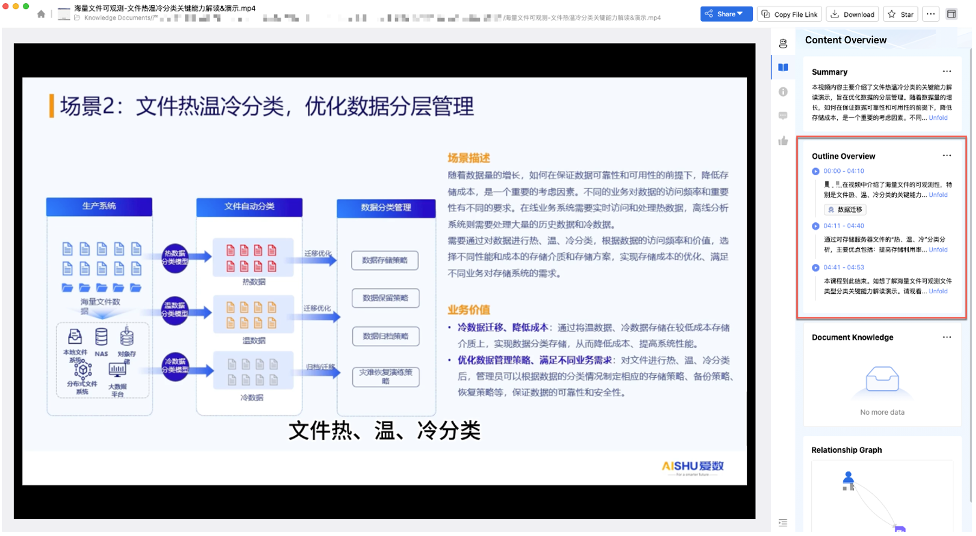
Additionally, AnyShare Copilot can also generate answers from unstructured data, making it more aligned with user needs.
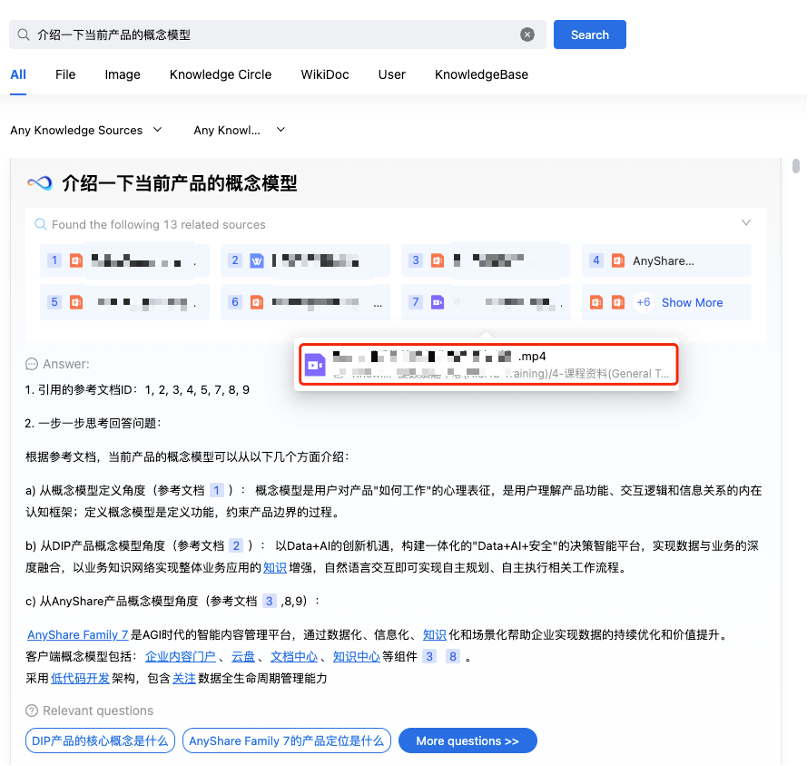
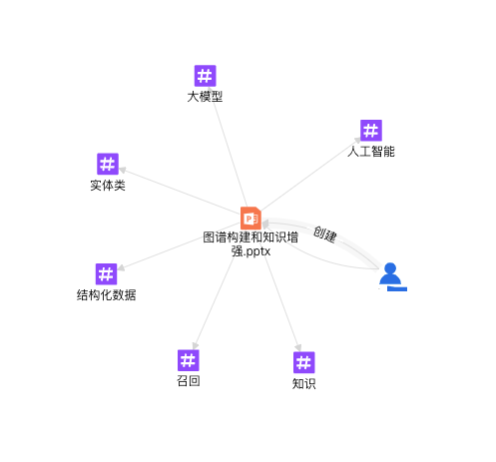
4) Knowledge Graph Exploration
In the document preview sidebar, you can click Relationship Graph to view the knowledge graph, exploring related content and connections.

4. Intelligent Writing
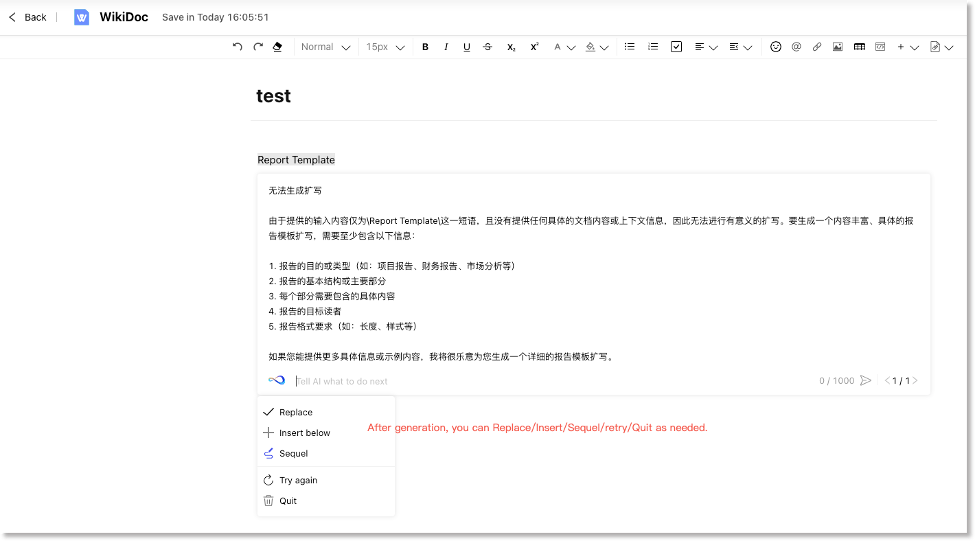
When using WikiDoc or the Office Plugin, AnyShare Copilot assists with content continuation, expansion, and generate an abstract. Type “/" to activate AI Writing.
Choose from Summarize, Sequel, Expansion or Full text writing and use Replace, Insert, Sequel, Try again and Quit for generated content.
4. Feedback Submission
Users can submit feedback on any knowledge interaction, including:
• Smart search results
• Knowledge comments
• Document preview sidebar insights (summaries/relationship graphs)
• Selected text processing (explanations/translations/expansions/continuations/summaries)
• Intelligent Q&A responses
Submitted feedback is accessible to administrators via the Management Console for data-driven optimization decisions.