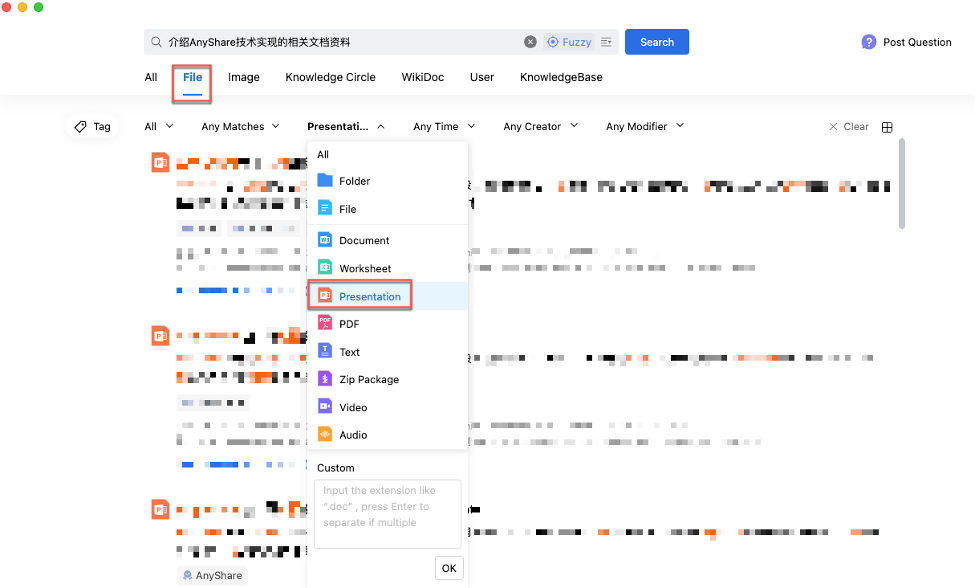






Intelligent Search, as a unified search portal for enterprises, brings together all content data from desktop terminals and business systems to break the impediment of isolated data island; based on the content data lake, it realizes unified data storage, analysis and query, and provides safe and efficient massive data search across business systems.
Figure-Enter Intelligent Search
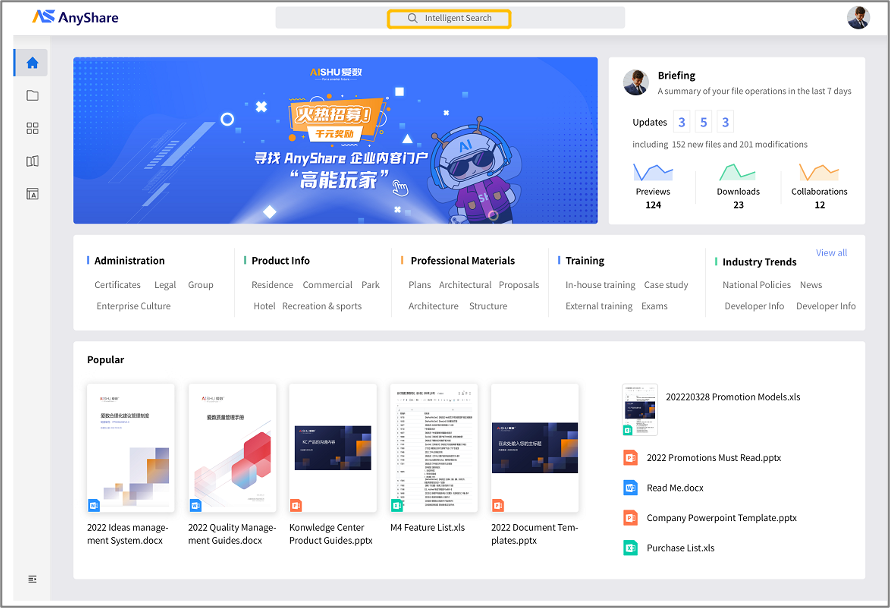
The Integration and Openness of Search
Intelligent search boosts strong integration capabilities in development, including data integration and platform integration, which supports sheet model algorithms, image model algorithms, document model algorithms, third-party data processing tools and third-party system data import; besides, it offers index and search APIs for customers who want to experience personalized searching services, such as catalogue search.
› AnyDATA Service and Intelligent Recommendation
By combining AnyDATA intelligent algorithm, Intelligent Search establishes relationships between keywords, keywords and documents, so as to accurately understand users' search intention and realize multi-dimensional content search based on real business scenarios.
On the other hand, via the built-in weight scoring rules, weights are calculated based on the number of appearances, locations and relationships of certain knowledge, and relevant documents will be recommended according to the scores to help users find the required content quickly.
› OCR Service and Image Search
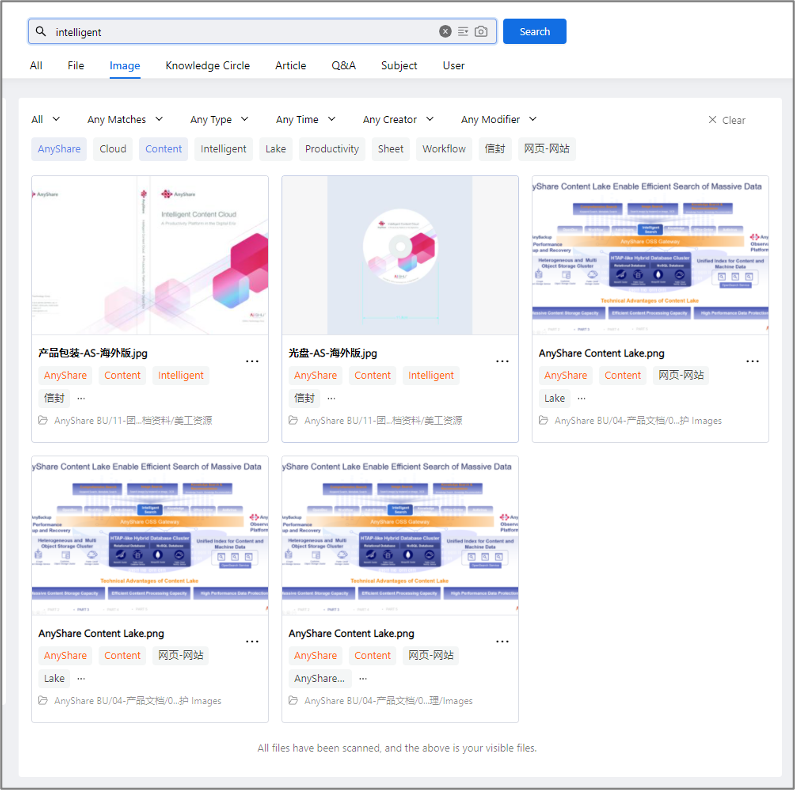
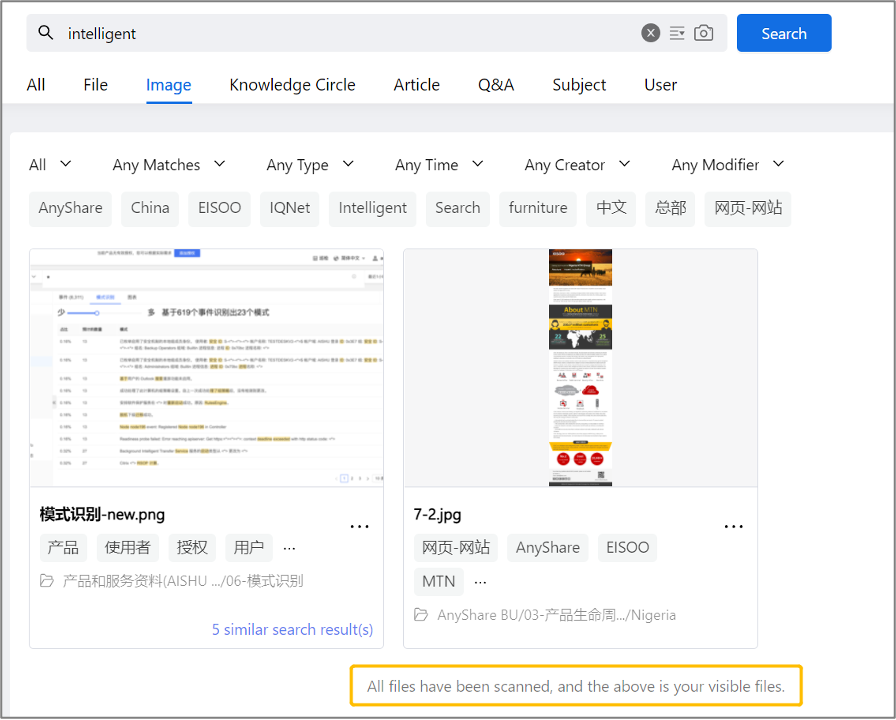
The built-in OCR content recognition service (third-party OCR software or equipment purchased by the user is also supported) can extract images in the format of jpg, png and bmp, providing users with multiple types of search methods to meet the different needs of content data formats.
Extended Metadata Service and Tag, Abstract and Catalogue Search
Extended metadata refers to the tag, abstract and catalogue of documents. Intelligent Search supports tag search, summary search, and catalogue search.
› Tag Search
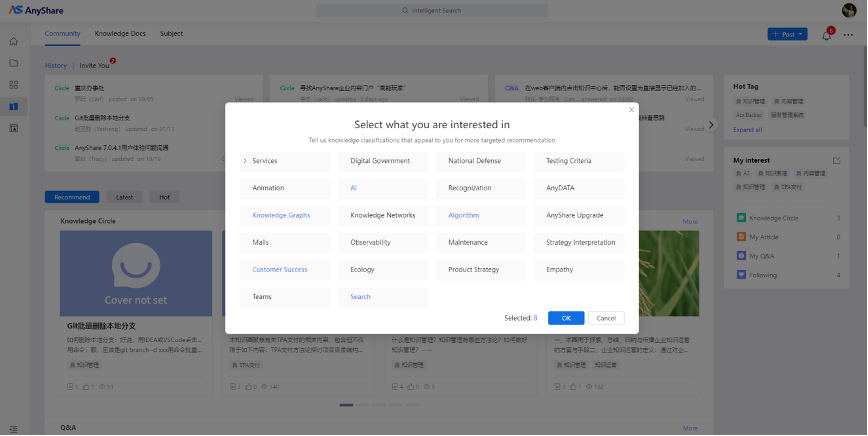
AnyShare provides an official multi-level tag system set by the Administrator from version 7.0.4.1 onwards for users to choose from. The official tags have a hierarchical structure and unique tags, while users can also manually add or create custom tags beyond the official tag system. It also supports multi-tag search, which can be realized through Portal navigation or Knowledge Center navigation.
Figure-Tags (1)
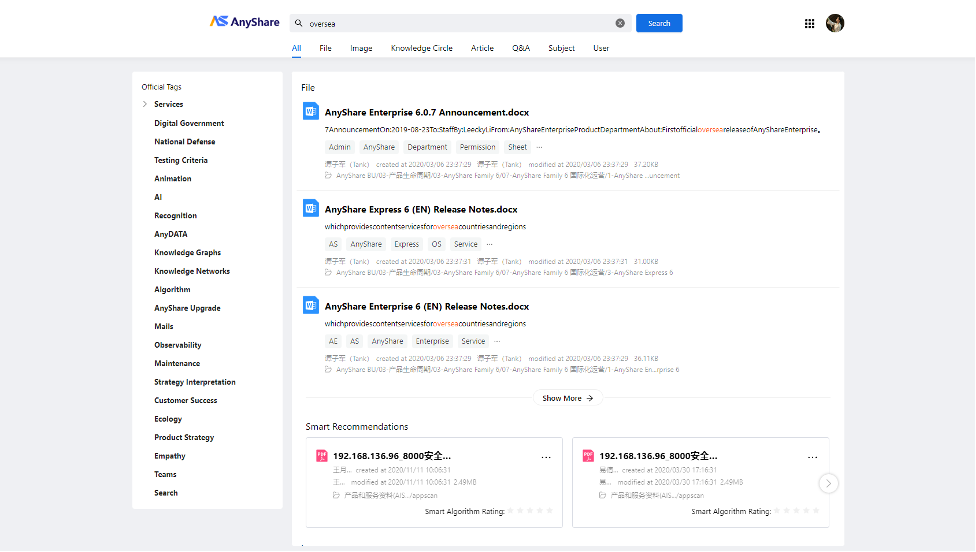
Figure-Tags (2)
› Abstract Search
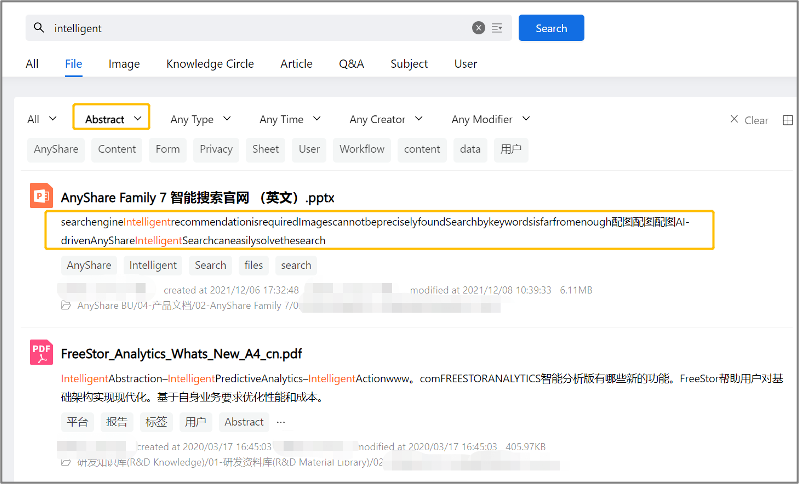
AnyShare supports both manual and automatic addition of file abstracts. Intelligent Search provides content data analysis and extraction service, which can automatically create file tags and abstracts, and you can select [Abstract] in [Any Matches] when searching, and then files or images that match the information will show up.
Figure-Abstract Search
› Catalogue Search
If a file has been added to a catalogue, users can search by catalogue: select a catalogue template and then search according to the existing attributes of the selected catalogue template.
Intelligent Search supports automated processing of text and image files, including automatic catalogue extraction, i.e., automatically matching catalogue attributes via content range set by the user; matching catalogue attribute names and extracting text content after line breaks; after extracting, filtering text content to match the value set by the user.
Figure-Image Search
› Search Result Variations
Different search results are matched for different users in the same organization, ensuring the security of the search process.
1. Permission Configuration & Document Policy Restrictions
Search results vary among users due to three key factors:
• Access Permissions: AnyShare Documents may have different permission settings (View/Preview/Download/Edit/Create/Delete) configured during library creation or sharing.
• Preview/Download Policies: Applied policies further restrict how documents can be accessed or distributed.
• User Security Levels: The document visibility is also governed by individual user clearance levels.
This multi-layered security approach ensures that:
• Each user sees different search results based on their specific access rights.
• Search operations remain secure within the organization.
• The search scope automatically adapts to individual permissions.
2. Search Strategy Differences: Exact Match vs. Fuzzy Search
AnyShare offers two distinct search modes:
1. Exact Match Search
• Requires complete keyword matching.
• Returns only results that precisely contain the entire search phrase.
• Activated by clicking the " " button after the search box.
2. Fuzzy Search
• Tolerates partial keyword matches.
• May return results containing any portion of the search terms.
• Activated by clicking the " " button after the search box.
Example: Searching "technical whitepaper" might return documents containing either "technical" or "whitepaper".
Users can toggle between these modes using the respective buttons (/) at the end of the search field, with the current mode clearly indicated by the active button.
› Expert Search
Expert Search supports the following scenarios:
Scenario 1: Query-Based Expert Recommendations
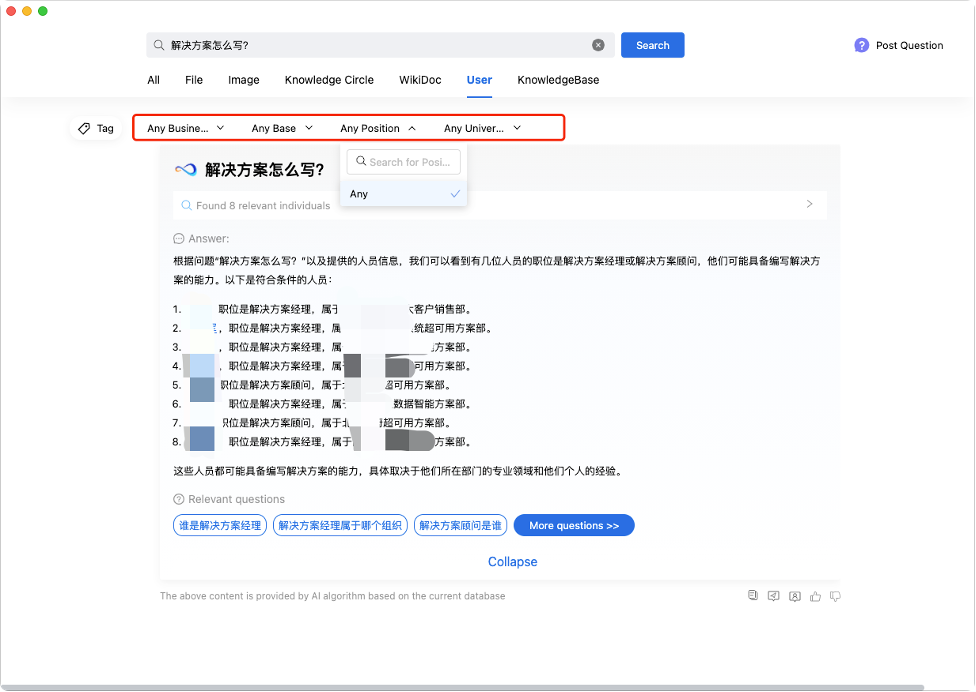
When users search for specific information (e.g., "How to write a data disaster recovery solution?" or "What is data disaster recovery?"), the system will provide AI-generated answers and recommend relevant domain experts.
Scenario 2: Direct Expert Searches
Users can directly search for specialists using natural language queries like "Find data disaster recovery experts/consultants" to receive specific expert recommendations.
Scenario 3: Expert Profile Lookup
When users know an expert's name and need detailed information (e.g., students researching potential academic advisors), they can search by expert name and view comprehensive professional profiles and research directions
Figure-Expert Search Interface
› Document Search
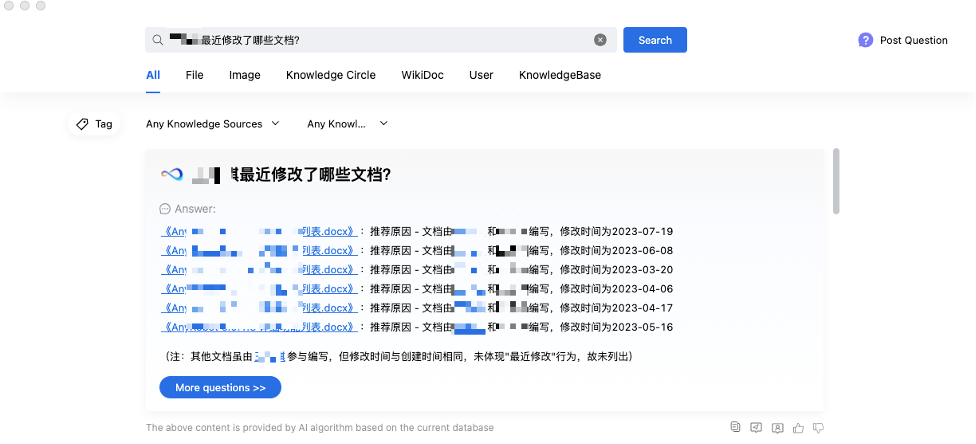
AnyShare intelligently interprets user search queries to identify document retrieval intent and provides relevant file/content recommendations based on knowledge graph data. The system supports the following search scenarios:
Scenario 1: Natural Language File Search
Traditional file searches using keywords, approximate paths, creation/modification dates, authors, or file types often yield incomplete results and require multiple attempts. With AnyShare, you can simply describe your needs in natural language within the search box. For example:
"Show me all files Zhang San recently created/edited/deleted/shared/permission-modified/viewed."
The system will understand your intent and return relevant file names with direct access links for quick viewing.
Scenario 2: Problem-Solution Search with Documentation
When encountering work-related issues, users often need to find existing solutions/knowledge within the system along with supporting documentation for verification - where the search target may not necessarily be a specific file. You can describe both the problem and desired solution in natural language. For example:
"Troubleshoot possible causes for 404 errors in AnyShare Family 7 (v7.0.4.8) rich client and recommend verified solutions with reference documentation."
› Example of Search
How do I search for PowerPoint files with "AnyShare" in their names?
1. Enter the keyword [AnyShare] and select [File].
2. Select [File name] under [Any Matches] and select [Presentation] as the file type.
3. Then you have the initial screening results that meet the conditions. Next, you may further search by time, creator or modifier to get more accurate results.