






Users can integrate approval workflows with File Collection and File Transfer tasks to ensure content accuracy and compliance, thereby safeguarding organizational data security.
Note: Approval workflows currently support file transfer/collection (user-configurable), doc domain sync/sharing/security level changes (admin-only).
Configuration Steps (File Transfer Example):
When initiating file transfer, after configuring the task name, target location, and scope, click the [Setup] button next to "Approval" to access the workflow configuration page.
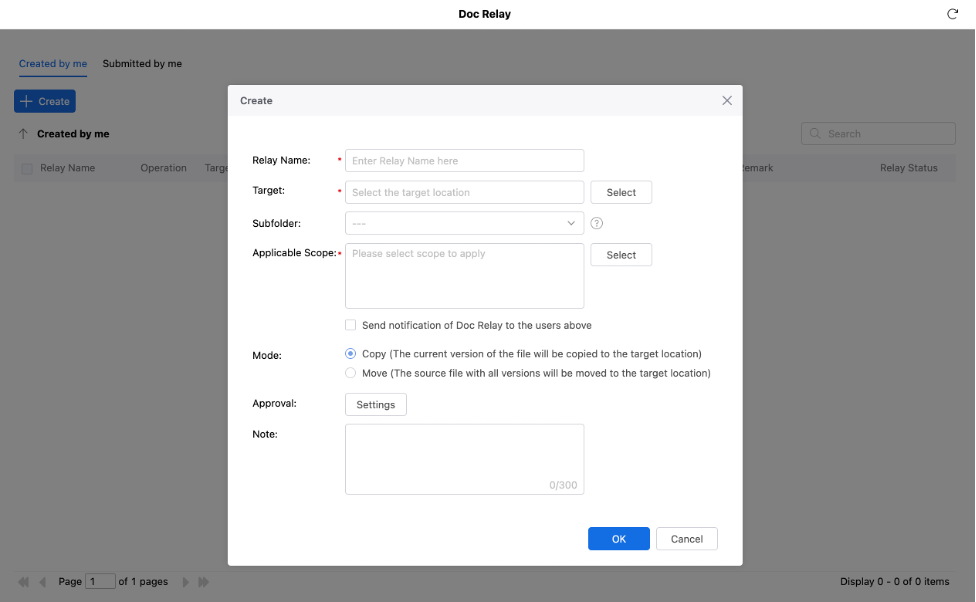
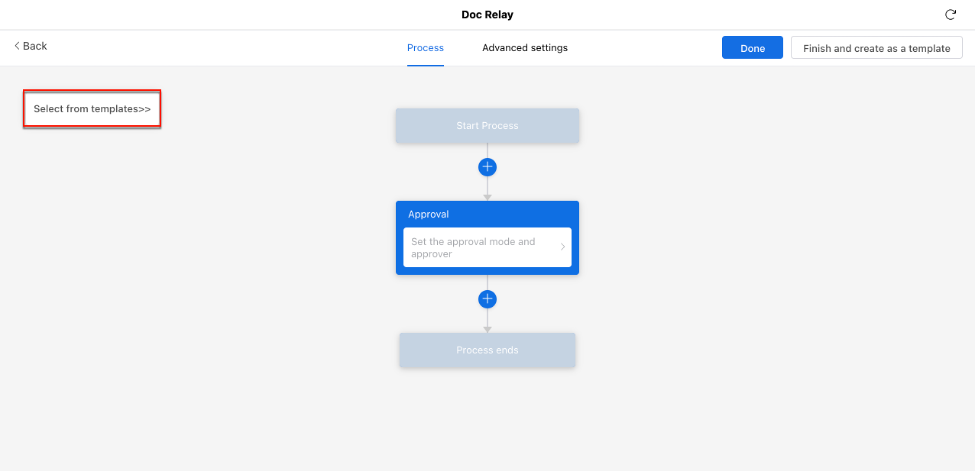
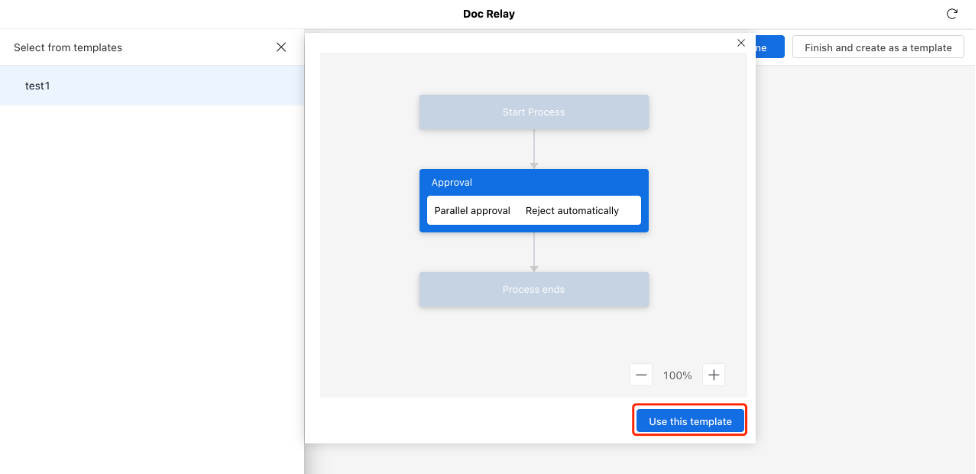
1)If an existing template applies, select [Select from Templates] (see: How to create approval templates?), then click [Use this template] to apply.
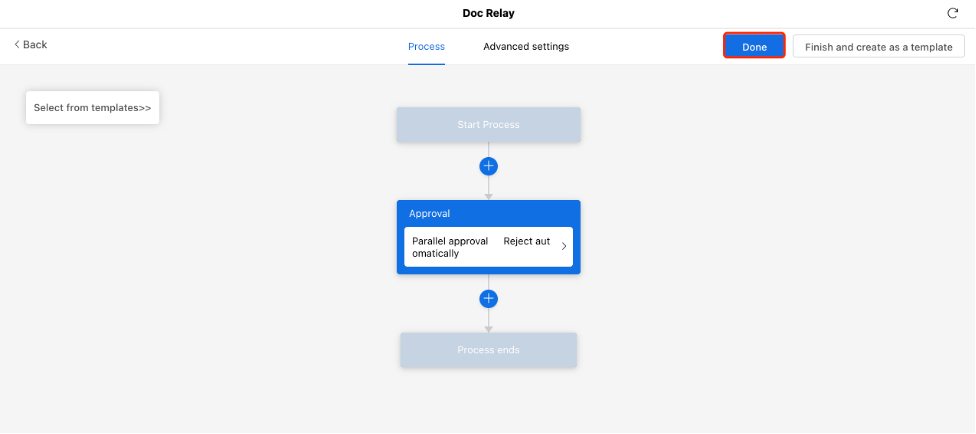
Then, click [Done] to finalize the approval workflow setup.
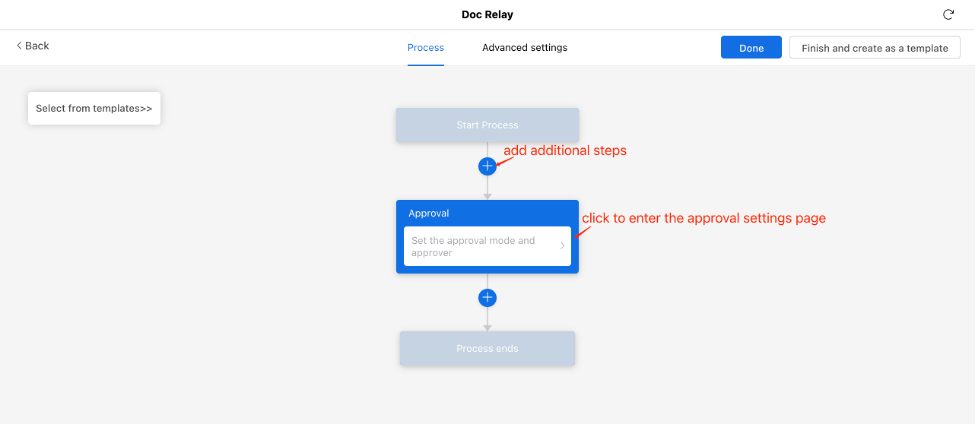
2)If no templates are available, click any process step to enter the configuration page. Set the desired link name, approver, approver mode (parallel/unanimous).
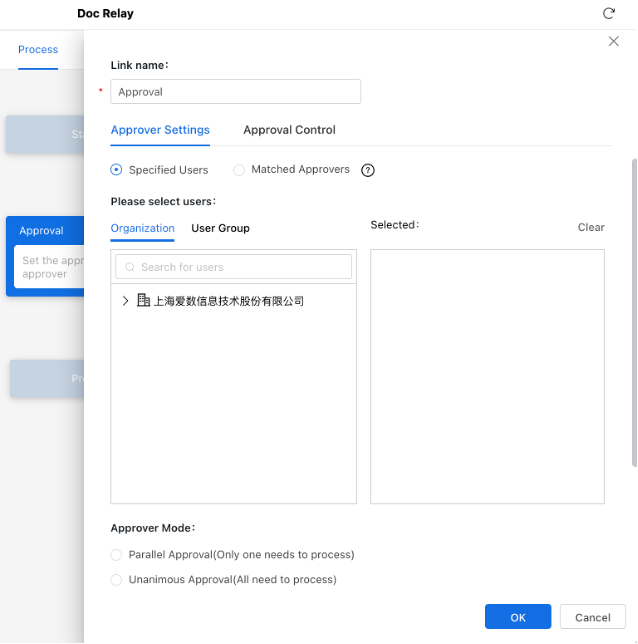
On the process configuration page, you can also click “ ” button in the diagram to insert one or more additional steps.
Temporary Approvers
It allows primary approver temporarily assigned other users as ad-hoc approvers during the approval process.
When configuring the approval workflow, initiators can enable this feature by check “Allow to add temporary approvers”, then set delegation scope restrictions.

Specified vs. Matched Approver
When configuring approval workflows, select [Specified Users] to assign fixed users for all approvals.

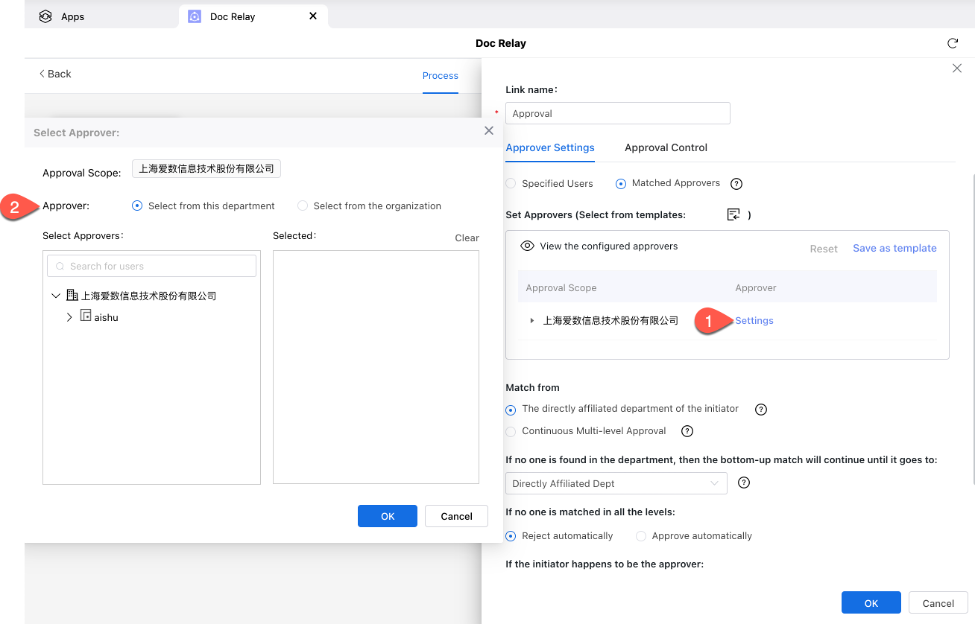
Matched Approval automatically assigns designated approvers based on predefined departmental/organizational roles. When selecting [Matched Approvers], you must specify target departments/organizations and its corresponding approvers.
Then requests from users within these groups will be approved by the designated approvers.

“Select from this department”vs“Select from the organization”
Choose “Select from this department” when approvers and requesting users belong to the same department; select “Select from the organization” for cross-departmental approval scenarios.
Approval Hierarchy
It controls whether an application requires multi-level approvals from successive department heads.
Specific Approver Review
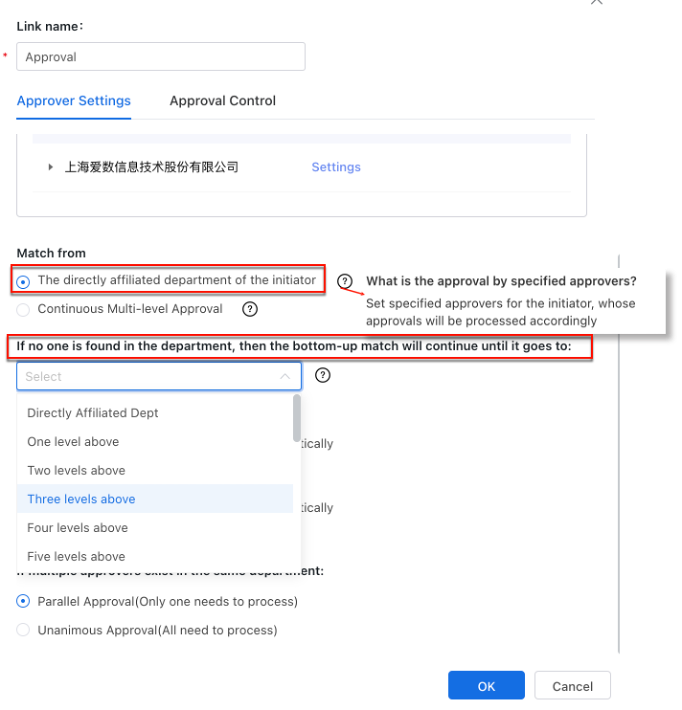
It assigns fixed approvers to specific users, ensuring all approval requests from these users are processed by their pre-assigned approvers. Select specific approvers for the initiator, whose approvals will be processed accordingly.
Then configure the matching hierarchy level. When enabled, set fallback approval chains for initiators without pre-assigned approvers
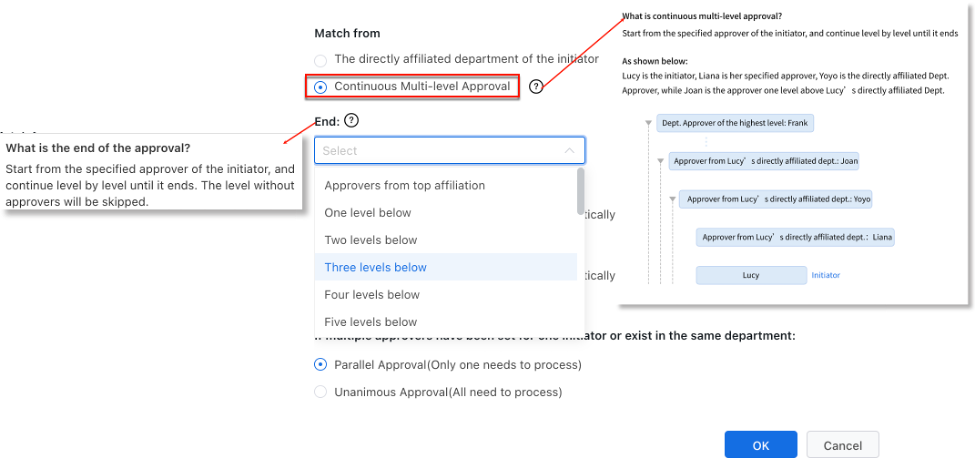
Continuous Multi-Level Approval
For scenarios requiring approval from every department head in the hierarchy, enable [Continuous Multi-Level Approval] and configure the final approval endpoint in the workflow.
It requires consecutive approvals from every department head in the organizational hierarchy, following a strict top-down order.
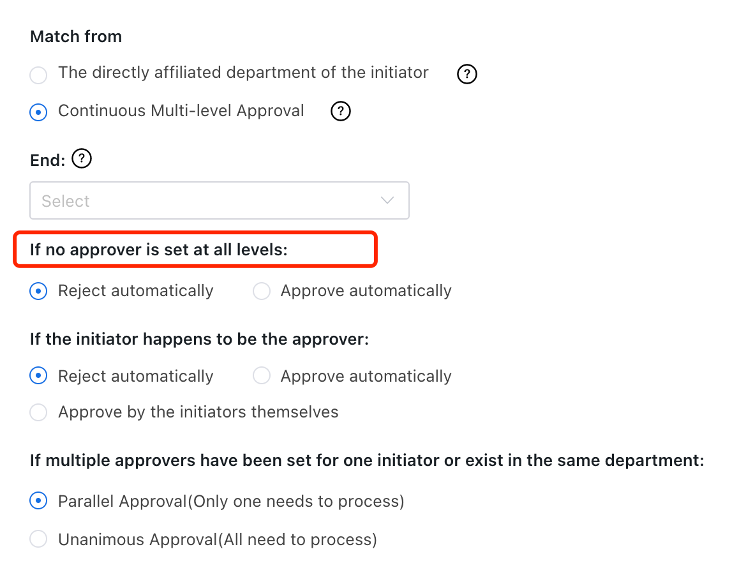
No matched approver at all levels
If no approver is matched at the final designated hierarchy level, you may configure this approval to either auto-reject or auto-approve.
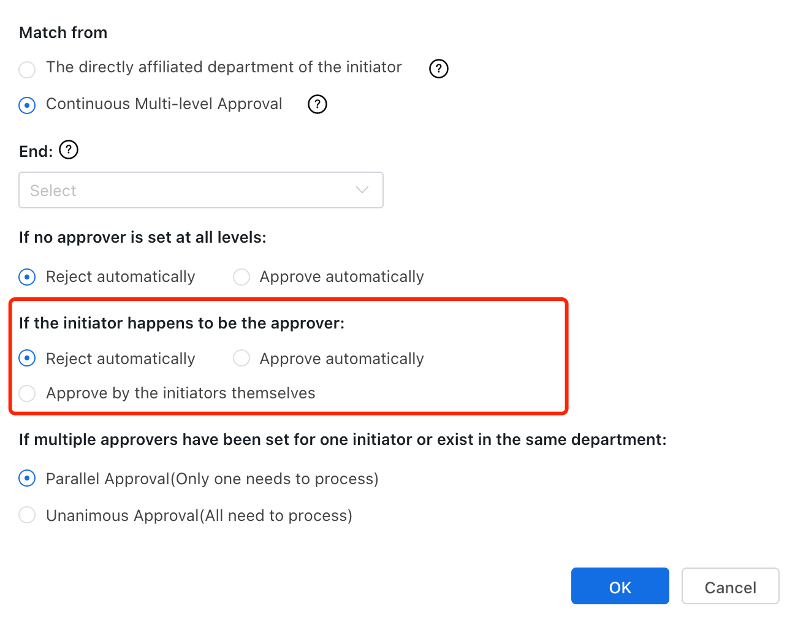
Self-Approval Scenarios
When the approver and initiator are the same user during the approval process, configure the approval to auto-reject, auto-approve or self-review by initiator.
Approval Modes
AnyShare provides three approval modes with distinct workflows:
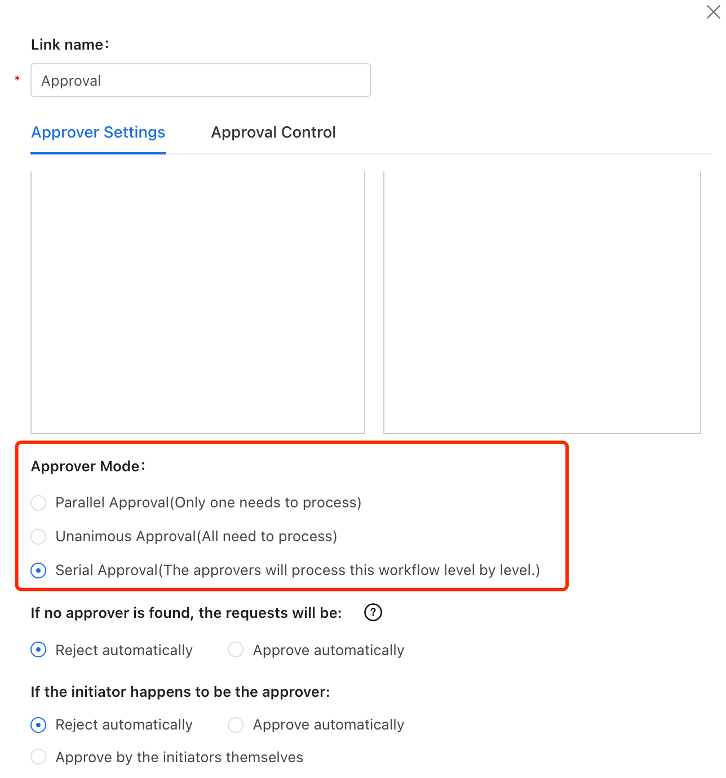
• Parallel Approval: Process completes after first approval
• Unanimous Approval: Process completes after all designated approvers consent or any single approver declines.
• Serial Approval: Process completes after all levels approve or terminates immediately if any level declines.
Approval Templates
› Purpose of Approval Templates
In large organizations with complex hierarchies, configuring approval workflows can be time-consuming. Approval templates allow users to save and reuse previously configured workflows.
› Configuration Guide
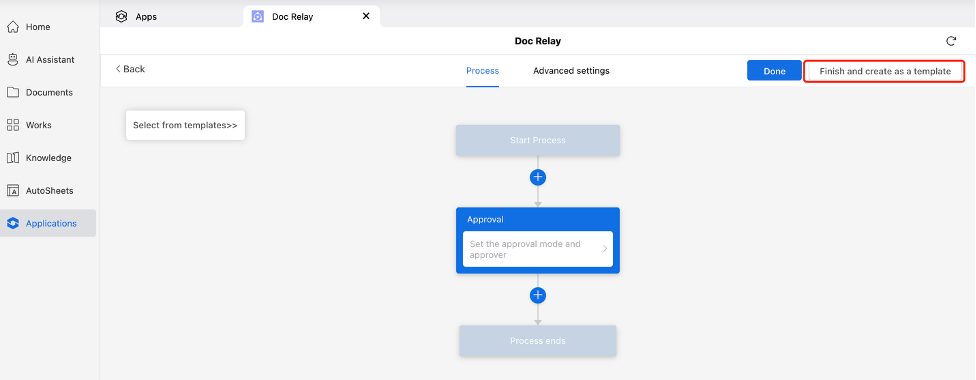
After setting up an approval process for a specific business case, users may click [Finish and create as a template] upon completion, assign a template name, and directly select it for future reuse.
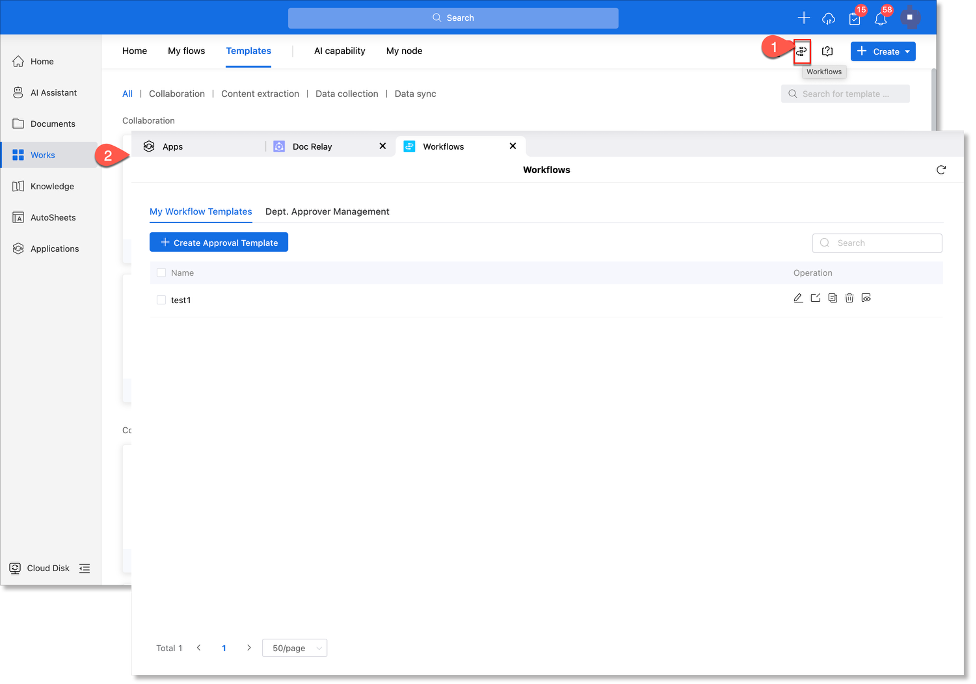
Alternatively, access the“ ”option in the top-right corner of the Works to manage all approval templates (add/delete/modify).
Status Tracking for Non-Approvers
For peer-level document transfer approvals, configure CC notifications during workflow setup to automatically share approval results with designated non-approvers at the same organizational level.
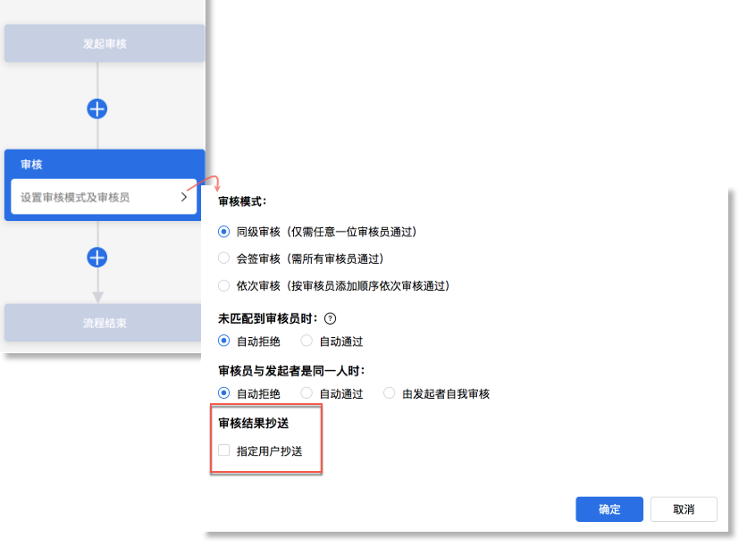
Once configured, users can check the approval results of this process under [Review Tasks] > [My Tasks], as shown below: