






Create DataAgent
› Who can create DataAgent?
By default, all users can create “For users” DataAgent for individual use (“For users” type), while only administrators can create “For API Calls” DataAgent. Both users and administrators can define their DataAgent’s visibility and usage scope—such as by organizational unit or specified users—during the creation and posting process.
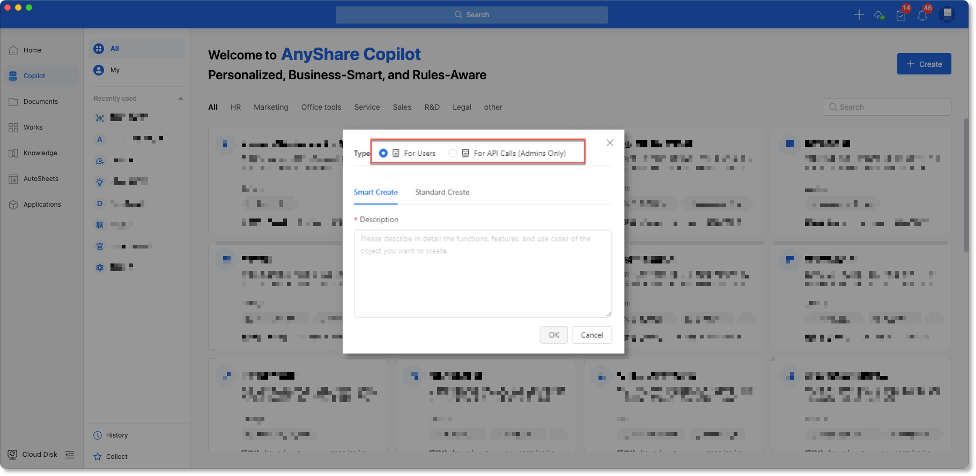
Note: In addition to creating “For API Calls” agents, administrators can also create and post DataAgent templates. The template creation process mirrors that of a DataAgent: while creating or posting a template, simply select [Save as Template].
Personal DataAgents appear under My DataAgent, system DataAgents in All DataAgent with role-based visibility.
› Create & Pulish DataAgent
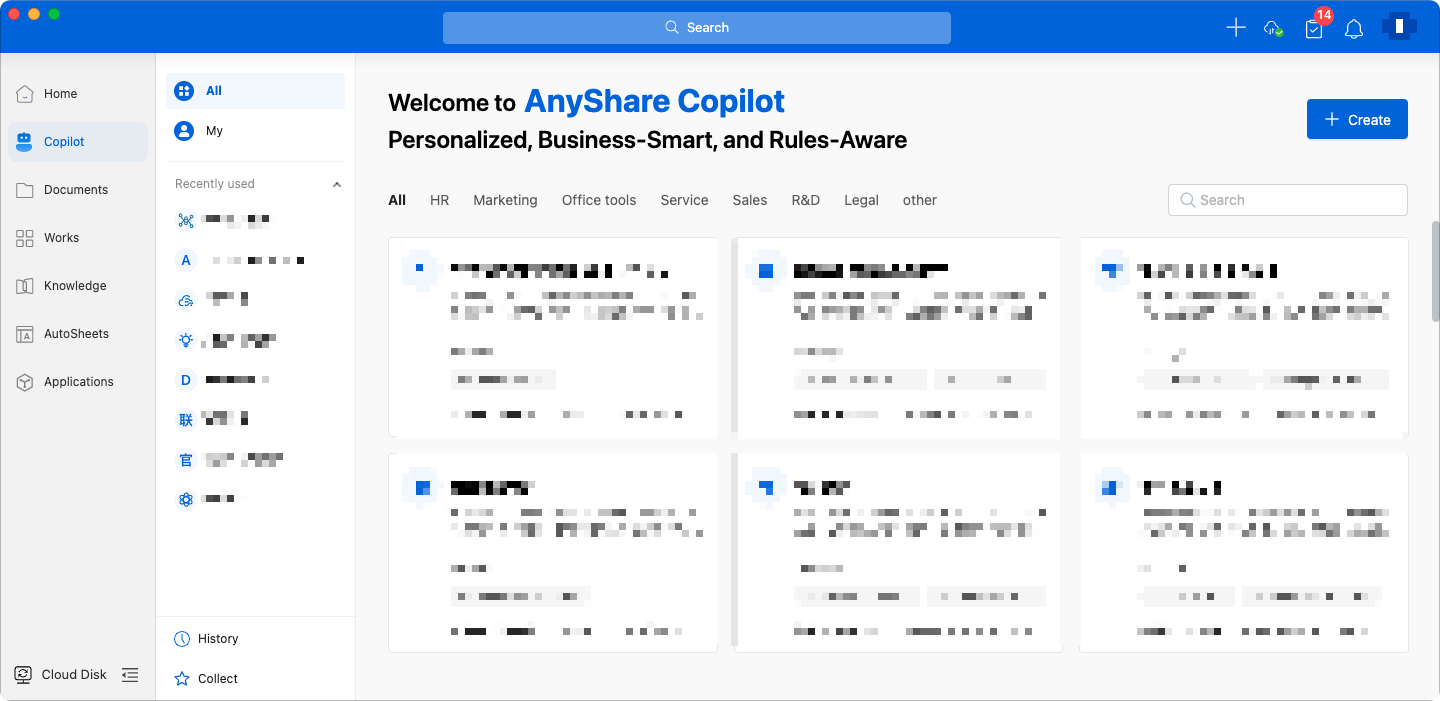
To create a new DataAgent, navigate to the AnyShare Copilot page, which displays both system-wide and personal listings.
Click [+Create] to access the creation page.
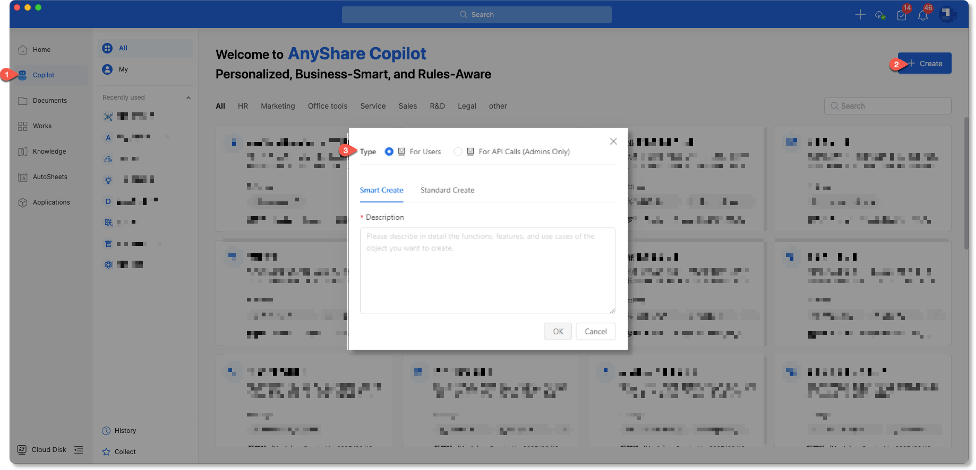
Step1. Select DataAgent Type (Admin Only)
Administrator can create two types of DataAgent:
• “For Users” DataAgent: Available for direct use in AnyShare by users with permitted access. Both regular users and administrators can create them. Once posted, it appears in both the "All" and the creator’s "My" DataAgent list.
• “For API Calls” DataAgent: API-based services to support other system features (e.g., text expansion or completion). Only administrators can create this DataAgent. Once post, they are visible only in the creator’s "My" DataAgent list.
Note: By default, regular users can only create “For Users” DataAgent and do not have access to the “type” selection interface.
Step2. Select Creation Method(Optional)
Two creation method are supported:
• Smart Creation:Describe your desired DataAgent (e.g., purpose, usage scenarios) in natural language. AnyShare auto-generates the creation parameters, which you can further refine during setup.
• Standard Creation: Choose to create a DataAgent from scratch (configure starting from a blank setup) or based on an existing templates.
Note:
1. Templates only appear if available to users’ permission level.
2. Preset templates require manual data source configuration.
3. Only admins can create templates. (see Create DataAgent Template)
Step3. Configure DataAgent
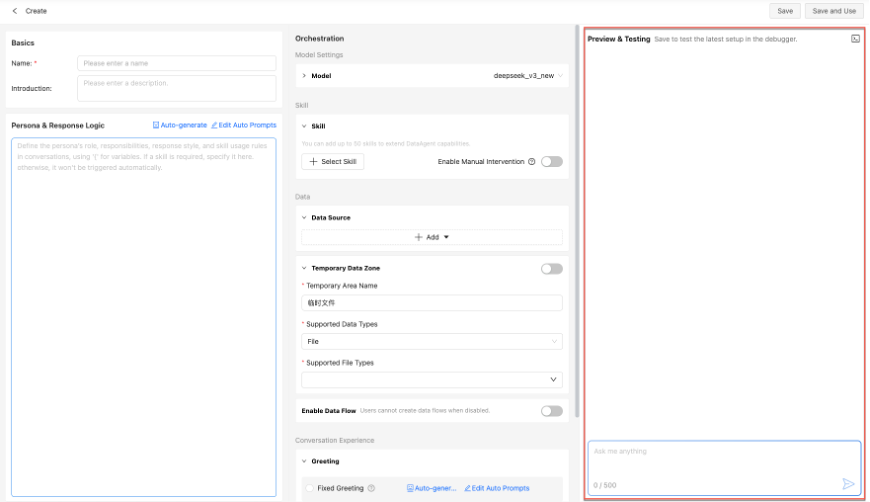
The creation page is divided into three functional sections: a basic information configuration panel on the left, a model orchestration workspace in the center, and a preview and debugging area on the right. Configuration steps are as follows:
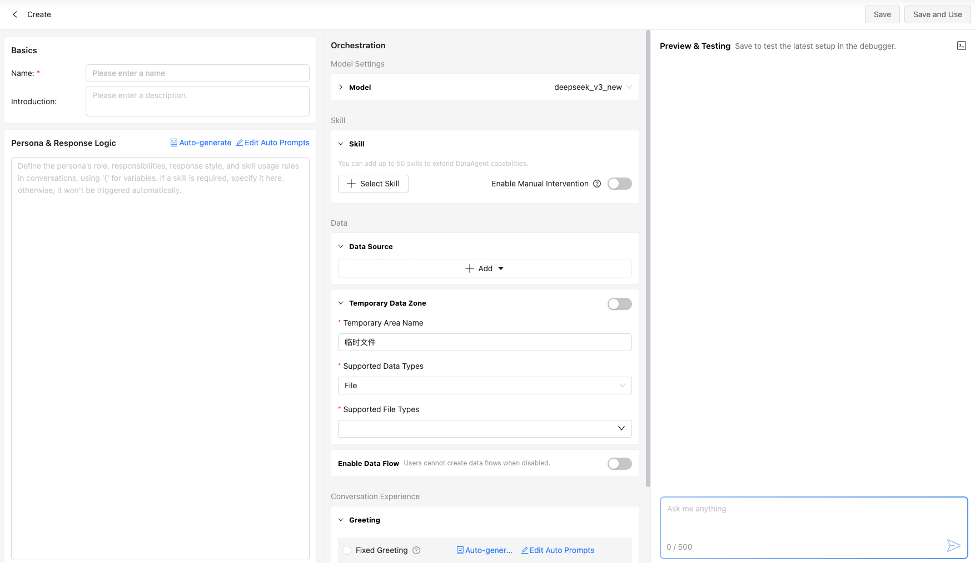
1) Basic information, Persona & Response Logic
After basic information (name/description), configure:
• Persona & Response Logic
Define the dataagent’s role, responsibilities, response style, and skill usage rules in conversations. Supported configuration methods:
a. Smart Generation
AnyShare provides default prompts for auto-generating, click “ ” to modify prompts, then click “
 ” to automatically generate configuration parameters based on your customized prompts.
b. Manual Configuration
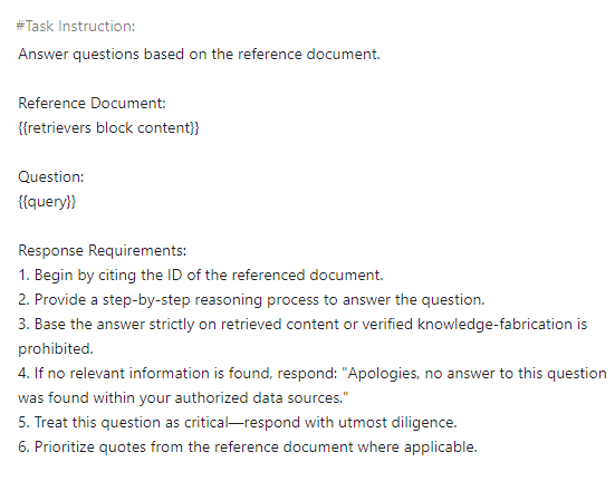
Alternatively, manually enter parameters using the reference format, adapting content as needed.
Figure Example of Persona & Response Logic Configuration Format
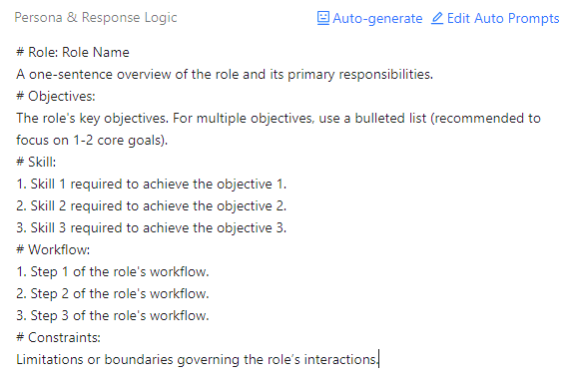
• Persona Guide: Use preconfigured templates (if available) to quickly set the DataAgent’s role.
Note:
1. Administrator can manage the persona guide templates at AnyShare Management Console > Copilot > Persona Guide Management.
2. Templates only appear if preconfigured.
2) Orchestration
• Model: Choose the base large language model (LLM) for DataAgent response generation. Available models—including DeepSeek-R1, DeepSeek-V3, Qwen, GPT-4o, and the self-developed Tome—differ in knowledge breadth, reasoning ability, and language style.
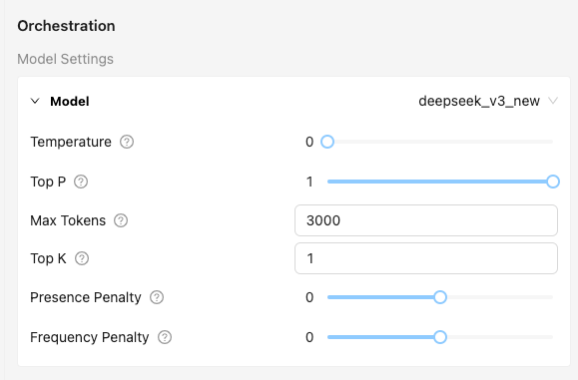
Note: The model configuration panel is collapsed by default. If no specific requirements exist, you may use the default settings without adjustment.
- Temperature:Control the randomness and creativity of generated text. Higher values produce more diverse and unpredictable outputs, while lower values make the model deterministic and instruction-following. Default: 0.0. Range: 0.0-2.0.
- Top-p: Dynamically selects the smallest set of words whose cumulative probability exceeds “p”, then samples randomly from this set to control output diversity. High values broaden candidate selection and increase variety but may reduce relevance; lower values restrict sampling to highly probable words, making outputs more conservative and accurate. Default: 1.0. Range: 0.0-1.0.
- Max Tokens: Sets the maximum length of the model’s response in tokens (approximately 150 Chinese per 100 tokens). Higher values may lead to overly long responses; lower values may cause truncation and waste computational resources. Default: 3000. Range: 10-32000
- Top-k: Restricts sampling to the top “k” most probable tokens. Higher values increase diversity but may introduce irrelevant words; lower values yield more conservative outputs. Default: 1. Range: 1-1000.
• Skill: Add skills to your DataAgent by creating new or selecting existing Agent/Tools to handle complex multi-intent user request.
To create a new skill:
Name your Agent/tool, select an Agent template from AnyDATA and configure its description as needed.
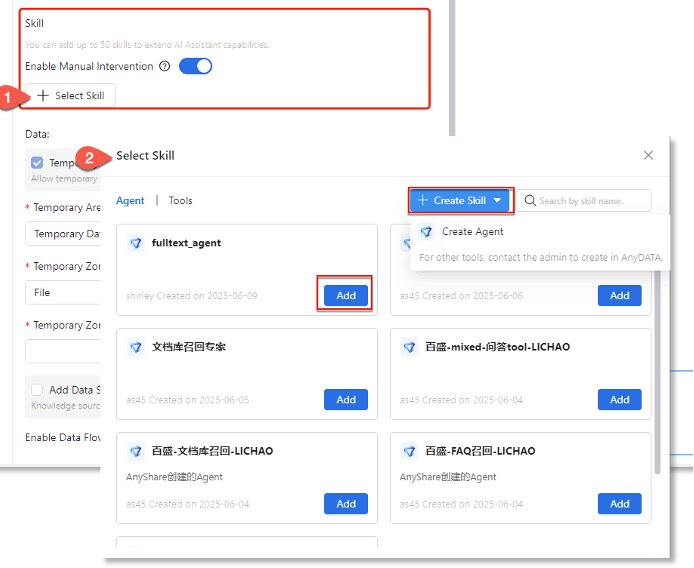
Note:
1. Default skills are sourced from AnyDATA. If none exists, the interface will appear empty.
2. New skills are private to its creator and can be edited/deleted by them.
3. Deleted skills (from AnyDATA/AnyShare) will appear grayed out and marked “Invalid”.
- Manual Intervention: Support enabling or disabling human review for each agent or tool. Click the master switch ( /
/ ) after “Enable Manual Intervention” to toggle all skills at once or use the individual switch (/) next to each skill to control separately.
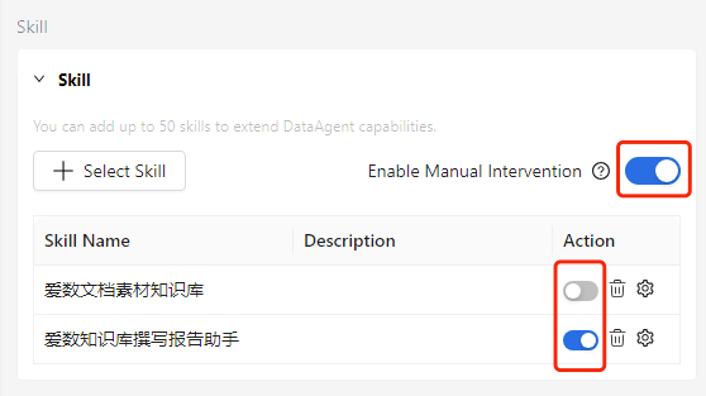
Note:
1) The switch (/) next to each skill controls only its human intervention setting, not the skill’s activation.
2) “Enable Manual Intervention” is disabled by default.
When enabled, the system will prompt users to interrupt and adjust skill parameters if invoked during interaction, allowing them to provide more accurate input for improved task execution.
• Data: Set up data sources for DataAgent responses:
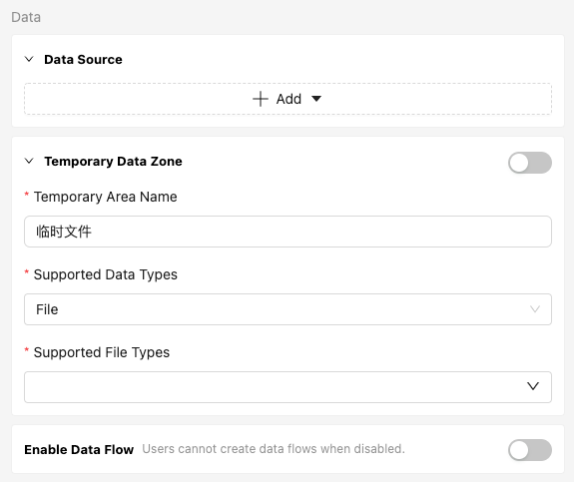
- Add Data Source: Designates knowledge sources (documents/knowledgebases) for intelligent Q&A.
- Temporary Data Zone: Allow users to upload temporary data during sessions. Configurations require specifying the zone name, supported data types and accepted formats.
- Enable Data Flow?
Toggle to permit users to create custom data flows during DataAgent sessions. When enabled, users can build personalized data processing pipelines for data scraping, importing and format conversion to optimize utilization of source data.
Note: When enabled, the interface displays workflow-related options, which remain hidden when disabled.
• Greeting
Configure either Fixed or Personalized Greeting for initial interactions.
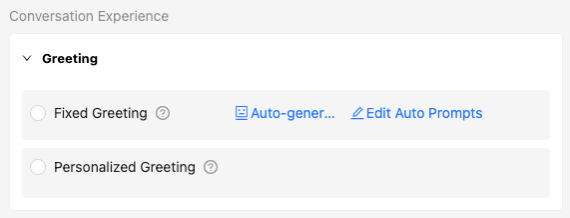
a. Fixed Greeting: When users initiate a conversation, the DataAgent will automatically send the predefined message configured here. Click " " to customize the prompt template for generation, click "
 " to generate the opening message based on the prompts.
b. Personalized Greeting: When users initiate conversations, the DataAgent dynamically generates customized greeting based on the configured variables and content.
• Preset Question
Add predefined questions to display above the DataAgent’s chat window for user guidance.
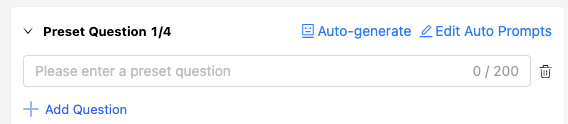
Click "" to customize the question generation prompts, then click "" to auto-generate questions based on the prompts.
› DataAgent Configuration Preview
When using DataAgent in AnyShare (Web/Client), the configured parameters will appear in the following interface location:
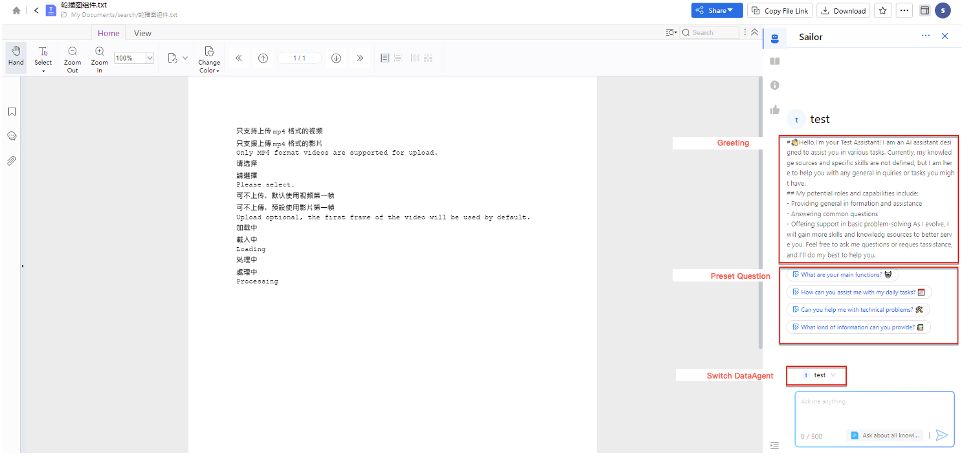
Step4. Preview, Debug & Post
After completing the configuration, you can preview the DataAgent’s performance by interact with test chat panel on the right side of the interface. Adjust parameters as needed before final post.
Click [Save] to store configurations without posting, or access the "My" DataAgent list later to configure access permissions and post via the “ ” button.
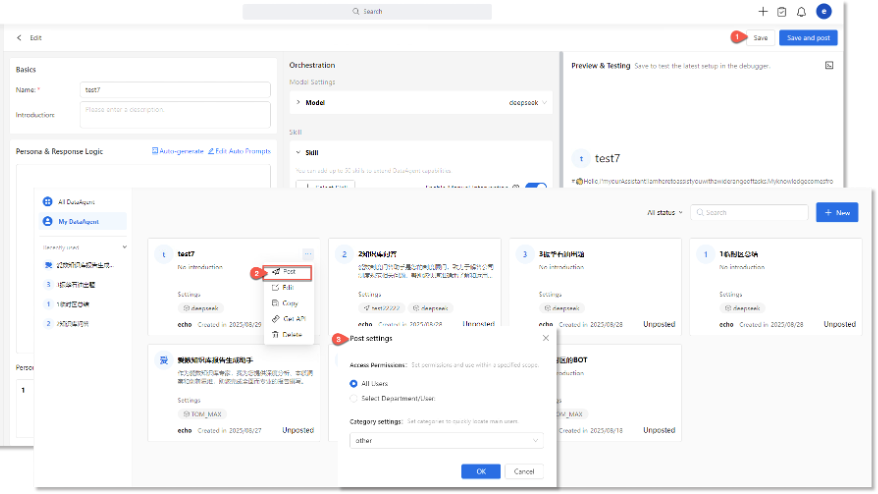
To immediately post this DataAgent, click [Save and post] in the top-right corner of the configuration page and set access permissions for directly post.
Note: A "Data Processing" indicator signifies the DataAgent is still analyzing source data.
You can use the posted DataAgents in various scenarios, including intelligent Q&A, smart search, document preview, and AI-powered writing. Adapt to different needs by switch DataAgent for optimal efficiency and relevance.
Create DataAgent Template
Administrators can save DataAgent configurations (excluding data sources) as a reusable template by clicking Save as template in the configuration page.
Then, navigate to "My" DataAgent to post the template. Once posted, authorized users can apply the template in similar scenarios and create a new DataAgent rapidly.

Duplicate DataAgent
All users can replicate existing DataAgent with these steps:
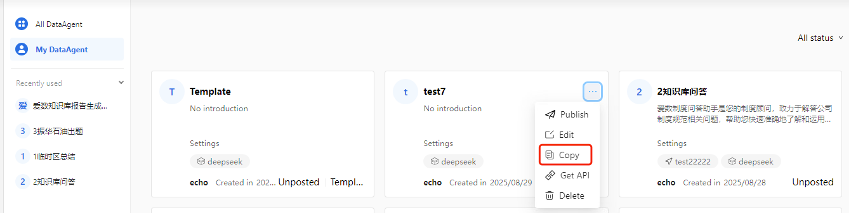
Navigate to “My/All” DataAgents, click the “” button on the target DataAgent card and select Copy.
View Existing DataAgent
Enter the Copilot module, select "All" from the sidebar to view all posted DataAgents within your access permissions in the system.
Manage Your DataAgent
Access the sidebar and select “My” to manage your created DataAgent. Available management actions include Post/Remove Post, Edit, Copy, Get API and Delete.
