






Preparation Before Use
1. Compatibility Requirements
- Requires macOS 13+ for full Finder integration
- Server must run AnyShare Family 7.0.6.1+
2. Installation
Download and install AnyShare Family 7 Client (v7.0.6.1+) to upgrade existing versions seamlessly.
3. Configuration
1) Launch Configuration
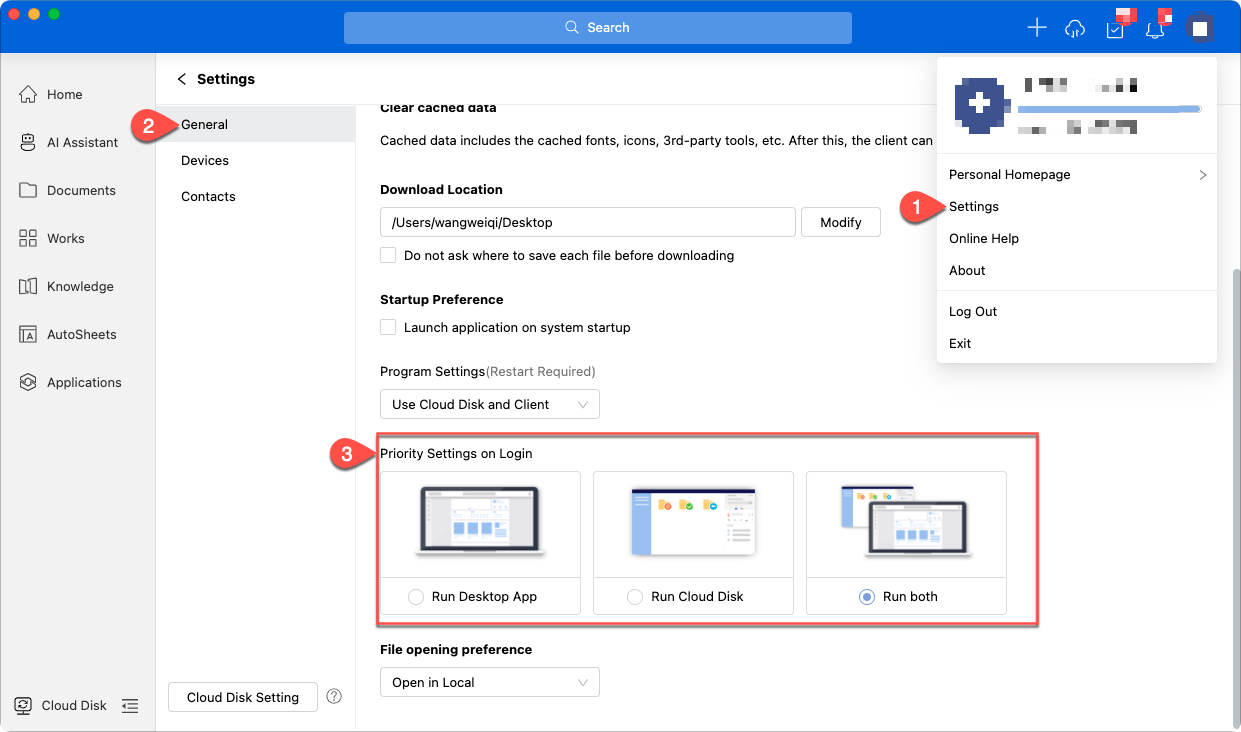
The client and cloud disk launch simultaneously by default upon login. Modify this behavior via [Settings] > [General] > [Priority Settings on Login].
2) Additional Settings
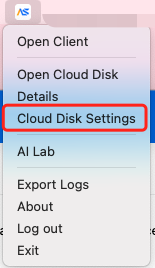
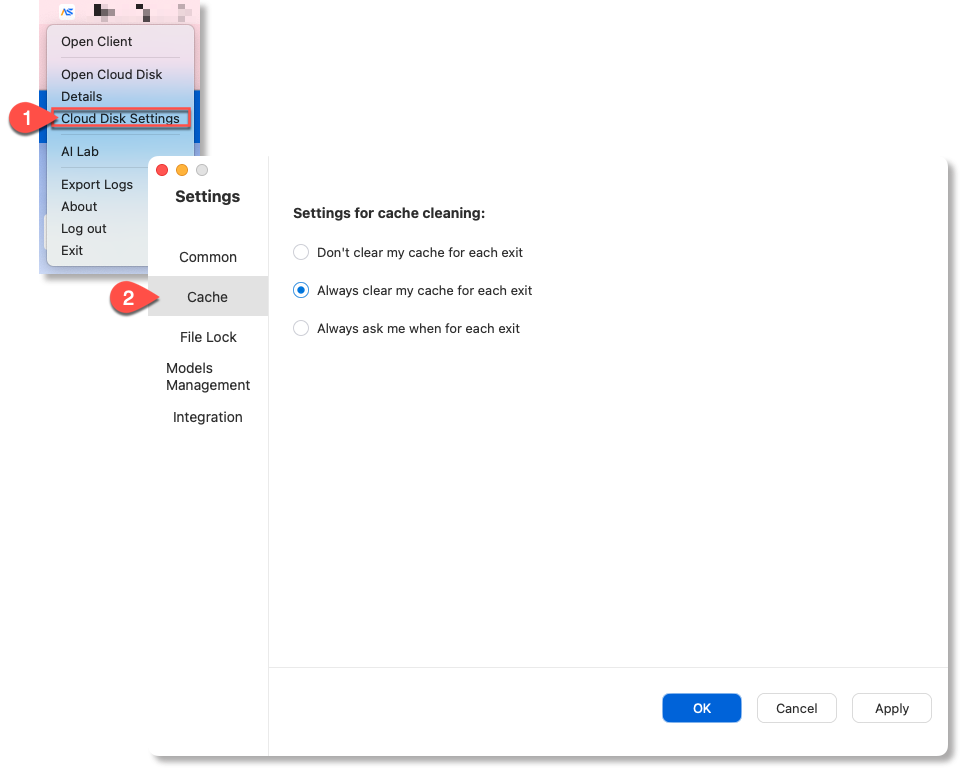
Access the configuration interface by selecting [Cloud Disk Settings] from the system tray menu.
• Configure whether to clear local cache when closing the client (default: Retain cache when exiting client).
• 【v7.0.6.2+】Auto-Unlock Timer: Files lock when opened but automatically unlock after prolonged inactivity without saves.
Access Cloud Disk
› Access Points:
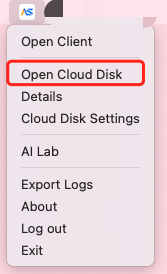
Option 1: Click "Open Cloud Disk" in the system tray menu.
Option 2: After logging into the client, locate and click the Cloud Disk entry in the lower-left corner to activate it.
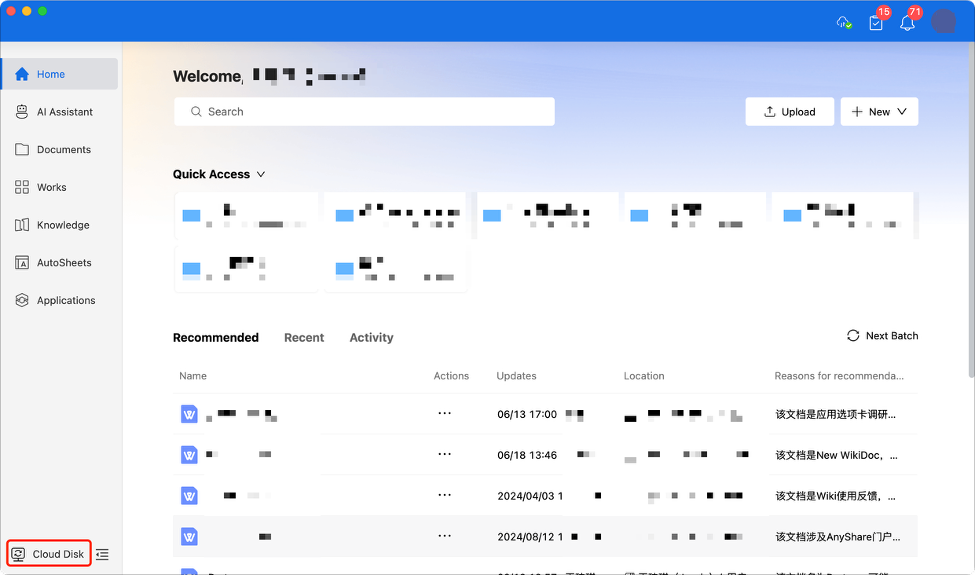
Once enabled, you can access categorized documents within the AnyShare directory.
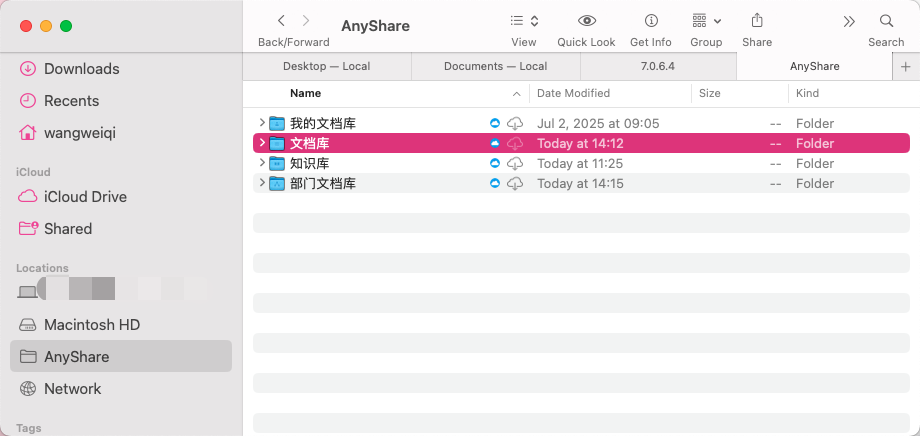
Cloud Disk Operations
Fully enumerated directories automatically detect cloud changes and sync locally. Local metadata/content modifications likewise sync to the cloud immediately.
› File Preview/Edit
Double-click any file to preview or use the [Spacebar] for instant quick look on selected documents.
Note: All saved edits automatically synchronize to the cloud.
› File Upload
Drag/drop or copy files into write-enabled directories to upload to the cloud.
Note: Directories without upload permissions retain user-copied documents locally but block cloud synchronization, requiring manual user intervention to resolve.
› File Download
To download documents, click the download icon (lower-right corner) or right-click to select [Download] for local saving. Active downloads can be canceled via the close button (upper left), while already downloaded files automatically detect and sync with the latest cloud versions.
› Additional Operations
|
Action |
File |
Folder |
Description |
|
Refresh |
❌ |
✅ |
Syncs folder contents |
|
Clear Cache |
✅ |
✅ |
Removes local data (recursive for folders) |
|
Open Cloud Location |
✅ |
✅ |
Navigates to file in rich client |
|
Copy Path |
✅ |
✅ |
Copies cloud path to clipboard |
|
Copy To |
✅ |
✅ |
Opens cloud copy interface |
|
Move To |
✅ |
✅ |
Opens cloud move interface |
|
Star |
✅ |
✅ |
Saves to default favorites category |
|
Unstar |
✅ |
✅ |
Removes from favorites |
|
Lock |
✅ |
❌ |
Exclusive edit rights |
|
Unlock |
✅ |
❌ |
Releases lock |
|
Steal Lock |
✅ |
❌ |
Overrides existing lock |
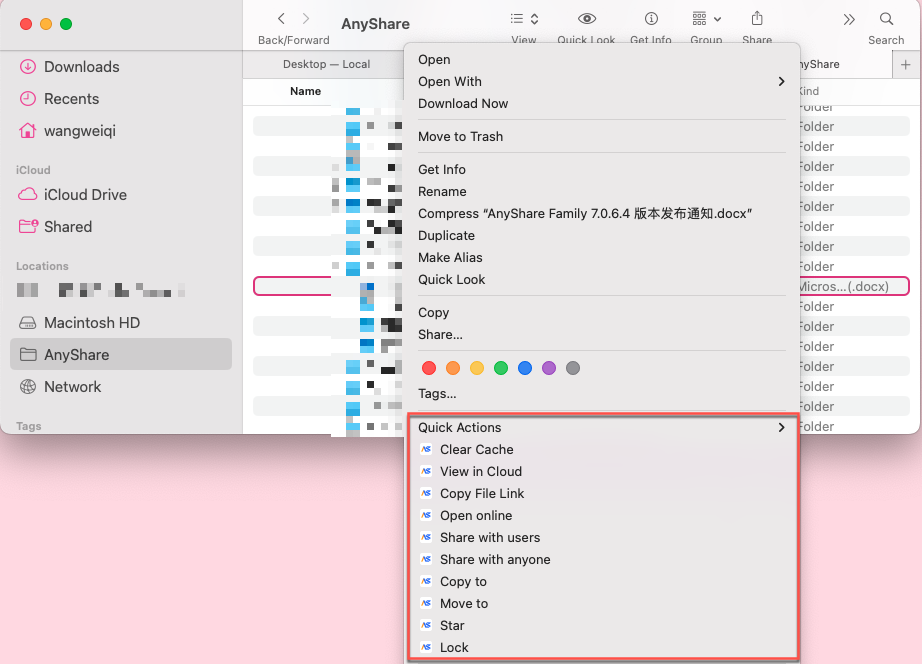
› Operation Logs
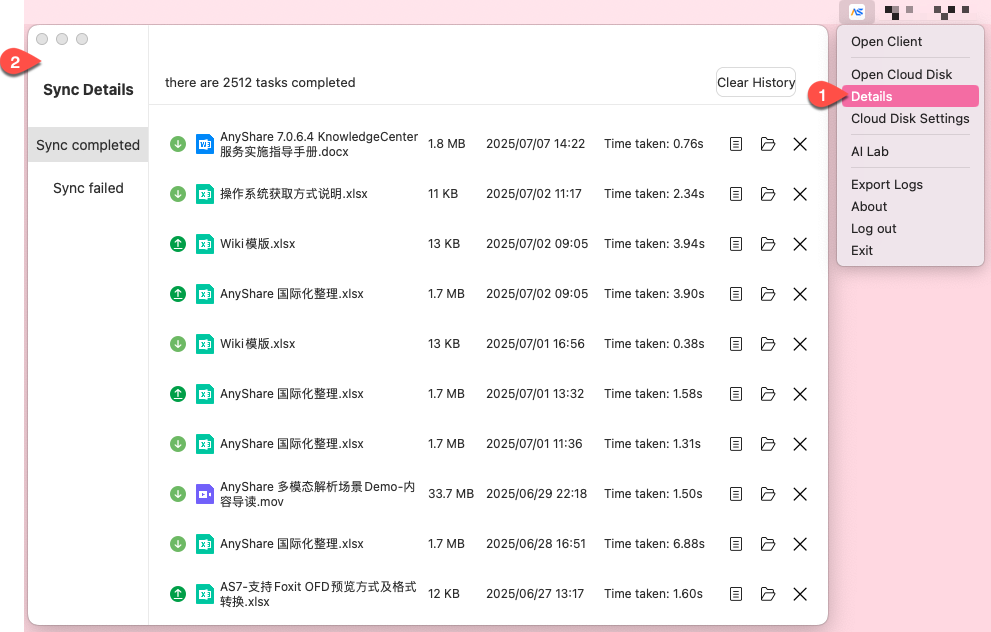
Click [Details] > [Sync Details] in the system tray menu to access comprehensive records of completed operations (downloads, uploads, renames, deletions), displaying file names, sizes, timestamps, duration, and failure reasons—with interactive buttons for each entry.
› Custom Icons (More reliable across OS versions)
 : Folder/file not enumerated/downloaded
 : Folder fully enumerated, or file downloaded locally
 : File syncing in progress
 : File locked (editing restricted)
› System Icons (May vary by OS)
 : Folder/file pending enumeration/download
 : Document uploading/downloading
 : Sync error (e.g., conflict, permission issue)
 : Operation queued (waiting for network/resources)
Reference Link:https://support.apple.com/zh-cn/guide/mac-help/mchlc994344b/15.0/mac/15.0
Frequently Asked Questions
Q: Why is the AnyShare extension not starting?
A: First-time users must manually enable the extension by clicking the "Enable" button in the upper-right corner of the extension interface.