






Scenario 1: Require an approval before post documents to Knowledge Document
Before posting a file to Knowledge Documents, the approval from the supervisor is required. Once it is approved, the file will be posted successfully.
Scenario 2: Start auto-archiving after the expiry date of the files
For the e-commerce corporations, the photos are time-based, and auto-archiving will be triggered as the season changes.
Scenario 3: Auto-add attributes to the catalogue of the folder
For the organization of construction field, normally folder will be named as Classification No. + Details, and the Classification No. shall be filled in as one attribute of the catalogue.
Scenario 4: Automated Knowledge Publishing for Specified Folders
When enterprise documents and operational materials (such as release documentation) are finalized in designated folders, staff can initiate an automated review process. The system will automatically submit these folders for approval after metadata completion. Upon approval, the system copies the entire folder to a designated publishing location, making it accessible to all authorized employees.
Now, try and create your first automated flow!
Create Natural Language-Based Flow
To build smarter enterprise knowledge management systems, AnyShare leverages AI to create workflows automatically through conversational interaction.
AnyShare intelligently analyzes descriptive user input to extract core process nodes and generates a procedural approval workflow configuration window, allowing further refinement.
Navigate to the Documents, select a file/folder and open the interactive window in the right sidebar Automated flow tab.
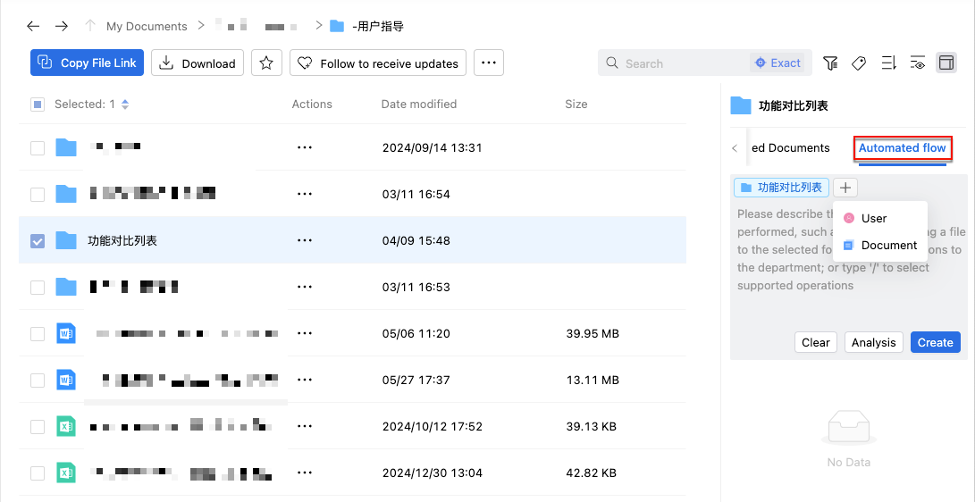
In the dialog window, describe your workflow concisely with key execution nodes. Example: " Copy all documents containing '7.0.6.4' from the current path to a '7.0.6.4' folder."
Use the " " button to manually add users/documents. And click [Analysis] to view system-extracted processing.
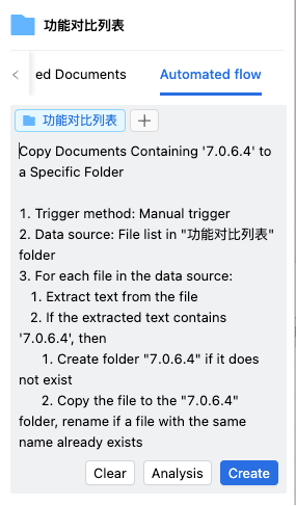
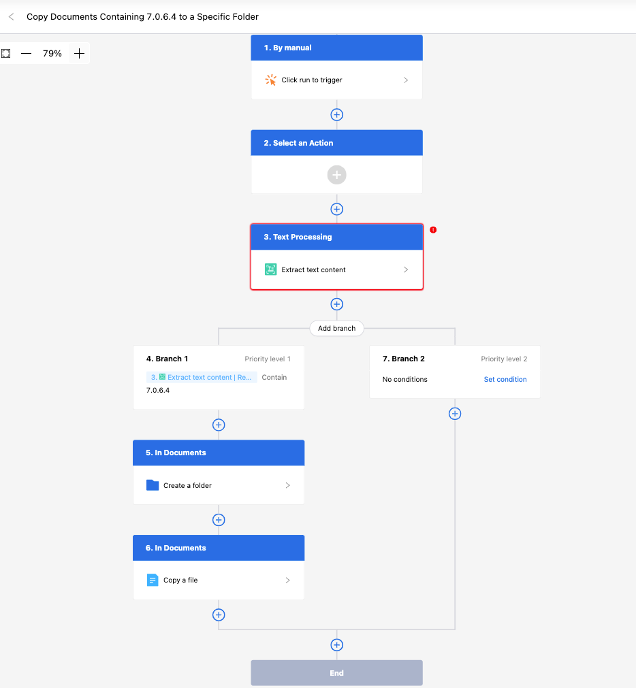
Finalize with [Create] to enter configuration page.
Figure-Workflow Configuration Interface
Supported Natural Language Workflow Scenarios
Note: Execution requires relevant file/folder permissions.
1) Manual Operations
|
Actions |
Example Command |
Notes |
|
Move files/folders |
Move PDFs and DOC files to “2013” folder |
|
|
Copy files/folders |
Copy files > 6MB to “2022” folder (overwrite duplications) |
|
|
Rename files/folders |
Add current timestamp as prefix to all files in current folder |
|
|
Tag files/folders |
Tag folders containing “month” with “date” |
|
|
Delete files/folders |
Delete files containing “14” in current folder |
|
|
Add files/folders |
Add “My Daily” folder to both “January Record” and “February Report” folders |
|
|
Update files |
Append “My test” to last line of selected files |
|
|
Share with permissions |
Share file with Zhang San with “view-only” permissions |
Requires manual expiry date |
|
Get file path |
Get the document directory level of current file |
|
|
Time-based actions |
Tag files older than 2 days as“Expired” |
|
|
Initiate approval |
Apply edit permission and start approval |
Requires manual approver setup |
2)Event Triggers
|
Triggers |
Example Command |
Notes |
|
When upload files |
When uploading files to “Learning Materials” folder, automatically copy them to the “Public Courses” folder |
|
|
When create files |
When creating “7.0.6.2” folder, automatically delete “7.0.6.1” folder |
|
|
When copy files/folders |
When copying “7.0.6.1” file, automatically add “scratch file” suffix to rename |
|
|
When move files/folders |
When moving files to Operation Department, automatically create numbered folders |
|
|
When delete files/folders |
When deleting this file trigger an approval, automatically share the folder and assign download permissions to user “05” |
|
3) Scheduled Triggers
|
Schedule |
Example Command |
Notes |
|
Daily |
Move selected files to “For Study” folder at 11:25 daily |
|
|
Weekly |
Create “Work this week” folder every Monday at 10:00 |
|
|
Monthly |
Share files and trigger approval on every month 28th at 12:00 |
Requires manual approver setup |
Note:
1)Execution fails without proper file/folder permissions.
2)Python nodes unsupported in v7.0.6.2.
3)Auto-generated review nodes unavailable in v7.0.6.2 - must be manually configured.