






AnyShare Family 7 enables the creation of multiple dedicated portals, tailored to meet the unique needs of different enterprises. Organizations can easily create portals with unique designs and features, while unified management and collaboration ensure a consistent experience across all portals.
› Configure Navigation Bar and Widgets
Administrator can personalize the navigation bar and widgets for better data consistency, talent empowerment and digitization.
• Navigation allows custom menu name, positions, sub-menu, offering flexible navigation.
• Widgets support flexible positioning and sizing to meet organizational needs.
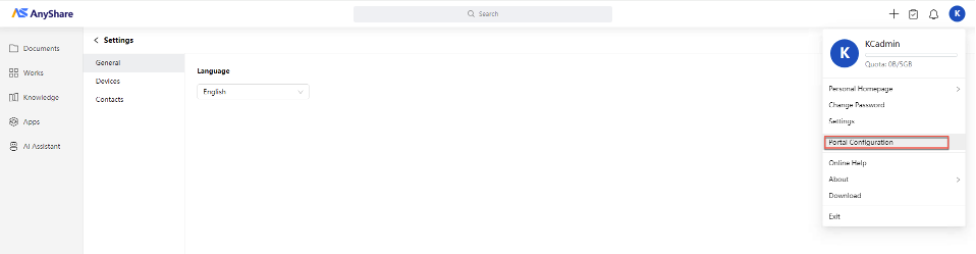
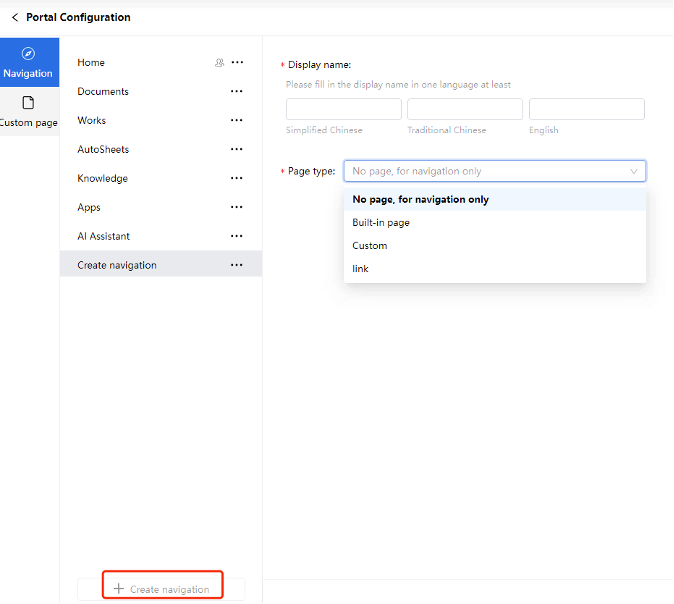
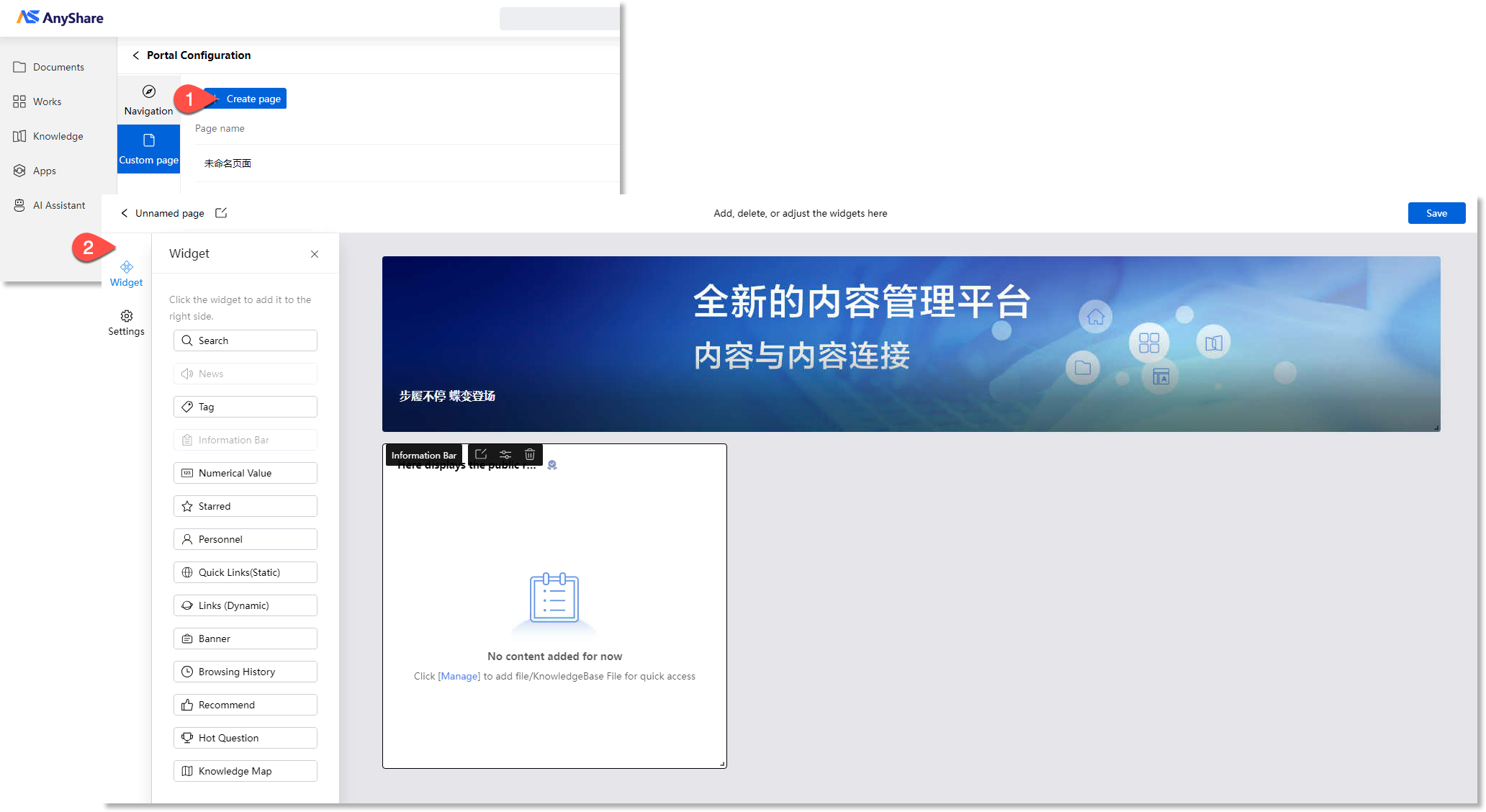
Portal Administrator can click [+Create navigation] to set the menu display name in the desired language. If the menu is for navigation only and will have sub-pages added later, select No Page. To display the menu as a page in the navigation bar, select Custom Page, Built-in Page, or Link.
› Configure custom pages
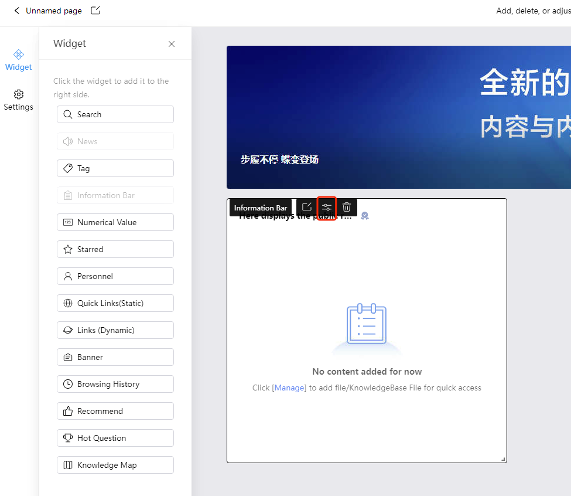
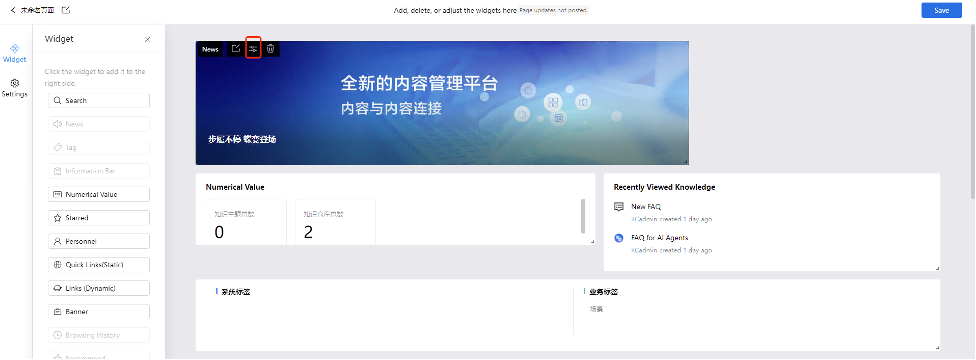
Select the desired widget panels from the left widget list to display on the right page. You can add and display multiple widgets on the page.

Click Mange to add and control the content.
In the Management Page, click [+New Classification] to add multiple classifications, display information and corresponding pages.
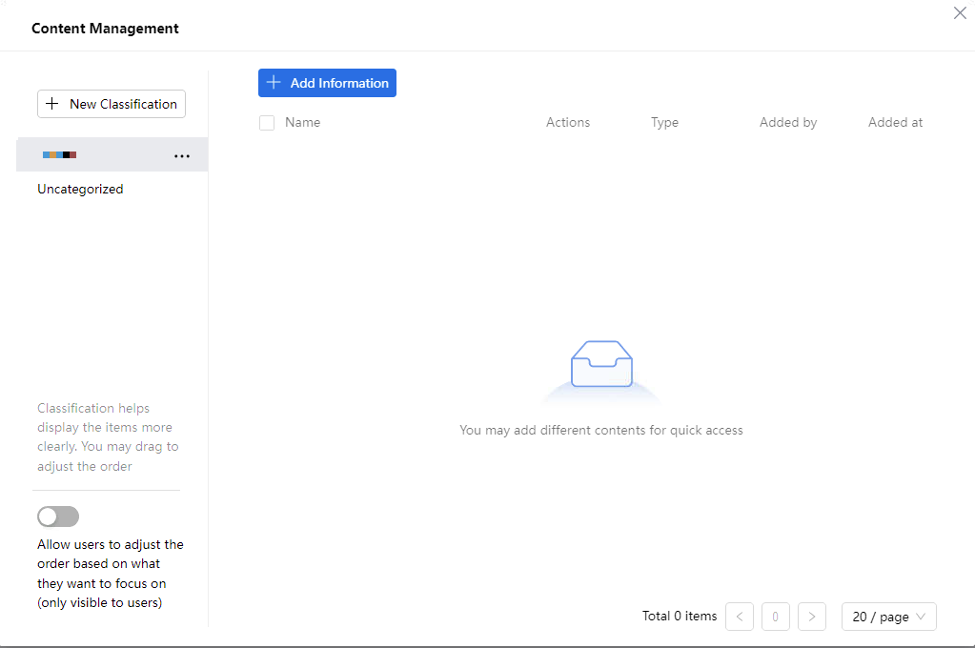
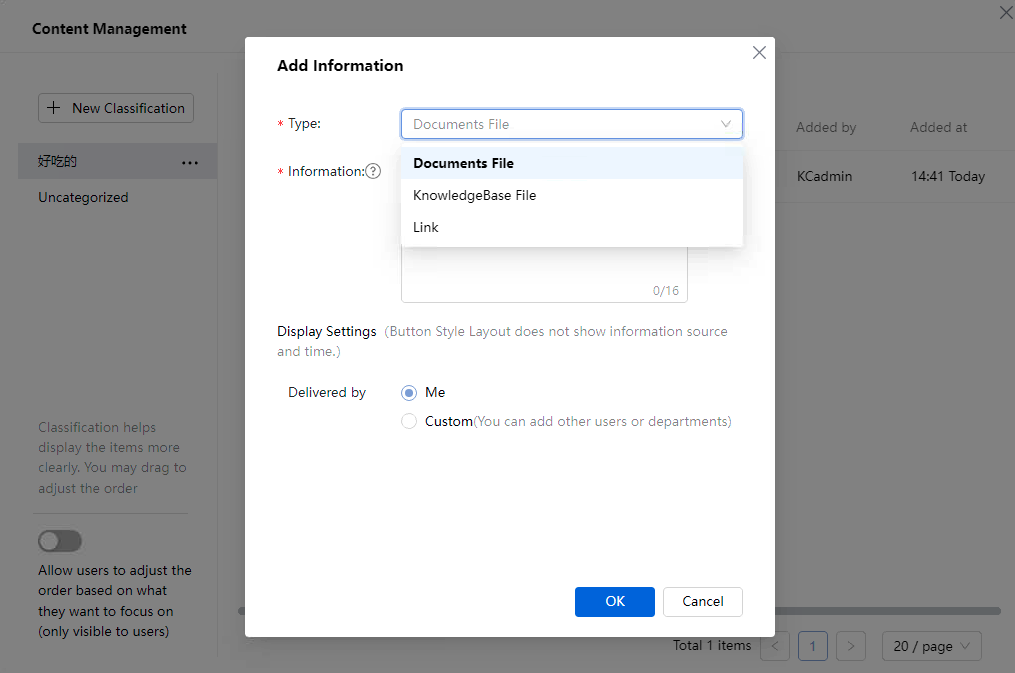
For Display Information, you can choose content from Document Center or third-party links.

After editing, you can drag to adjust the component size for better display.

› Set page visibility
Under Navigation Menu, select the newly created custom page to configure its visibility.
› Publish an announcement
Click the Manage button in the top-right corner of the Announcement section to open the management page.
On the new page, click [+Publish] to enter the creation page where you can edit the cover, title, summary, publisher, and content.
After editing, click [Post] to display the announcement to members on the homepage.
You can also edit or delete the announcements after publishing. Newly updated announcements will appear at the top of the list.
› Manage Information Bar
The portal administrator can add files and folders from the Documents, or third-party links to Information Bar for quick access by users.
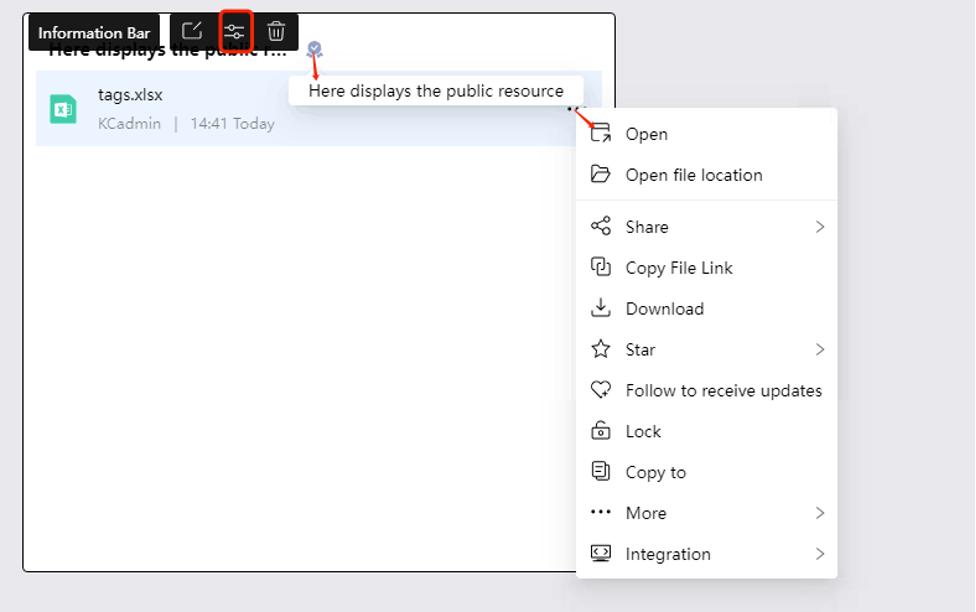
Click Manage button in the top-left of the Information Bar to open its management page.
And then click Add Display Information, select the desired files or enter third-party links to add them to the Information Bar.
Next, we’ll explore the different widgets in My Portal from the general user’s perspective.