






Why did my upload fail?
If your file upload fails, possible causes include:
1) Network issues – Verify your internet connection is stable. Unstable networks may interrupt uploads.
2) Permission denied – You lack create permissions for the target documents or path.
3) Security restrictions – The file contains viruses or sensitive terms prohibited by organizational policies.
4) File type blocked – The file format is restricted by the administrator settings.
5) Storage quota exceeded – The target location has insufficient remaining space.
Why can’t I view the target file?
Possible reasons:
1) No preview permissions for this file.
2) Unsupported format – The selected file type doesn’t support preview. Download to view locally.
3) Preview disabled – Administrator configured “Download Only” mode in the Preview/Download Policy.
4) File deleted – Check the Recycle Bin (other owners may have deletion permissions).
5) Insufficient security level – AnyShare compares three levels: system, user, and file. Your user security level must be equal to or higher than the file’s to access it.
Why can’t I see some files in my own folder?
1) Deleted by others – Check the Recycle Bin (other owners may have deletion permissions)
2) Quarantined content – Files with viruses/sensitive terms are moved to Quarantine and removed from their original location.
3) Insufficient security level – The file is invisible to you because your user security level is lower than required.
Why are files missing without any modifications?
1) Deleted by others – Check the Recycle Bin (other owners may have deletion permissions)
2) Insufficient security level – The file is hidden because your user security level is lower than required.
Why do previewed files show watermarks and encrypted content?
This occurs when administrators enable Preview/Download Policy, enforcing watermarks and encryption for sensitive files during viewing.
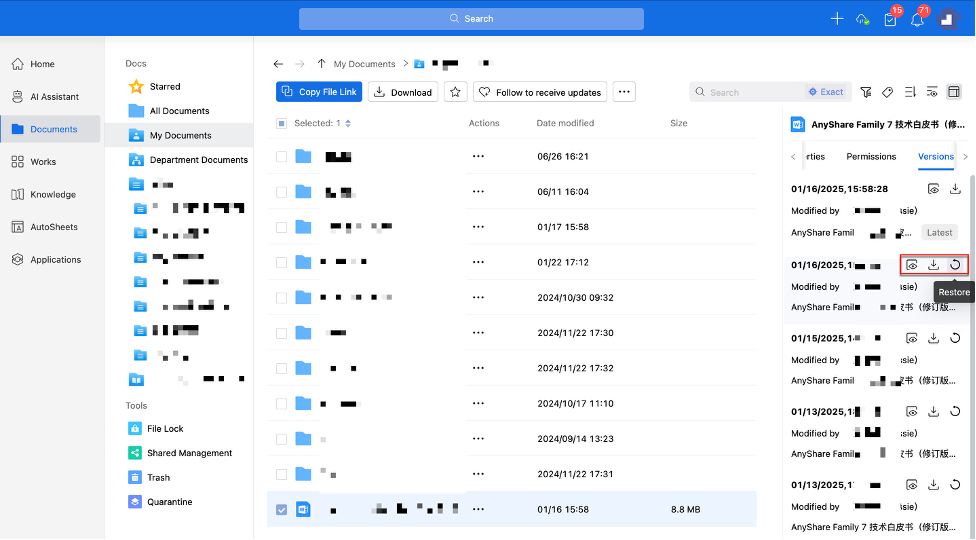
How to view historical file versions?
If your file has edited and saved multiple times, follow these steps to view a specific version:
1. Select the file and click [Versions] in the sidebar.
2. Choose the desired version from the list to view.
How to restore a historical version?
Use the [Versions] feature to recover lost or altered file.
Why can’t I edit a file?
Possible reasons:
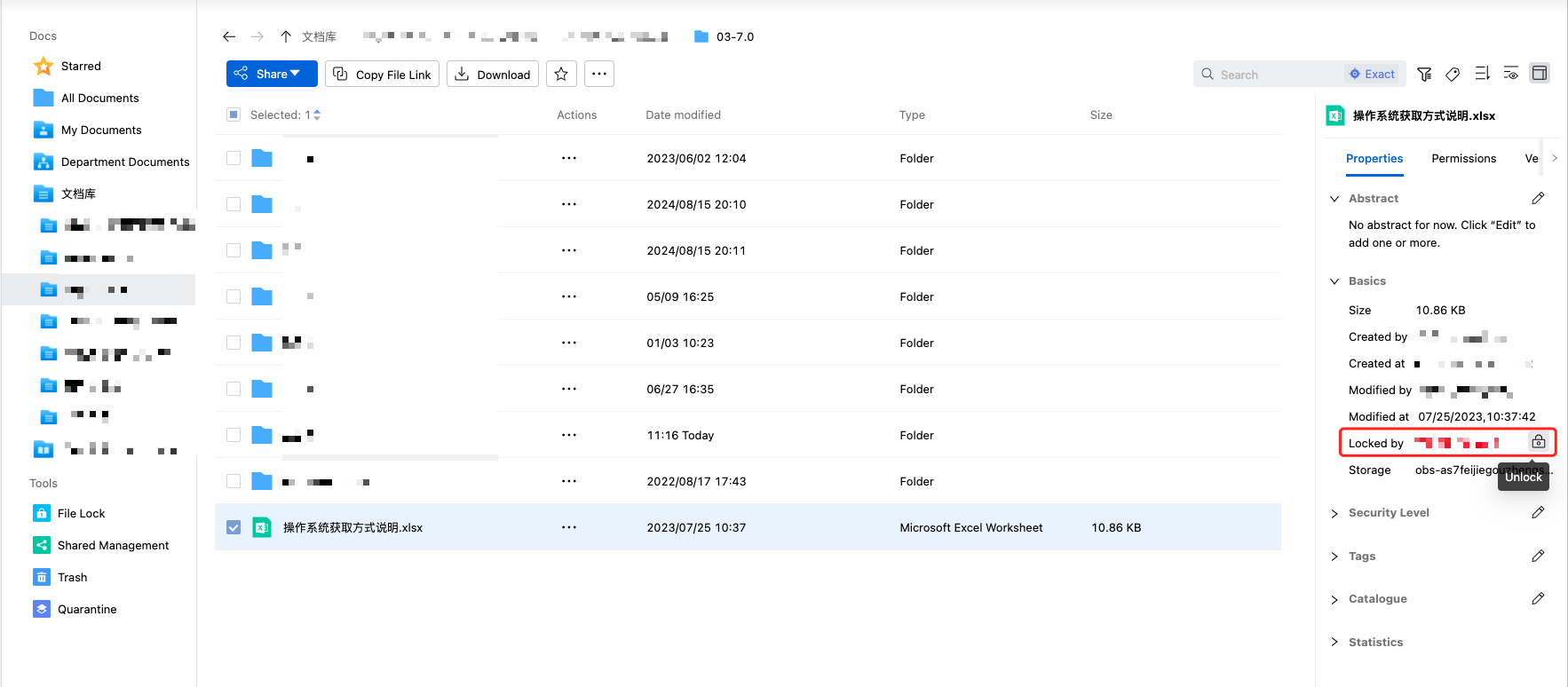
1) File locked – If you own the file, click [UnLock] to unlock it. If not, contact the locker to release it.
2) No permissions – Your role restricts editing.
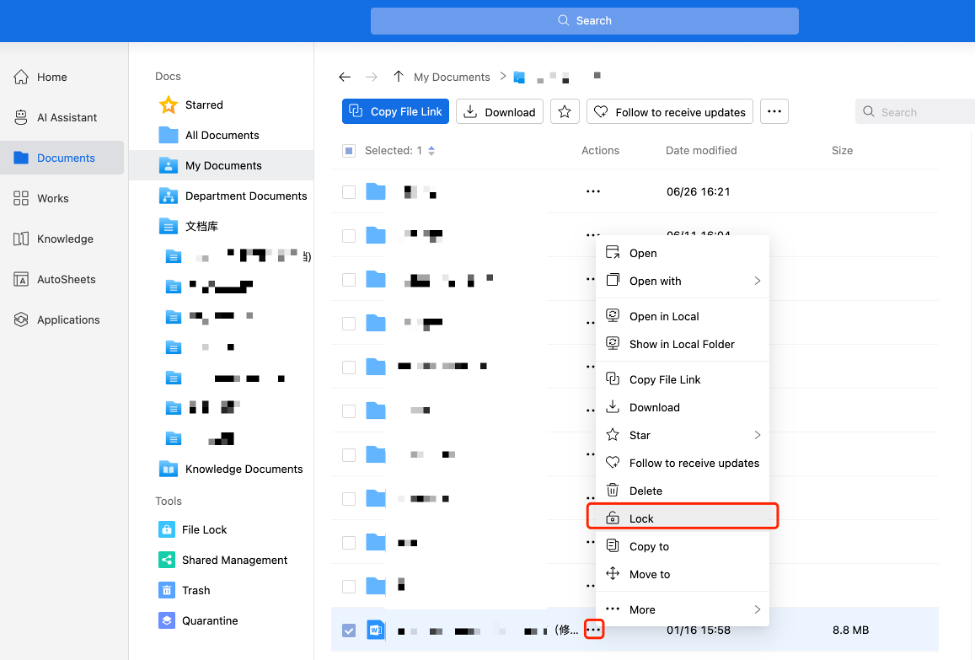
How to prevent file overwrite or loss?
Lock the file while editing to avoid version conflicts.
Why can’t I download a file?
Potential causes:
1) Network issues - Verify your network connection is stable.
2) No permission – Your role restricts downloading.
3) Policy restrictions – The administrator set the documents to “Preview Only” mode in Management Console > Preview/Download Policy.
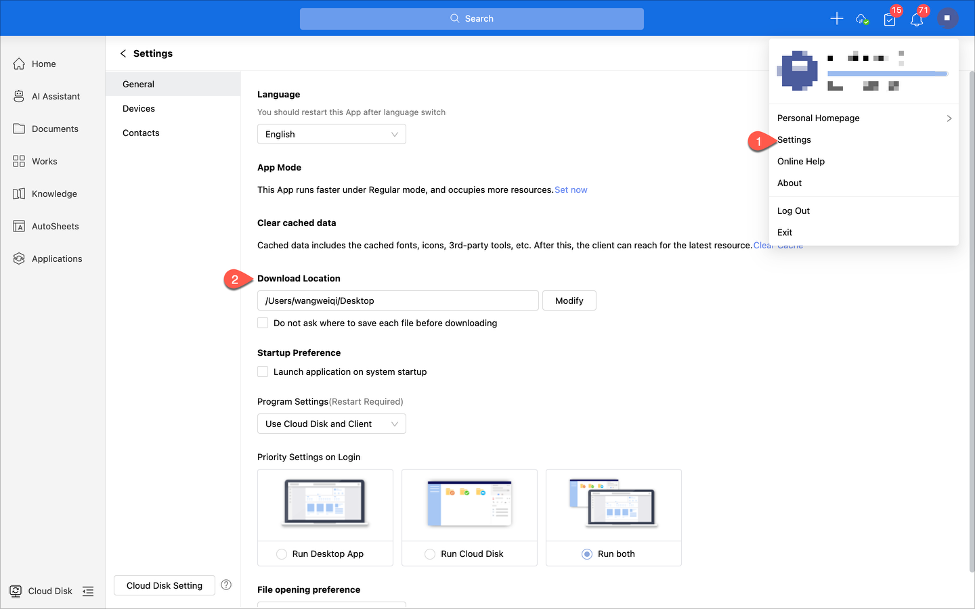
Where to find downloaded files?
• Web Client: Saved to your browser’s default download directory.
• Desktop Client (Windows/Mac/Linux): Saved to your browser’s default download directory.
Why do download files has watermarks/encryption or changed formats?
Watermarks, encryption, or format changes are applied automatically due to Preview/Download Policies configured by administrators. These measures protect sensitive data and ensure compliance.