






AnyShare Documents organizes and presents enterprise content thorough document libraries, enabling secure sharing, synchronization, version control and online collaboration with unified cross-department search capabilities.

Figure-AnyShare Documents Overview
Documents Classification
AnyShare provides multiple document library types to meet organizational needs for collaboration, storage and sharing:
- My Documents: Serves as an individual's private workspace for office document synchronization and protection, supporting mobile work and desktop backup needs. By default, other users cannot access your personal Documents.
- Department Documents: Facilitates team collaboration as a dedicated space for departmental documents, managed according to organizational structure.
- Custom Documents: Address unique document management needs beyond preset types, allowing enterprises to define custom types and create Custom Documents as needed.
- Knowledge Documents: Stores approved organizational knowledge assets for seamless collaboration and sharing.
All Documents above are created by Administrator in the Management Console, where they assign Documents name, storage quotas, departments, and designate owners. Owners and department members can view their respective documents upon logging into the AnyShare Client, with owners managing access permissions within their scope.
Documents Security Policies
AnyShare provides access control policies to manage document access for different users and devices limitations. These security policies, collectively called AnyShare Documents Access Policy, require administrators to configure document types, authorized users, network segments, permitted terminals, and permission settings.
Once enabled, users under these policies can only access specified Documents using approved terminals within designated network segments. The following examples demonstrate how these policies work in practice.
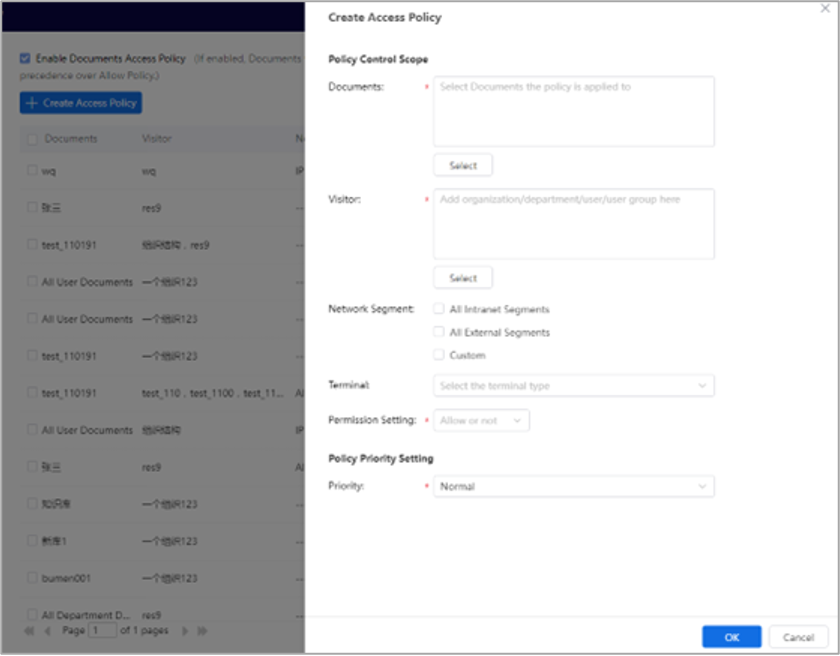
Figure-Access Policy Configuration
› Policy Configuration Examples
When users need to access specific Documents in particular scenarios, administrators can configure policies as shown in this example:
|
No. |
Visitor |
Documents
|
Priority |
Network Segment |
Terminal |
Allow/Reject |
Permissions |
|
1 |
R&D Dept. |
Documents of the R&D Dept. |
Normal |
Not set |
Not set |
Reject |
Upload |
|
2 |
All users |
Documents of all users |
Normal |
All intranet segments |
Not set |
Allow |
Display, upload |
|
3 |
Lee |
All Documents |
High |
Not set |
Not set |
Allow |
Display, upload |
In the above examples, the Documents to be accessed by users are displayed as follows:
1) When Lee accesses his Documents from any network segment using any device, all three policies apply. Policy 3 takes effect due to its higher priority, allowing file uploads.
2) When R&D staff (except Lee) use any terminal to access their User Documents on the intranet, Policies 1 and 2 apply. Since AnyShare follows the "reject takes precedence" rule, Policy 1 blocks uploads despite Policy 2's allowances.
3) When other staff access Documents on the intranet, only Policy 2 applies, permitting file display and uploads.
› Comprehensive Document Protection
The Documents Access Policy acts as a security shield for your Documents. Additionally, AnyShare offers multiple security policies for Documents, such as real-time antivirus scanning, sensitive content control, preview/download policies, etc.
These layered security features ensure complete protection for all Documents in AnyShare.