





After mastering basic operations, you can now use Documents to store, view, edit, and manage content. AnyShare enables secure file sharing for team collaboration, real-time co-editing, and efficient work across all devices from anywhere.
Note: AnyShare client sharing permissions strictly follow administrator-configured Sharing Templates in the Management Console (including "Share with users" and "Share with anyone" templates). Administrators can assign configurable document access permissions and validity periods based on these templates when sharing through the client.
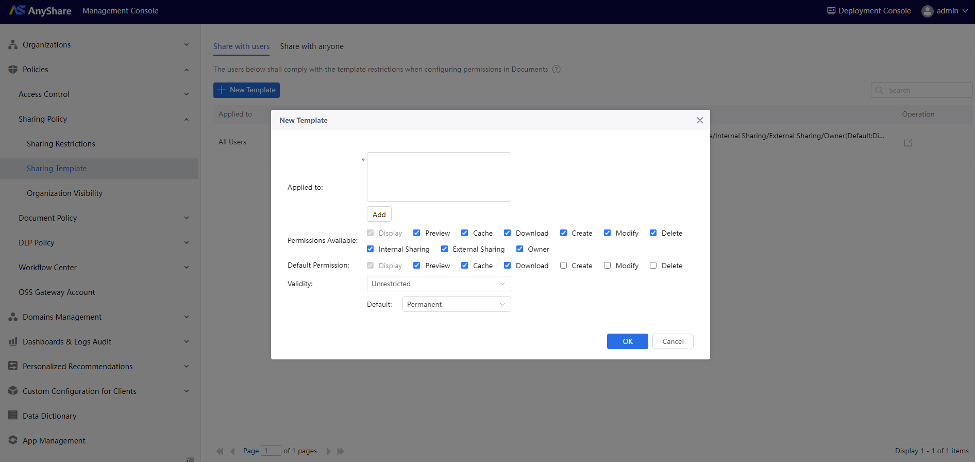
Document Access Permission Descriptions:
- Internal Share: Share with specified organizational users with (cannot assign/modify “Internal Sharing”, “External Sharing”, “Owner” permissions)
- External Share: Share with any external users (cannot assign/modify “Internal Sharing”, “External Sharing”, “Owner” permissions)
- Owner: Full control to assign/modify all permission types.
Configurable Sharing Permissions
AnyShare offers multiple permissions including Display, Preview, Cache, Download, Create, Modify, Delete, Internal Sharing, External Sharing, Owner. Users can combine and match these permissions when sharing files based on actual needs.
The internal and external sharing permissions in Document Center strictly adhere to the Sharing Template Policy configured by administrators in the Management Console (including "Share with Specified Users" and "Share with Any User" templates).
Administrators can assign customizable document access permissions and set access validity periods for specific users. The file sharing capability has been expanded beyond just "Owners" - now regular users within authorized permission scope can also share files, enabling more flexible document collaboration.
Files Sharing Process
Based on the sharing templates configured in the Management Console, AnyShare provides two distinct sharing modes: users with sharing permissions can configure access rights for recipients, while others may only send share notifications.
› For users with sharing permissions (Internal Sharing/External Sharing/Owner)
Note: All sharing activities remain subject to the administrator-defined permission templates.
Users within the permission scope can share documents with people inside and outside the organization in AnyShare client, configure permissions within template limits for recipient to facilitate collaboration. Specific steps are as follows:
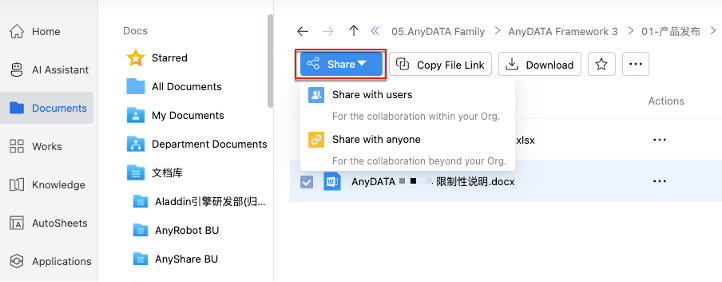
1. Initiate Internal/External Sharing (Sharing Initiator)
Select target file/folder and click [Share] to choose sharing scope.
• Share with users: For internal collaborators (within the organization)
• Share with anyone: For external collaborators (e.g., suppliers, partners)
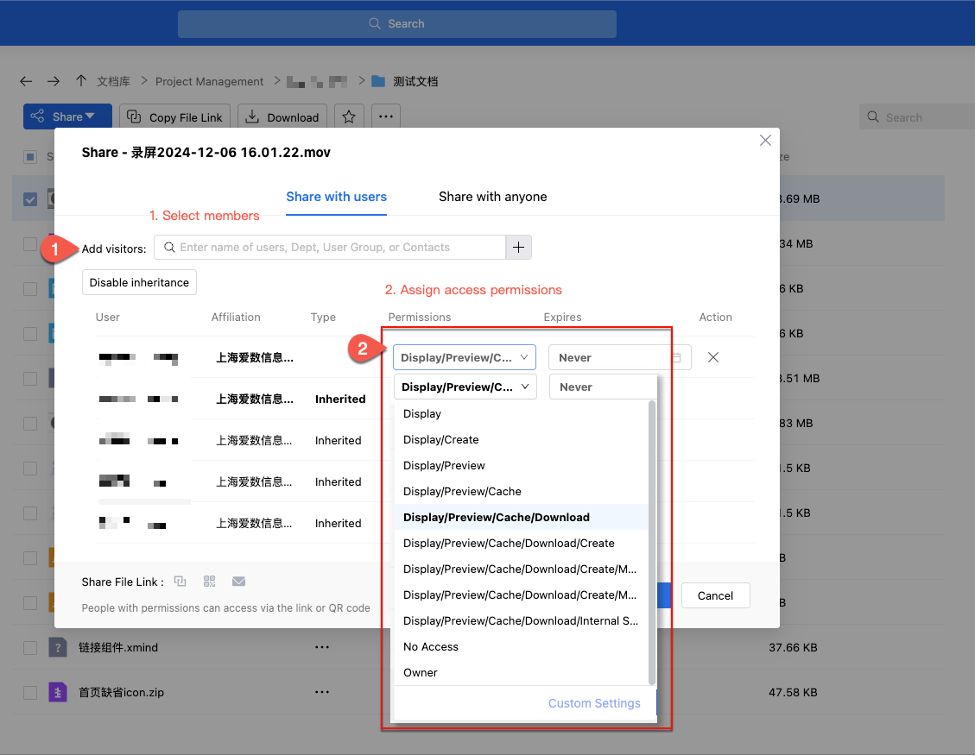
2. Configure sharing permissions (Sharing Initiator)
When sharing with users within organization, you can assign specific permissions to recipients (within the limits of sharing policy template), then click [Save] to confirm.
Figure Share with users:
For external sharing (Share with anyone), you also need to assign permissions, expires, maximum openings and pickup code for external recipients as you need.
Note: You cannot share with themselves or modify "Owner," "Internal Sharing," or "External Sharing" permissions.
Figure Share with anyone:
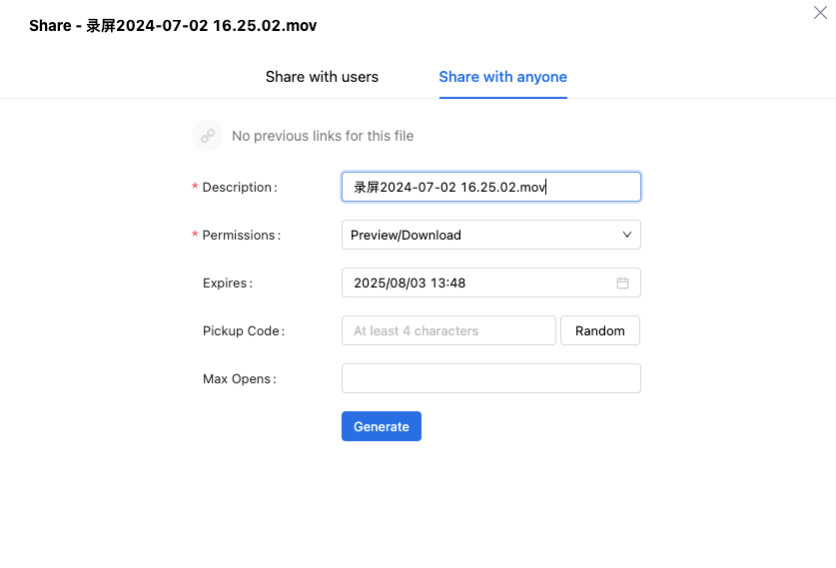
Once saved, copy the SharedLink/QR code or email it to recipients. AnyShare will also send notifications to the target internal users automatically.
3. Access shared files (Recipient)
For organizational shares, the recipients click the sharedlink then the page below will display.
Figure-View the shared content within the organization:
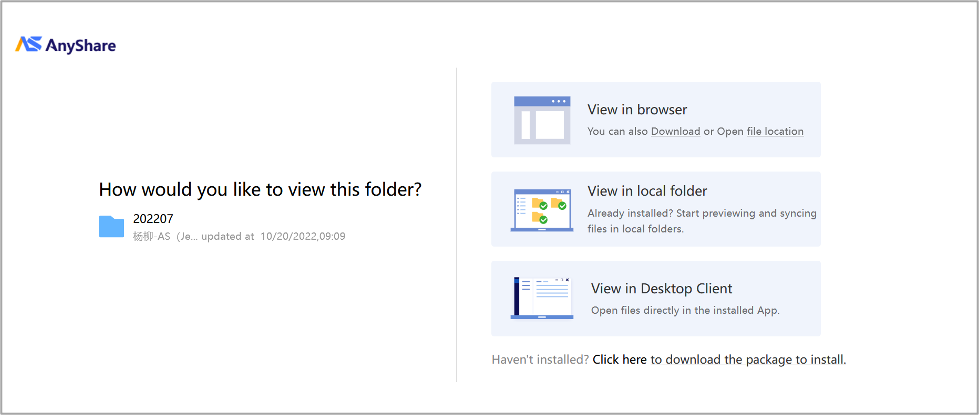
For public shares, the recipients will see the page below, open link and enter pickup code to access.
Figure-Accessed by anyone:

› For users without sharing permissions
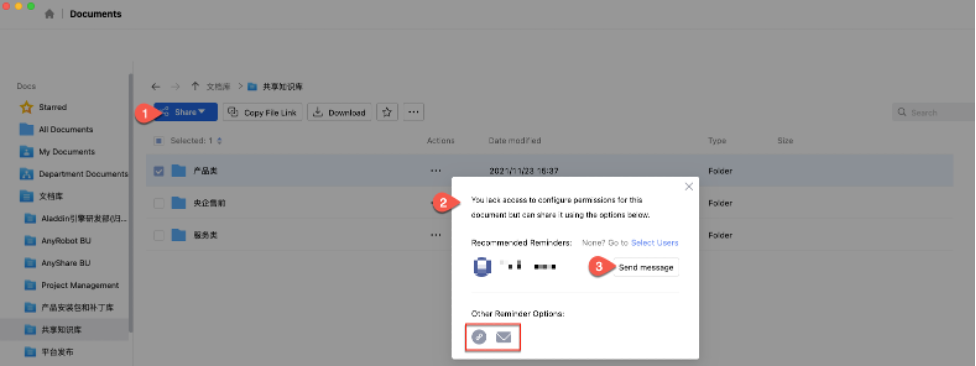
You can send reminders via links/emails (no permission configuration for recipients). AnyShare will intelligently recommend reminders based on your recent sharing behavior, then click [Send Message] to proceed. If no recommendations appear, manually “Select Users” and confirm with [Send Message].
Collaborative Editing
It is available for multiple people to work together on the same documents, if the file has been shared with the collaborators and set with Edit permission.
Prerequisite: To enable real-time co-editing of documents by multiple users, the server must have either Office Online or WPS Online installed.
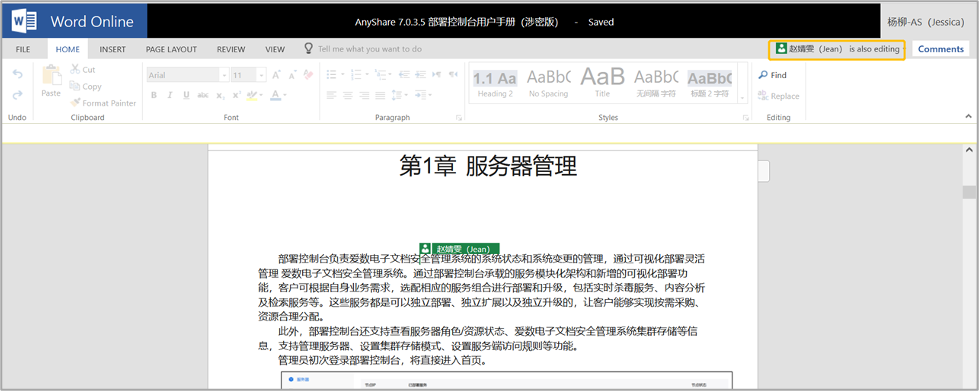
When multiple people edit the same Word file at the same time, you can clearly see the number of people editing the file and the editors through the prompt bar at the top right and display the editing positions of these editors in the document. The edited content will be updated and synchronized to the file, which ensures that all editors can see the changes in the entire file in the current state in real-time.
Figure-Online Editing and Preview:
|
File Type |
Format |
|
Word |
.docx .docm .odt |
|
PPT |
.odp .ppsx .pptx |
|
Excel |
.ods .xlsb .xlsm .xlsx |
Manage Shared Files
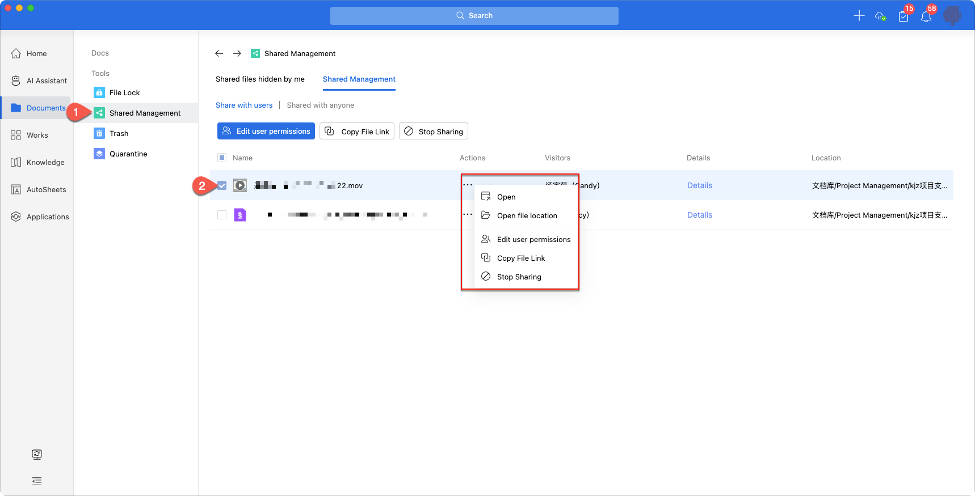
AnyShare Documents provides centralized management of shared files/folders. Access Shared Management in sidebar to view all shared items.
Select targets and click “ ”button to stop sharing, edit user permissions or copy file link.