





Upload & Create Files/Folders in Documents
You can add content to Documents using any of these methods:
1. Drag and drop local files/folders directly to the target path in Documents.
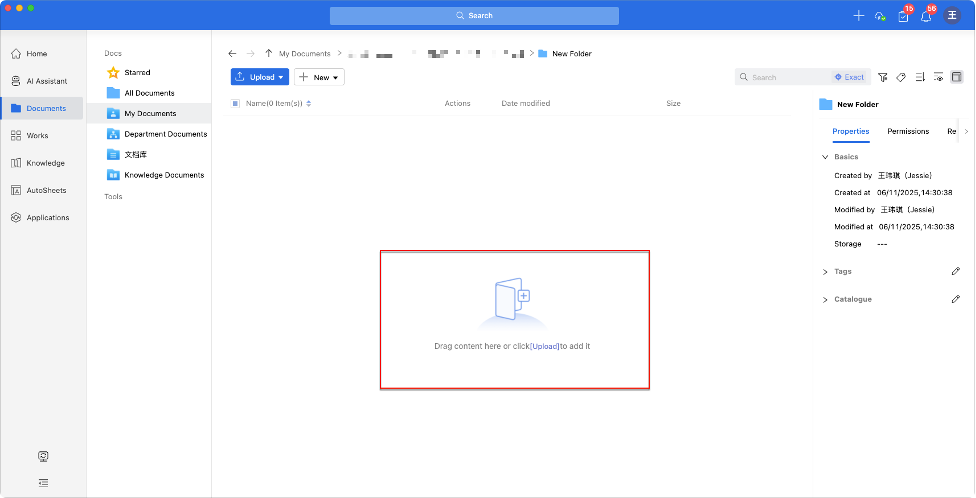
2. Click Upload/New at the top of the document list.
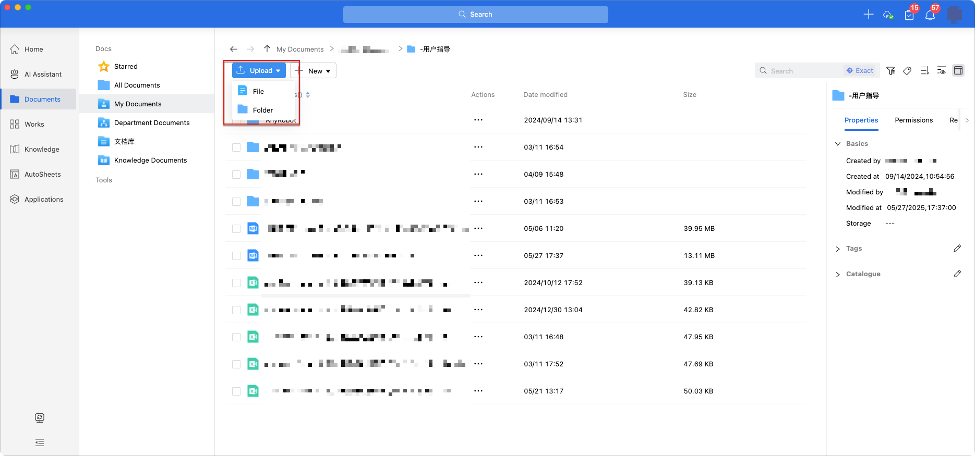
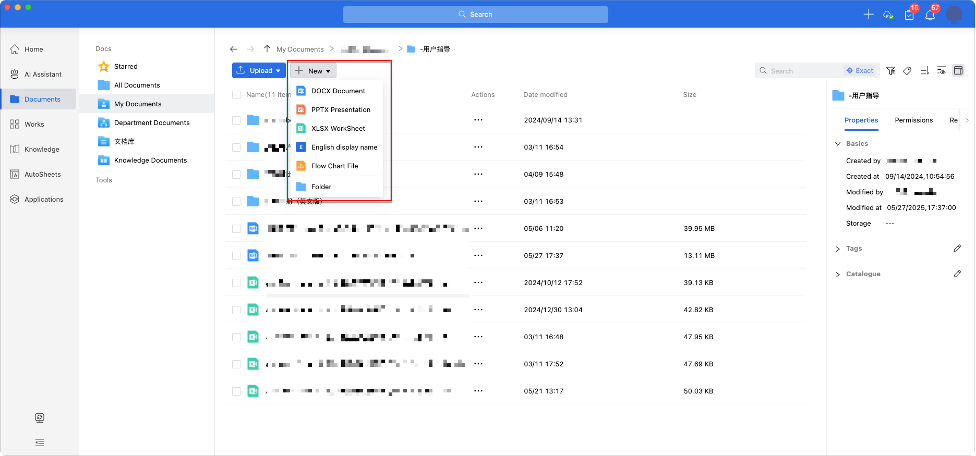
3. Click the Upload/New button on the top-right corner of the Home page.
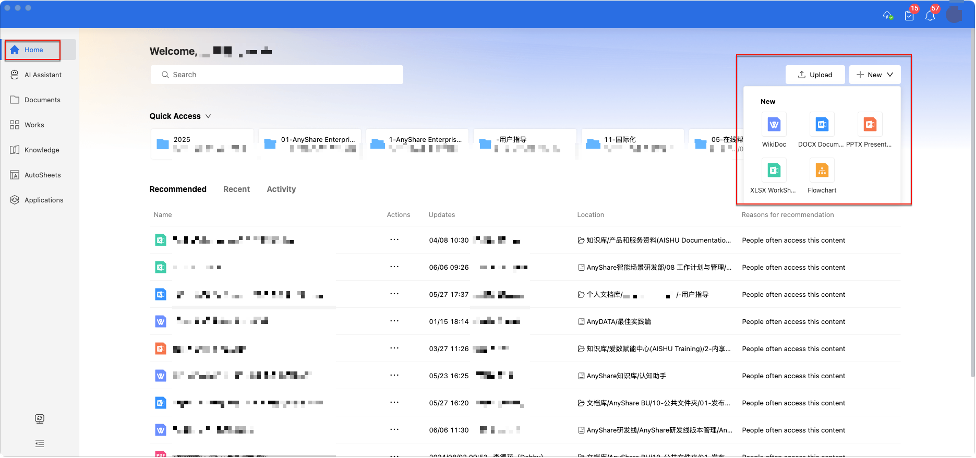
Note: Smart recommendations suggest target locations during upload.

Note: If permission restrictions apply (when enabled by admin), you'll see an option to request access to recommended locations.
View & Preview Files
To browse files in AnyShare, you can:
-
Open directly from the file lists.
-
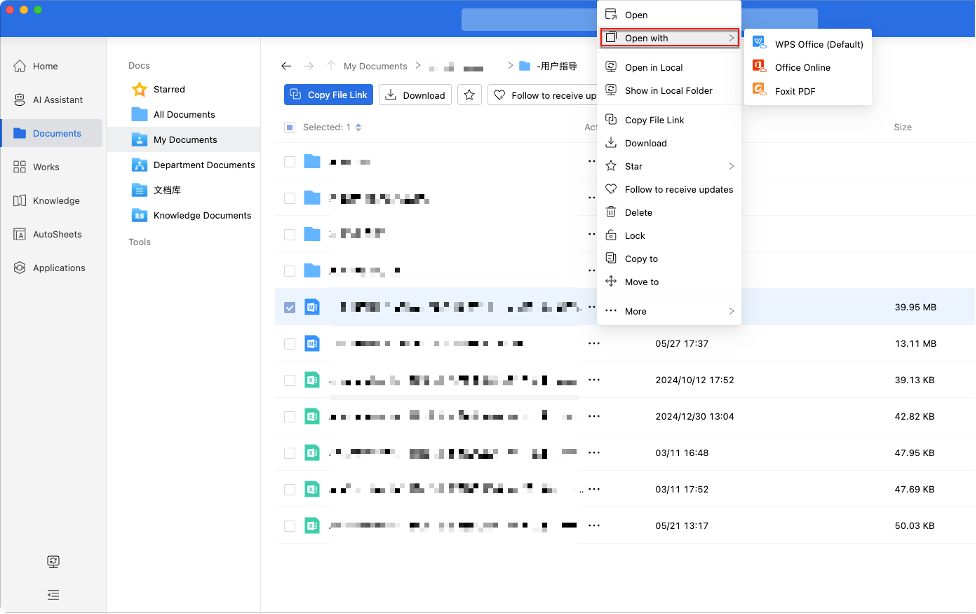
Right-click or select “
 ” next to the document, click Open with to select a viewing method.
-
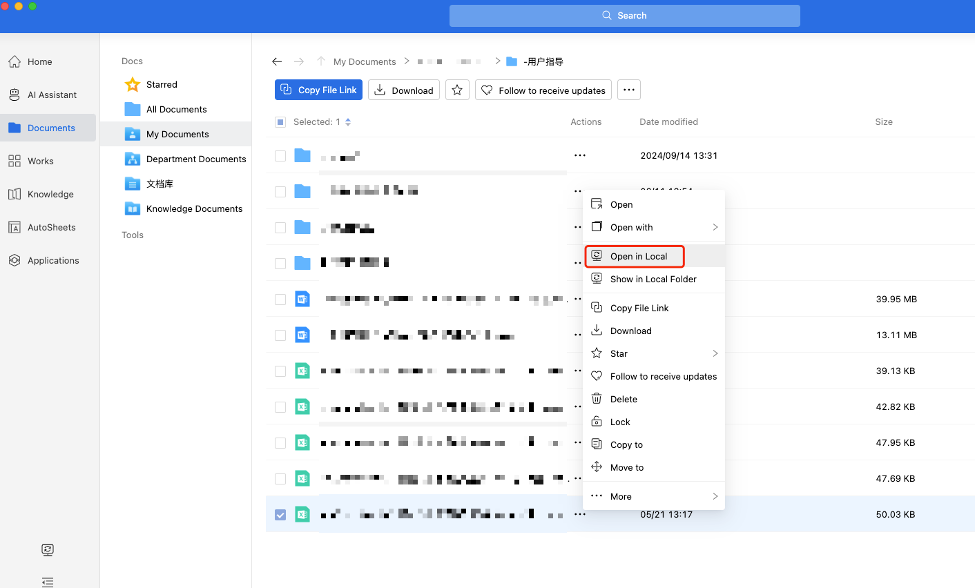
Right-click or select “
” next to the file and click Open in Local to view.

Edit Files
› Online Editing
Open the desired file, click the Read only button (top-right of preview) and switch to Edit mode.
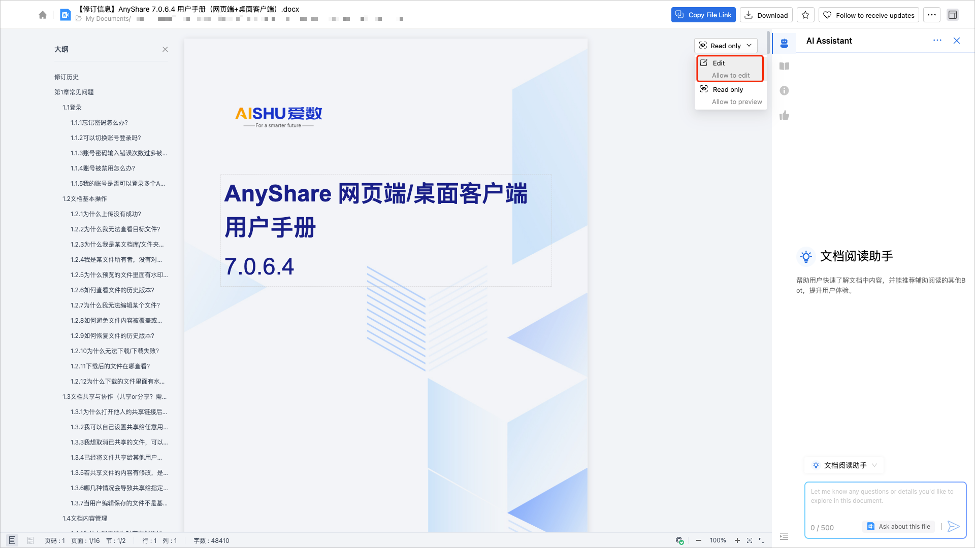
Note: Changes save automatically
› Local Editing
Open the file locally and edit directly, click “Save” button to update.
Edit Catalog
AnyShare provides separate control over document content and metadata permissions. Administrators configure these settings in Management Console > Catalogue Policy. Authorized users can edit catalogue information directly without modifying file content.
› To edit catalogue in Anyshare client:
-
Navigate to Documents
-
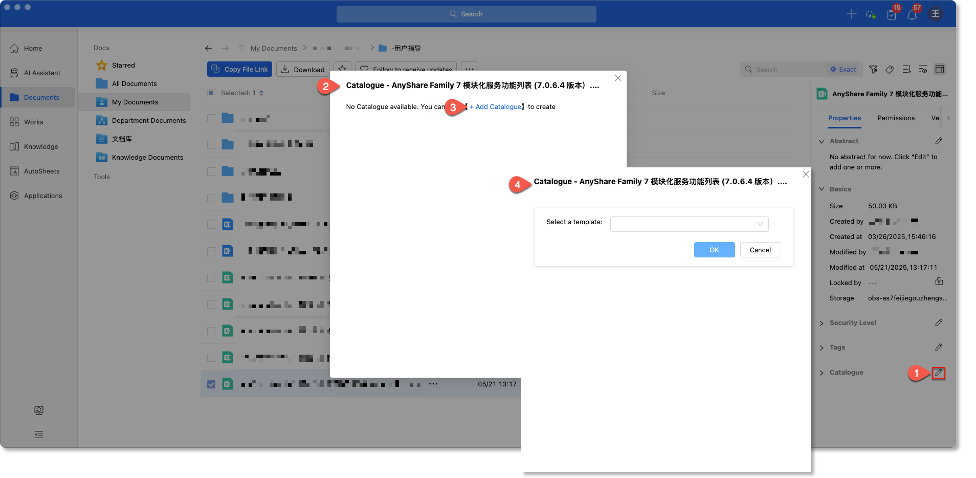
Select a file/folder with metadata editing permissions, click “ ” button in the sidebar Catalogue section to enter the catalog editor.
-
Select [+Add Catalogue] to create new catalog entries.
Download Files
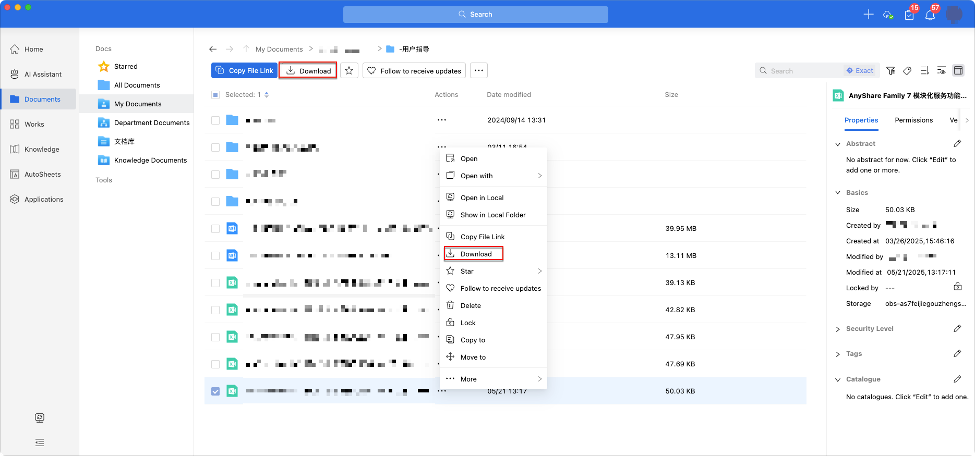
To download a single file/folder, select the target item and click [Download] at the top of the document list.
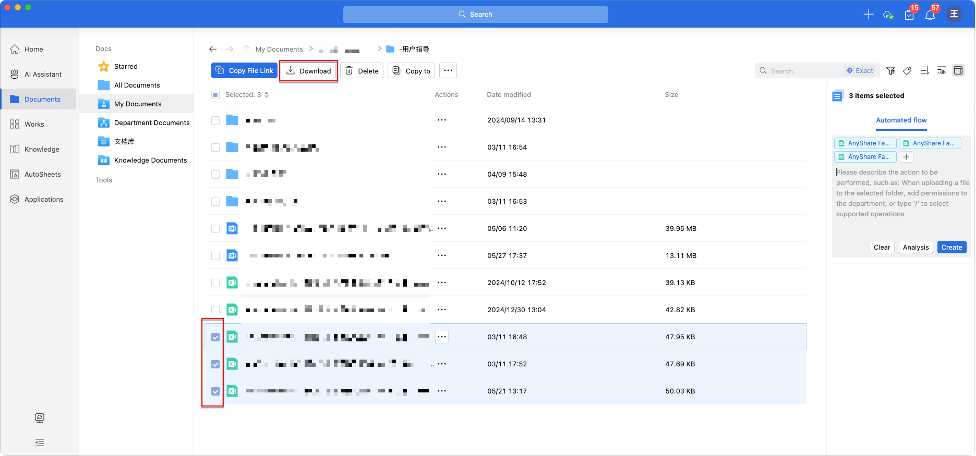
For batch downloads, simply select multiple files/folders before clicking [Download].
Delete files
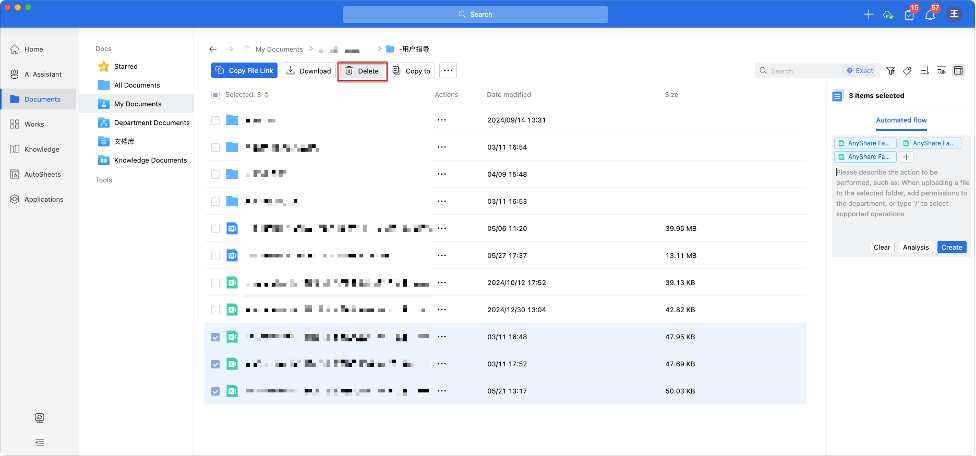
To delete items, select one or multiple files/folders before clicking [Delete].
› Deletion Issues & Recovery
Q1: Why can’t I delete?
A1: You may lack deletion permissions for the file.
Q2: How to recover deleted files?
A2: For Owners, you can go to Tools > Trash in the sidebar, locate the deleted file and click Restore to return it to its original location.
For non-Owners, you can contact the document owner to perform the restoration.
Search Files
To locate files in current list, you can enter keywords or document links in the search box (top-right).

Matching files will display in real-time, select files for further actions. If no results appear, click “Search” for more comprehensive results.