





Knowledge Administrators are created by system administrators and possess full management permissions across all Knowledge modules (Knowledge Portals, KnowledgeBase, Knowledge Maps, Knowledge Circle, and Expert). Their privileges include:
• Module creation and administration
• Configure administrator roles for each module
• Manage knowledge points rules and Recycle Bin
• Monitor sensitive content in user activities
• Access operational analytics for all Knowledge-related actions.
KnowledgeCenter (KC) Administrators Roles Management
To streamline enterprise operations and enhance knowledge management efficiency, Knowledge Administrators can create dedicated administrator roles for each module and assign role-based administrators to delegate permissions by functional module
› Configuration Process(KC Administrators):
1. Navigate to Knowledge > > Admin Settings to access the role management console.
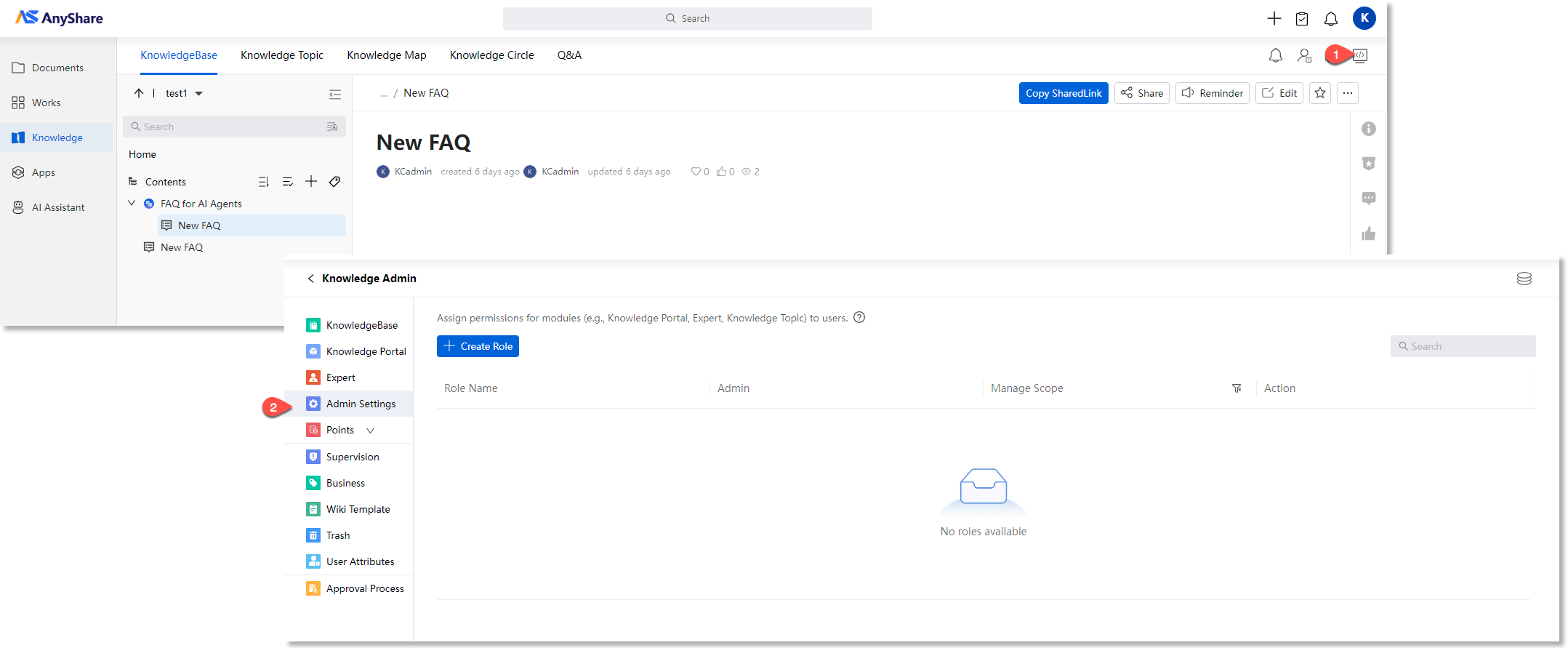
2. Click [+ Create Role] to create administrator roles and assign it to specific administrators for desired modules (Knowledge Portals, Maps, Topics, KnowledgeBase, Expert) in the configuration window.

3. After finishing the configuration, users with administrator roles will be granted the following management permissions for their respective modules:
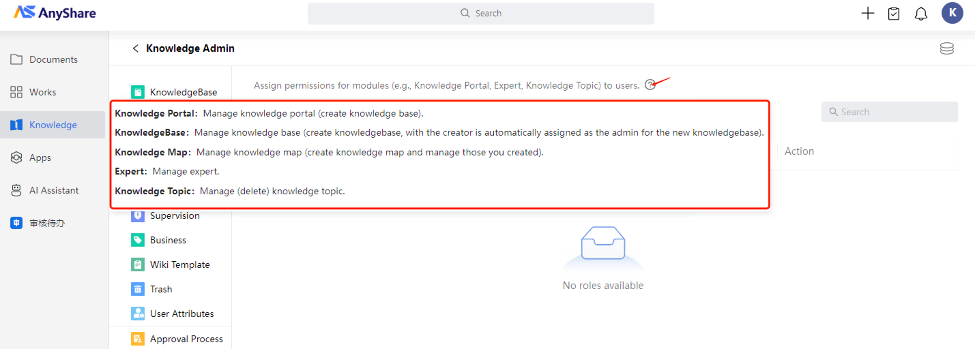
Knowledge Portal
Knowledge Portals provide role-specific knowledge spaces. Knowledge Administrators or users with Knowledge Portal administrator roles can create customized portals by adding various knowledge components.
› Who can create Knowledge Portal?
As the homepage of the Knowledge Center, Knowledge Portals can be created by Knowledge administrators and users with Knowledge Portal administrator roles.
› Create a Knowledge Portal
1. Navigate to Knowledge Management Console > [Knowledge Portal] to view and manage the existing Knowledge Portals.
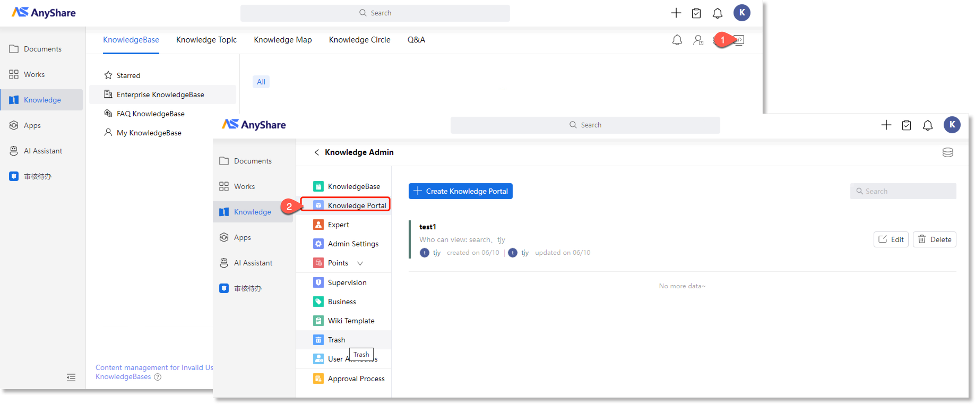
2. Click [Create Knowledge Portal] to access the creation interface. Administrators can configure the portal name, build customized portal pages and set role-based user access permissions.
3. Click [Set now] to configure customized knowledge portal page by adding widgets and setting portal backgrounds, meeting organizational/department/business needs.
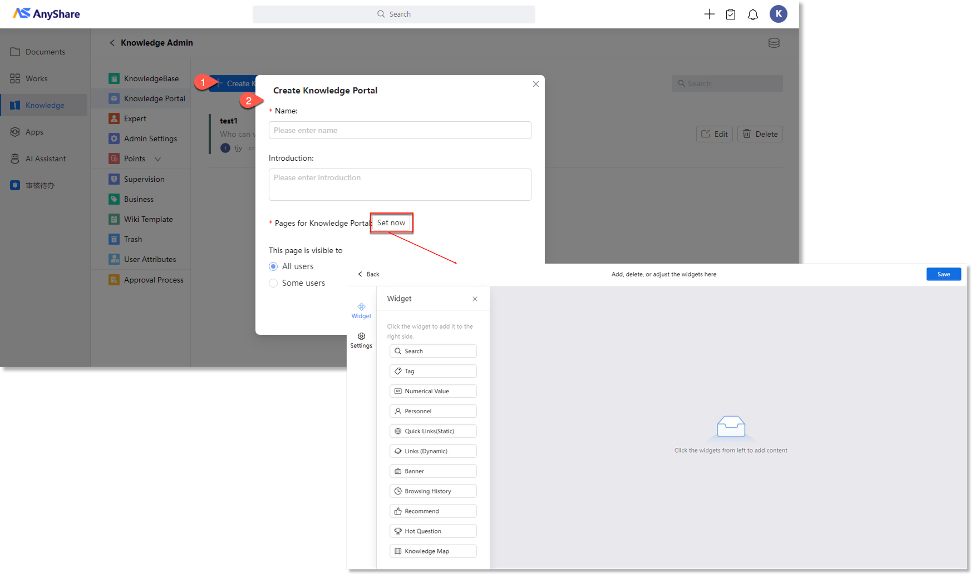
› Add Knowledge Portal widgets
When creating a knowledge portal, you can configure multiple widgets including search, metrics, personnel, starred, quick links, links, news, recently viewed knowledge, recommend, browsing history, hot question, knowledge map etc.
Select the desired one from the left widget panel to add, then configure it in the right editing area:
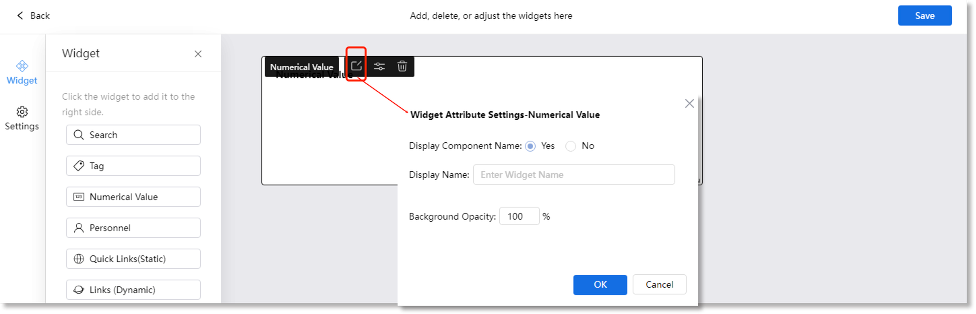
Click the“ ”button to set widget properties (display name, background opacity, etc.).
Then click the“ ”button to configure detailed display (e.g., data source, value range, display style, etc. for metrics widget).
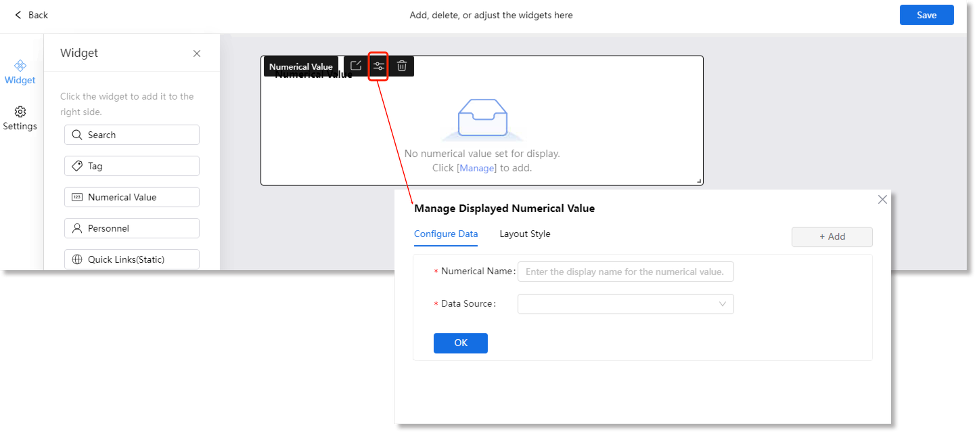
The following outlines configurable display content for key widgets:
- Numerical Widget supports displaying content using data sources including: the total counts of knowledgebase/knowledge topic/Q&A, the number of documents in knowledgebase, total knowledge volume, or custom data (via URL input).
- Metric Widget allows adding different indicator source, data target values, and indicator styles through data URL links and corresponding data parsing paths for different users (e.g., technical engineers - NPS scores, on-time resolution rates, independent resolution rates; sales personnel - sales performance).
- Carousel Widget supports rotating display of video, images (including links to third-party content) and other content (announcements).
- Personnel Widget enables adding personnel profile information and configuring display styles.
- Links Widget allows both static and dynamic link types, including documents files, knowledgebase files, knowledge topics, and external URLs.
- Tag Widget supports configuring personalized tags based on stars or followings for direct viewing in the interface. Supports two display styles: tag navigation and tag bubbles.
Note: To configure Tag widget, administrators must first enable "Support Tag Component Setup in Portal Configuration" option in Management Console under [Tag Management] > [Tag System Management].
KnowledgeBase
KnowledgeBase is a knowledge management tool within AnyShare Knowledge Center that enables team collaboration through knowledge sharing, co-editing and group discussions, serving as a structured knowledge co-creation space for enterprises.
› KnowledgeBase Administrators and permissions
In addition to Knowledge Administrators and users with knowledgebase administrator role, the knowledgebase administrators represent a third tier of management privileges. These administrators are assigned during knowledgebase creation by either Knowledge Administrators or KnowledgeBase Administrators. KnowledgeBase Administrators cannot create new knowledgebase but possess full management rights for their designated repositories.
The permission scope for each administrator type is as follows:
|
Administrator |
Permission Scope |
|
Knowledge Administrator |
Full management rights across all knowledge modules, within KnowledgeBase, Knowledge Administrators possess the following permissions: • Enterprise KnowledgeBase management • KnowledgeBase Classification management • KnowledgeBase admin role management • Content approval workflow management in KnowledgeBase • Wiki template management • Content moderation for KnowledgeBase, with access to view operational data • FAQ KnowledgeBase Management |
|
KnowledgeBase Role Administrator |
Created and assigned by Knowledge Administrators with: • KnowledgeBase creation rights (automatically becomes administrator for this KnowledgeBase) • KnowledgeBase management rights (limited to KnowledgeBase created by yourself): - User permission controls for KnowledgeBase content operations (view/preview/download/edit) - KnowledgeBase Basic Info configuration - Knowledge publishing rules configuration - Page comment moderation configuration |
|
KnowledgeBase Admin |
Assigned by KnowledgeBase creators (Knowledge/ KnowledgeBase Role Administrators) with: • KnowledgeBase management permissions (limited to the designated KnowledgeBase only), including: - User permission controls for content operations (view/preview/download/edit) - Basic configuration management - Content publishing rules configuration - Page comment moderation privileges |
› Who can create KnowledgeBase?
Knowledge Administrators and users with KnowledgeBase Administrator role may create KnowledgeBase to facilitate team collaboration for specific projects or initiatives.
› Create a new KnowledgeBase
Administrator can create KnowledgeBase at:
-
- Project team level (for virtual teams)
- Department level (for organizational units)
- Organization level (visible to all organization members)
Navigate to Knowledge > KnowledgeBase, click [Create KnowledgeBase] then configure KnowledgeBase name, classification, description and user permissions(view/preview/download/edit/admin)。
Figure-KnowledgeBase creation page

Note: Knowledge Administrators must add collaborators during knowledgebase creation, users require knowledgebase membership to perform any operations.
After creating a knowledgebase, authorized users (including knowledge administrators, users with admin roles, knowledgebase administrators, and those granted editing permissions) can create knowledge content within this space.
In addition to creating new WikiDocs, the KnowledgeBase supports bulk importing various document types from both AnyShare Documents and local document repositories.
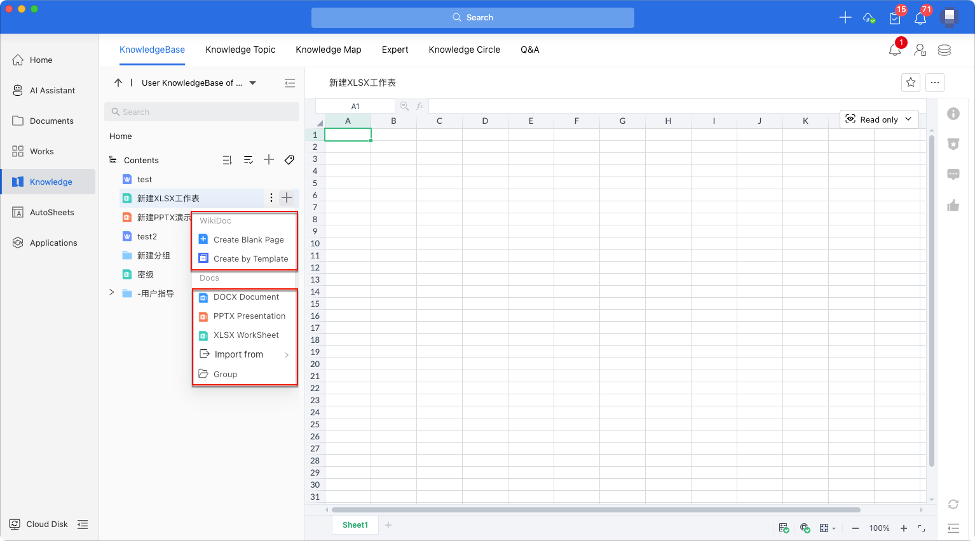
› Mange KnowledgeBase
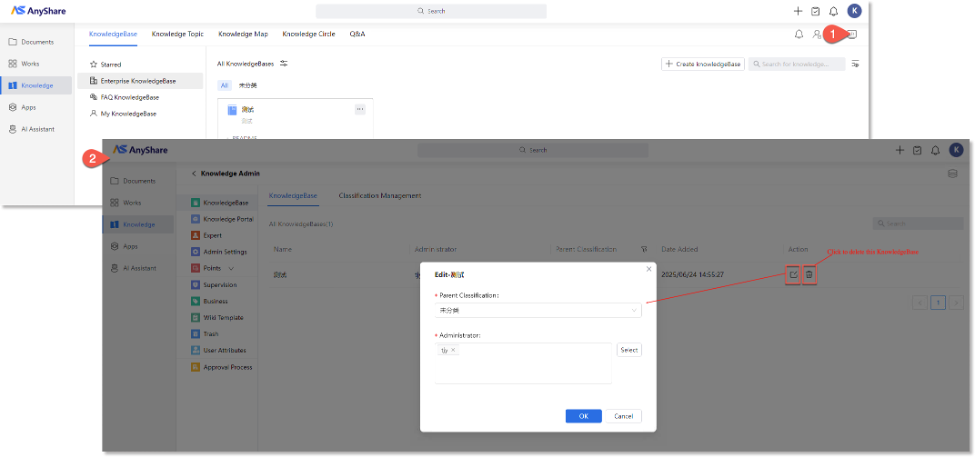
Knowledge Administrators can access the backend to manage all knowledgebases and their classifications.
Navigate to “ ” > [KnowledgeBase], click “
 ” to edit this knowledgebase details (modify its classification and assign the KnowledgeBase Administrator,) and click “
 ” to delete it.
On the KnowledgeBase homepage, administrators with proper permissions can click “ ” > [Settings] to access the editing interface, where they can modify:
-
- Basic information
- User access permissions (including KnowledgeBase Administrator assignments)
- Knowledge post rules (Enable content publishing approval workflow)
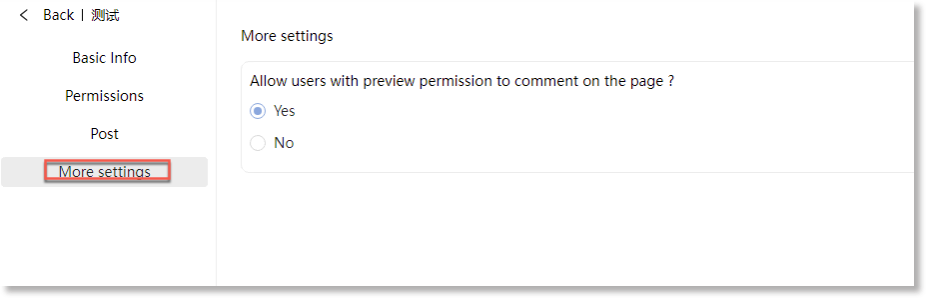
- Page commenting privileges (users with preview permission)
Figure-Modify knowledgebase basic information

Figure-Modify user permissions in this knowledgebase

Figure-Modify post approval in this knowledgebase
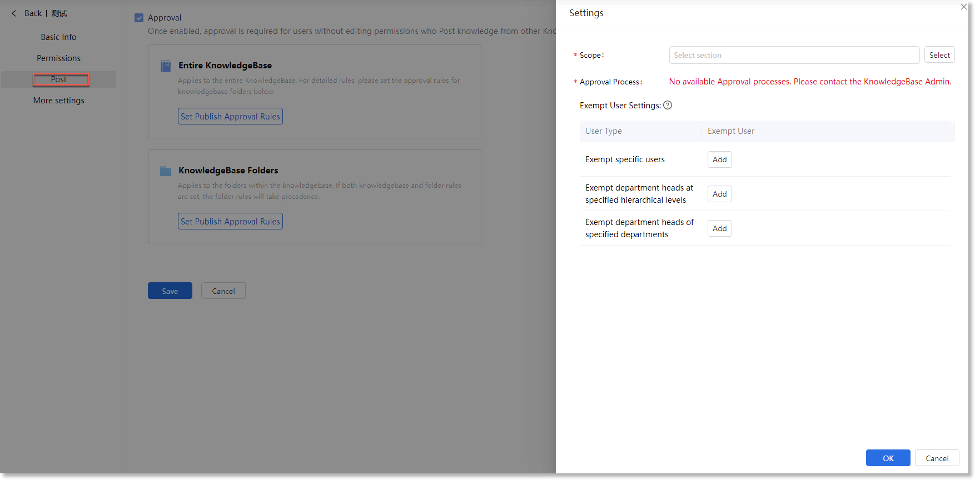
Figure-Modify page comment permission
› Classification Management for KnowledgeBase
Navigate to “” > KnowledgeBase > Classification Management to create, edit, delete knowledgebases’ classifications.
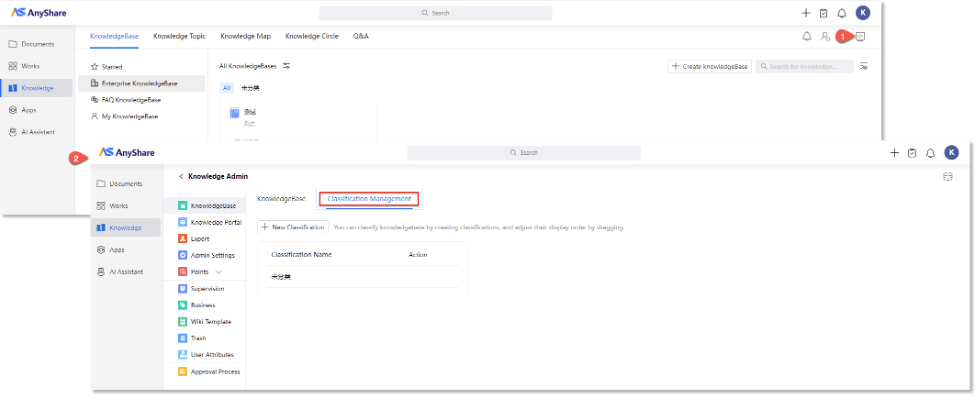
Once classification creation is complete, administrators can assign knowledgebases to specific classifications during creation or editing, enabling more effective management of knowledgebases.
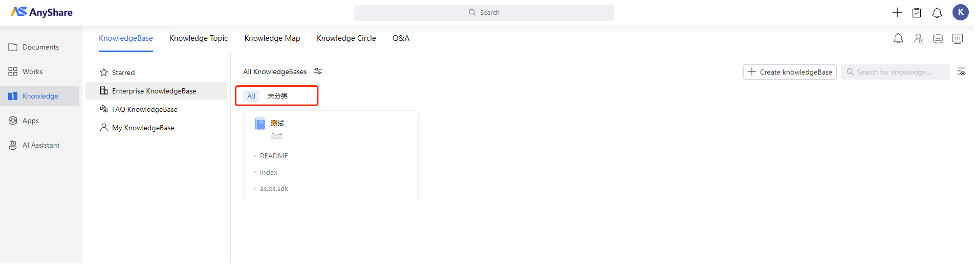
› Post approval workflows in KnowledgeBase
AnyShare KnowledgeBase supports granular page-level permission management, ensuring both knowledge asset security and efficient cross-departmental collaboration through standardized content publishing.
Approval Workflow Controls: Page-level permissions govern both content approval process and post approval feature activation:
1. Knowledge administrators can create/manage approval processes (Path: Knowledge Center Backend > Review Workflow Management) for other admins to directly reference.
2. Subsequently, knowledge administrators may proceed to enable and configure the publishing approval function via KnowledgeCenter > KnowledgeBase Settings Window > Post.
Note: The Approval Workflow feature requires AnyShare's Workflow Service to be installed and activated.
Configure Approval Process
Knowledge administrators can create and manage repository approval workflows by navigating to “”> [Approval Process], with support for multi-tiered review chains including knowledgebase administrators, superior reviewers, and designated admin roles.

Enable Post Approval
To configure content publishing approvals, navigate to the KnowledgeBase management page, click the top-right “ ” > [Settings] > [Publishing Settings], where KnowledgeBase administrators or authorized users can enable posting approval process requirements and assign approval process for the entire KnowledgeBase or specific folders while designating exempt personnel.
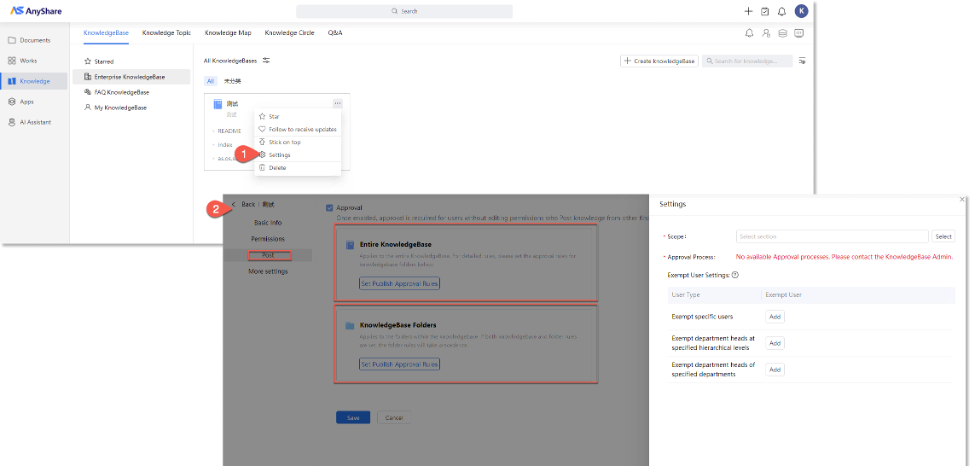
Implementation Example
For KnowledgeBases with posting approval enabled, unauthorized authors posting new or updated knowledge (from AnyShare documents or local files) will trigger the approval process. Only approved knowledge can post successfully in this KnowledgeBase.
Note: The default approver is the KnowledgeBase Admin, though this can be customized as needed.
Figure-Post new or update knowledge (post approval enabled)

Conversely, KnowledgeBases without configured posting approval will restrict all unauthorized access, preventing users from requesting preview/edit/download/delete permissions for KnowledgeBase or WikiDoc content through approval workflows.
Figure-Post new or update knowledge (post approval disabled)

Wiki Templates
Knowledge Administrators can configure Wiki templates to support structured knowledge extraction and improve knowledge creation efficiency, based on organizational or departmental needs.
› Who have the privileges to manage?
Knowledge Administrators
› Create a template
Access KnowledgeCenter, click the " " button (top-right) to enter the management backend. Then Navigate to [Wiki Template] > [Create New Template] to configure template properties in the setup dialog.
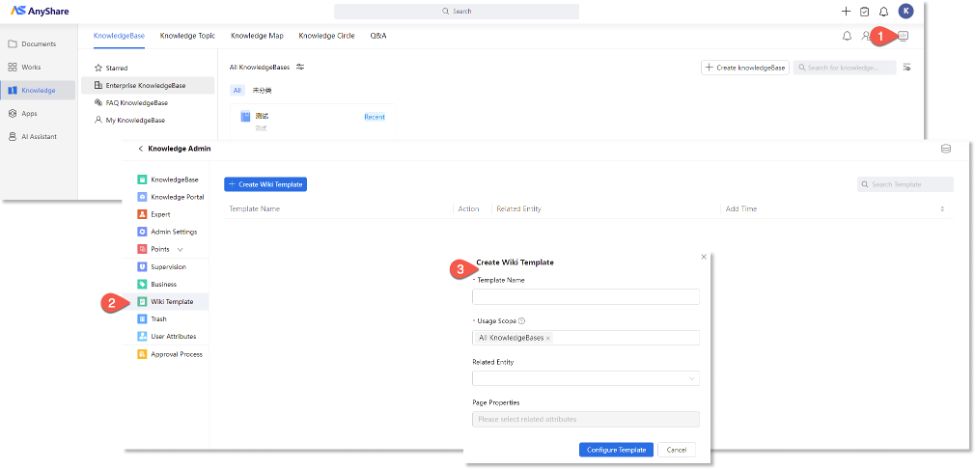
The template setup requires the following specifications:
-
- Usage Scope (Mandatory): Designates which KnowledgeBases can utilize this template.
- Related Entities (Optional): Links the template to knowledge graph entities, enabling integration with third-party system data. This connection supports scenarios like search recommendations by aligning external data with WikiDoc generated from the template.
- Page Properties: Defines mandatory attributes (selected from a predefined ontology) that structure the WikiDoc. These attributes automatically generate top-level headings and map to the selected entity’s properties.

After configuring the basic template parameters, click [Configure Template] to access the detailed setup page, where administrators can customize the Wiki template details.
The configuration interface adapts based on whether an entity was associated during template creation:
1) No Related Entity: Headings cannot be linked to external entities.
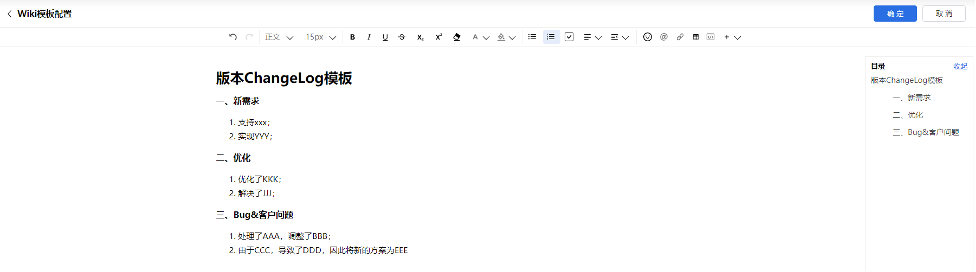
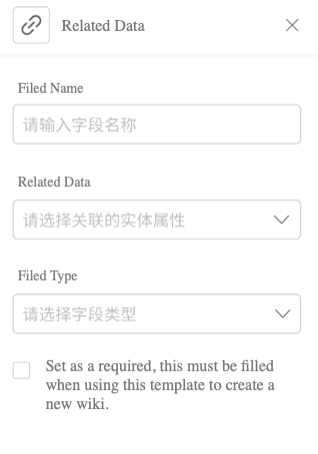
2) With Related Entity: Headings support entity linking. Click the " " to open the Data Association Panel, enabling dynamic data integration as needed.
Figure-Configurable data associations for wiki title
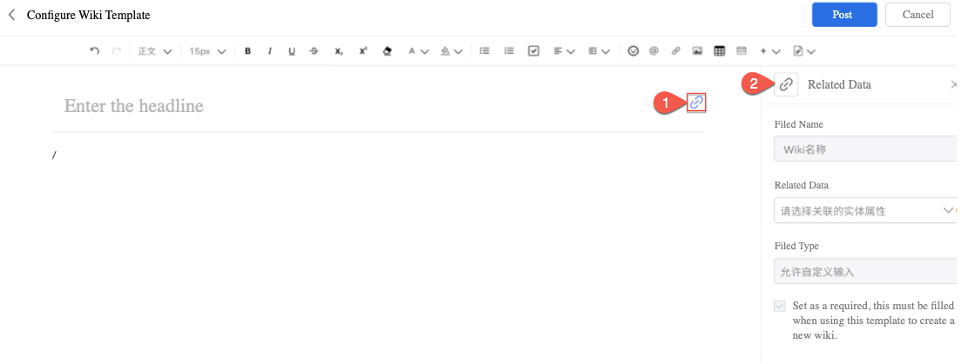
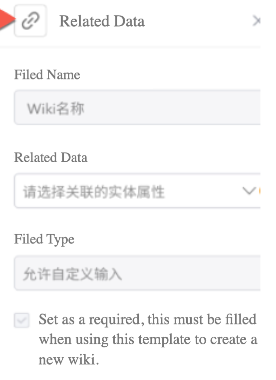
Figure-Configurable data associations for title and table blocks
› How to apply the Wiki template?
For knowledgebases within the template's scope, users with edit permissions can create WikiDocs based on admin-created templates, enhancing organizational knowledge management efficiency and data quality. Refer to the "Create by Template" section for details.
Note: For templates withoutdata associations, WikiDocs allow free editing. With data associations, users must follow template rules, with locked blocks marked by " " (see example below).
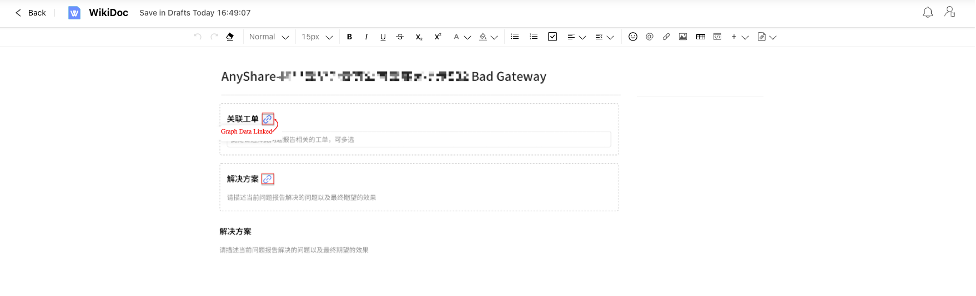
Figure-Create WikiDoc by template

FAQ KnowledgeBase
The FAQ KnowledgeBase consolidates high-quality enterprise FAQ resources while serving as a knowledge base for AI assistant responses.
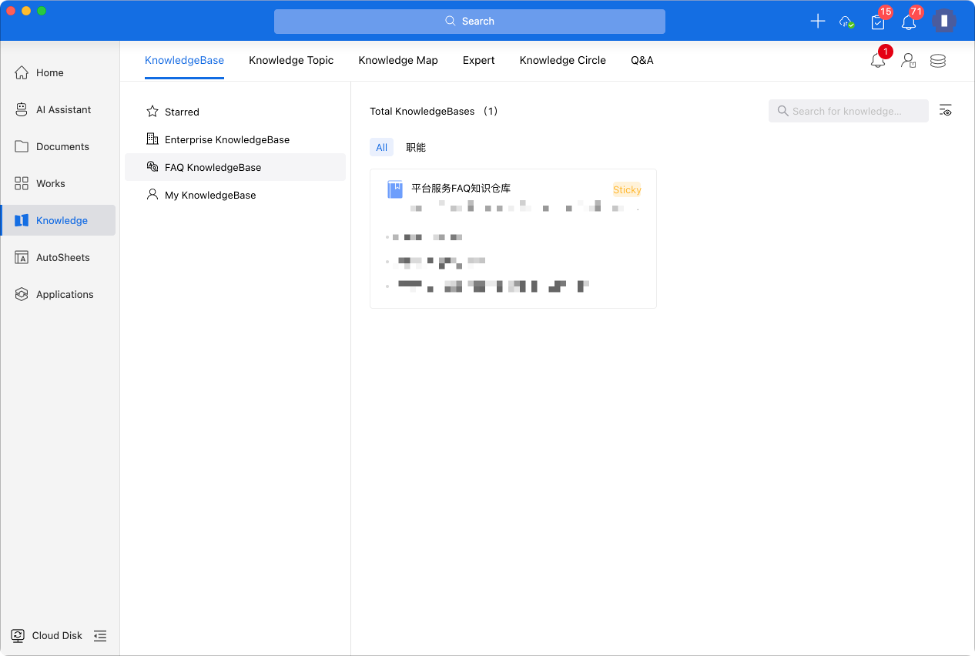
Access Knowledge > KnowledgeBase page and click [Create New KnowledgeBase] to enter the configuration interface, where Knowledge Administrators can establish and manage KnowledgeBase classifications as well as FAQ knowledge resources.

Click [New Classification] to organize FAQs or [New FAQ] to edit WikiDoc, where [Question Configuration] improves matching accuracy by adding similar queries.
Figure-Create a new FAQ KnowledgeBase
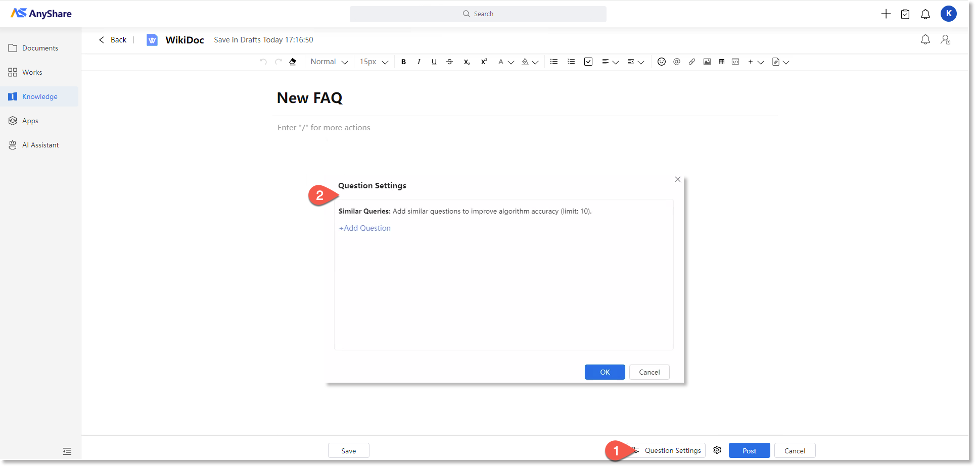
Selecting any classification in the knowledgebase directory displays all questions under that classification in the content area.
› Leverage FAQ KnowledgeBase for Intelligent Capabilities
1. Intelligent Q&A
Authorized users can designate FAQ KnowledgeBases as data sources when configuring AI assistants. AnyShare will answer user queries by matching against FAQ content and auto-cite the FAQ source in responses.
Figure-Configure FAQ KnowledgeBase as AI Assistant data source
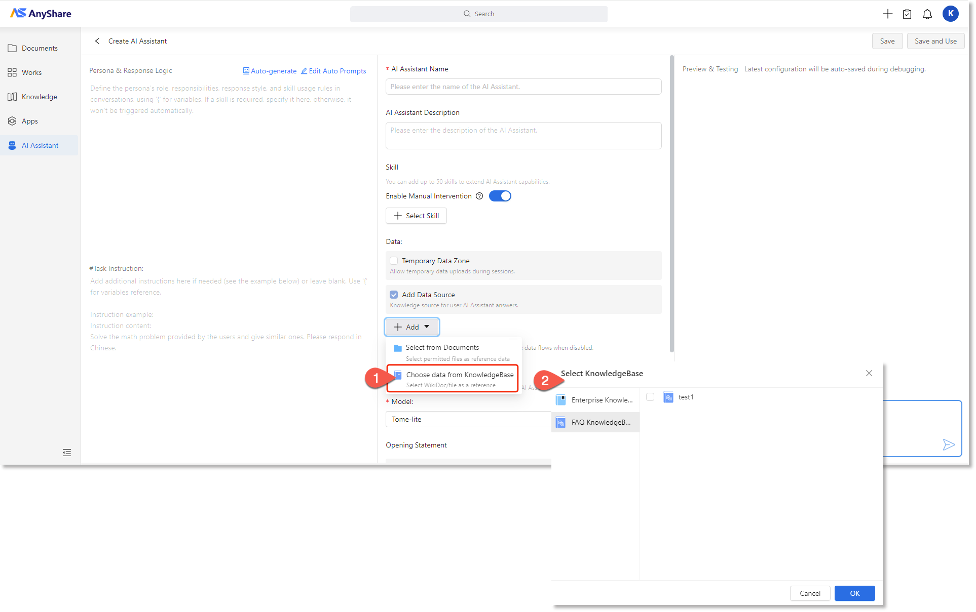
2. Global Search
FAQ resources automatically surface in search results when queries match FAQ KnowledgeBase, with answers directly pulled from verified FAQ knowledge.